
Get 50% OFF QuickBooks for 3 months*

Buy now
Switch to QuickBooks and 70% off for 3 Months
March 22, 2022
Question

migration to QBO stalls while preparing the files

  • March 22, 2022
  • 3 replies
  • 57 views

I have been using QBO Payroll for some time. I am trying to now migrate my QBD Pro files to QBO.

The process stalls at the "Preparing your file for the move." stage
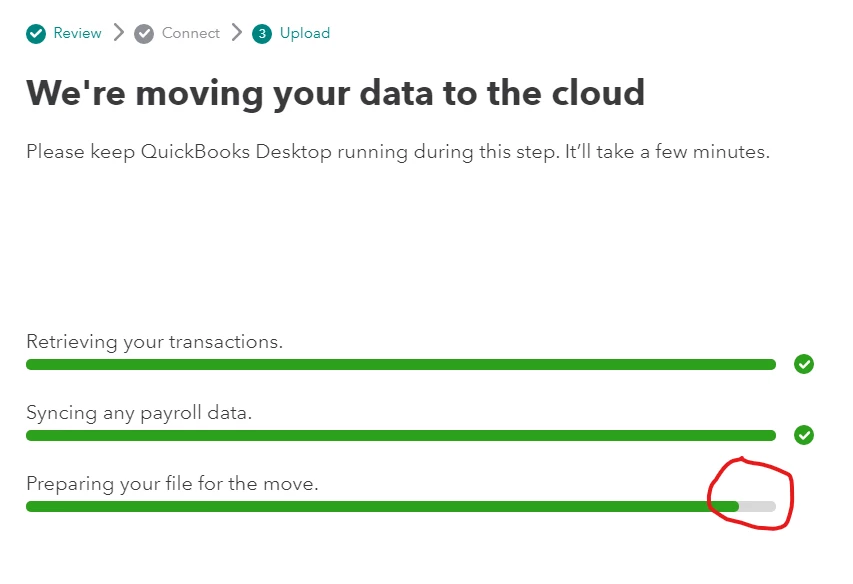
It has been stalled at this point for over 12 hours.

Any suggestions?

3 replies

Fiat Lux - ASIA
Level 14
March 22, 2022

Are you migrating data from QB Desktop US Pro to QB Online US version?

https:// quickbooks.grsm.io/US

https:// quickbooks.grsm.io/us-promo


Which QBD year version do you have? A supported one (i.e 2019-2022)

How many Total Targets do you have? Less than 350K? Hit ctrl+1 to open it


danavmAuthor
March 28, 2022

Thank you for the reply.

QBD Pro 2020 Rel R13P

Total Targets: 142,799

Any help appreciated.

MaryLandT
Level 10
March 28, 2022

Thank you for the details, danavm.


Let me help ensure you're able to migrate to QuickBooks Online (QBO).


The migration to QBO is approximately 30 minutes long. You'll want to maintain QuickBooks Desktop (QBDT) until the migration is complete.


Before moving data over, please know that your QBO company is still within the 60-day limit. If so, you can resolve this issue by rebuilding the data file and restarting the export process.


Here's how:


Step 1: Verify your company data


  1. In QuickBooks Desktop, select Window, then Close All to close all open windows.
  2. Select File, Utilities, then select Verify Data.

33


If QuickBooks reports a problem, continue to Step 2: Rebuild your company data to repair problems
below.


Step 2: Rebuild your company data to repair problems


  1. Select Window, then select Close All to close all open windows.
  2. Select File, go to Utilities, then select Rebuild data.
  3. If you see the message Rebuild has completed, continue to Step 3: Verify your rebuilt company data below.

34


Step 3: Verify your rebuilt company data


  1. Select Window, then Close All to close all open windows.
  2. Select File, then Utilities, then Verify Data.
  3. If you see the message QuickBooks detected no problems with your data, continue to Step 4: Start the export process again below.
     

Step 4: Start the export process again


  1. Update QuickBooks to the latest release: Select Help, then select Update QuickBooks.
  2. Close and reopen QuickBooks to install the updates.
  3. Select Company, then Export Company File to QuickBooks Online.
  4. Follow the onscreen instructions.


I'm adding this article as your guide: Move your QuickBooks Desktop file to QuickBooks Online. It also has related links to help ensure you know what to do after the migration.


If your account is already over 60-day upon sign-up, you may need to manually move the list to QuickBooks Online


If the file is still showing up as preparing after 30 mins, I recommend contacting our QuickBooks Desktop Live Team. They can help migrate the file for you.


Keep me posted if you have additional questions about the migration. I'll be right here to help you.


March 31, 2022

I'm having the exact same issue.  How did you solve it?

May 4, 2022

Hey, everyone!  I had this exact same issue several times, and after a couple of successful migrations mixed in with a ton that failed this exact same way, I *THINK* I know what fixed it for me. 


Background:


In my case, I have my QB Desktop files saved in DropBox.  It's commonly understood in the tech community that "databases" of any sort should "never" be stored in a file sync tool such as DropBox, OneDrive, Google Drive, etc... however, I've been doing it for years without issue.  I just have to cleanup "conflicted copies" every now and then, but overall, I've never had any database corruption as a result of storing my QBW in DropBox. 


Possible Resolution:


In any case, the couple times I got the migration to complete, I 1) freshly reboot my computer, 2) logged back in and let all my startup apps settle down, 3) PAUSED DropBox sync (you may have OneDrive), 4) opened QuickBooks & performed a data validation to ensure no errors, then 5) pressed F2 --> CTRL+B+Q --> OK to begin the migration.  Done this way, my QBW file with about 38k targets uploaded successfully in less than a minute and I received the e-mail confirmation from QuickBooks Online not much longer after. 


For anyone having issues, please confirm if your QBW file is saved in a file sync tool.  For example, Windows these days automatically moves your normal Documents folder to OneDrive for protection, but this means your QBW database is saved in a folder that is constantly being checked for changes which may be interfering with the migration process.  Unsure exactly why and if I'm even correct, but I'm curious to know if this helps anyone.


GOOD LUCK!!  --Matt

May 20, 2022

This did it for me!  Thanks for this!

Moderator
May 20, 2022

Thanks for updating us on this, SEckmann. 


We're glad to hear that you're able to isolate the issue using the steps shared above.


Also, you can always visit our Help articles page for reference. There, you can read some of our helpful articles that will guide you in your future tasks.


In case you need assistance or if you have additional questions about using the QuickBooks product, let me know. Our team is always around for you.