Get 50% OFF QuickBooks for 3 months*

Buy now
Switch to QuickBooks and 70% off for 3 Months
May 18, 2020
Solved

Quantity on Purchase Orders incorrect

  • May 18, 2020
  • 1 reply
  • 19 views

Hello,


I recently switched from Sage50 to QuickBooks Premier Desktop and have been adjusting the inventory. I already changed the inventory on hand to match what we have in the warehouse and closed any open purchase orders that were already received. However, when I run a report on our inventory stock status, all the products I have ever bought have that full amount as "On PO".

For example, a few days ago I ordered 35 of an item. Yet On PO shows I have 2,000 on purchase orders, which is not true. Others have 9,000, etc. I believe the system is using purchase order data from as far back as 2017, even though those purchase orders are all marked as Closed.


How can I change the PO quantity of products in order to reflect the correct amount?


Thank you!
Best answer by Charies_M

I'm glad to have you here, MargaDLS.


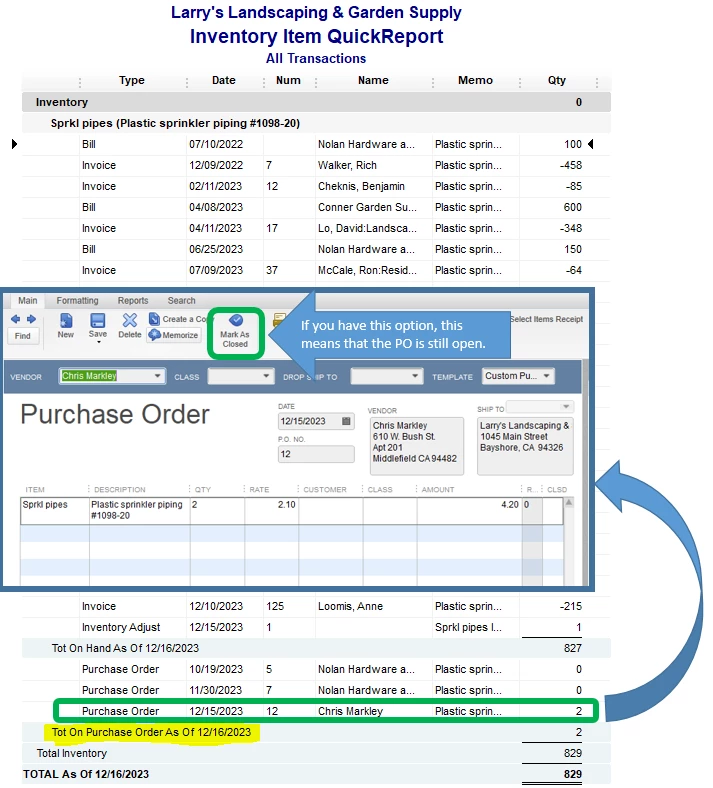
If you have run the Inventory Item QuickReport in QuickBooks Desktop, the On Purchase Order section shows all the open Purchase Orders (PO's) for a specific date.


I've attached a sample screenshot so you'll know what I'm referring to:

In your case, since it's showing PO's that were marked as closed, then it can be a sign of a damaged data.


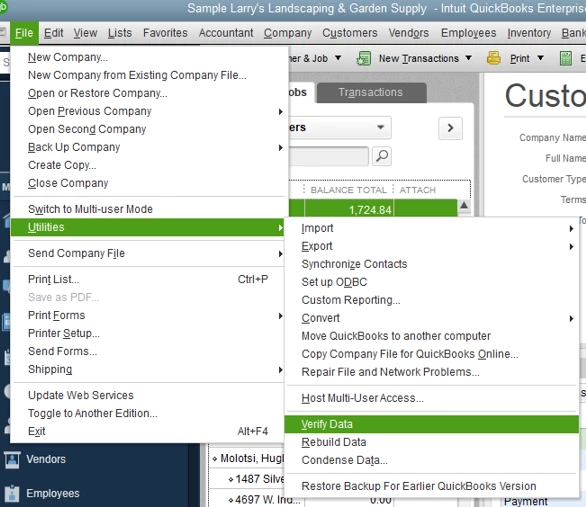
To fix this, we can run a Verify and Rebuild Utility Tool to your company file. This helps repair any data damage in the system. Below are the steps on how to do this:


  1. From the File menu.
  2. Click on Utilities.
  3. Select Rebuild Data/ Verify Data.


Let me share this guide on how to adjust an inventory quantity in QuickBooks Desktop: Adjust your inventory quantity or value in QuickBooks Desktop.


I'm always here whenever you need help or if you have follow-up questions. Stay safe and enjoy the rest of the day!

1 reply

Charies_MAnswer
Level 9
May 18, 2020

I'm glad to have you here, MargaDLS.


If you have run the Inventory Item QuickReport in QuickBooks Desktop, the On Purchase Order section shows all the open Purchase Orders (PO's) for a specific date.


I've attached a sample screenshot so you'll know what I'm referring to:

In your case, since it's showing PO's that were marked as closed, then it can be a sign of a damaged data.


To fix this, we can run a Verify and Rebuild Utility Tool to your company file. This helps repair any data damage in the system. Below are the steps on how to do this:


  1. From the File menu.
  2. Click on Utilities.
  3. Select Rebuild Data/ Verify Data.


Let me share this guide on how to adjust an inventory quantity in QuickBooks Desktop: Adjust your inventory quantity or value in QuickBooks Desktop.


I'm always here whenever you need help or if you have follow-up questions. Stay safe and enjoy the rest of the day!

August 12, 2022

How do correct the "on orde" count in QB's online?

Level 8
February 23, 2023

In desktop, a PO was created but an item was missed. The PO was received with the bill. The missing item was then added to the bill, saved and the PO opened and the missing item added and saved. Item shows in inventory, bill total is correct, but PO shows 0 item for that item. I tried closing it with a check mark and it closed but stayed at 0 quantity. There are 12 items received, how do I get the PO to show 12 items instead of 0?


Hello, SheilaLa.


I want to make sure that the correct quantity is reflected on your purchase order. 


This happens when a PO is added with a line item not linked to the bill. 


So, even though you've mirrored all the items on the PO with the bill, the quantity amount (for the newly added line item) would still show as zero because there's no link for both transactions. 


There are two ways to fix this. 


We would want to delete and recreate both the PO and the bill, then add the items to properly link both transactions together. 


Simply open the bill, then click on Delete. Do the same for the PO. 


Then, recreate both transactions by receiving a PO with the bill. The quantity or the RCVD column should now reflect the proper amount as seen here: 


Another way is to leave the PO as is, then create another bill for the missing items. Since you mentioned that you closed the PO with a checkmark for the missing items, we would want to remove it, then save the PO.


Next, let's create a bill by clicking on Vendors, then selecting Enter Bills.


When you select the vendor's name, a prompt appears that an open PO is available. Simply check it to add the missing items. Then, proceed with the creation of the second bill.


The PO should now reflect the proper quantity received:


If you'd like to track your POs, bills, and other transactions, we can run reports to achieve. If you need help running them in the future, I'll include this article: Understand reports


You can always drop by if you have more questions about managing your purchase orders and bills. If you need to take care of other entries, let me know and I'll gladly help you again.