
Get 50% OFF QuickBooks for 3 months*

Buy now
Switch to QuickBooks and 70% off for 3 Months
February 2, 2022
Question

Vendor Refund

  • February 2, 2022
  • 8 replies
  • 10 views

I'd like to record a vendor refund in Quickbooks Desktop For Mac, 2019, using scenario 1 described in the instruction here:

https://quickbooks.intuit.com/learn-support/en-us/help-article/vendor-management/record-vendor-refund-quickbooks-desktop/L5CAplhmk_US_en_US


I have done steps 1 and 2.  I'm stuck on step 3c, 'Select Set Credits and apply the Bill Credit', because there is no option to set credits in the pay bills screen.
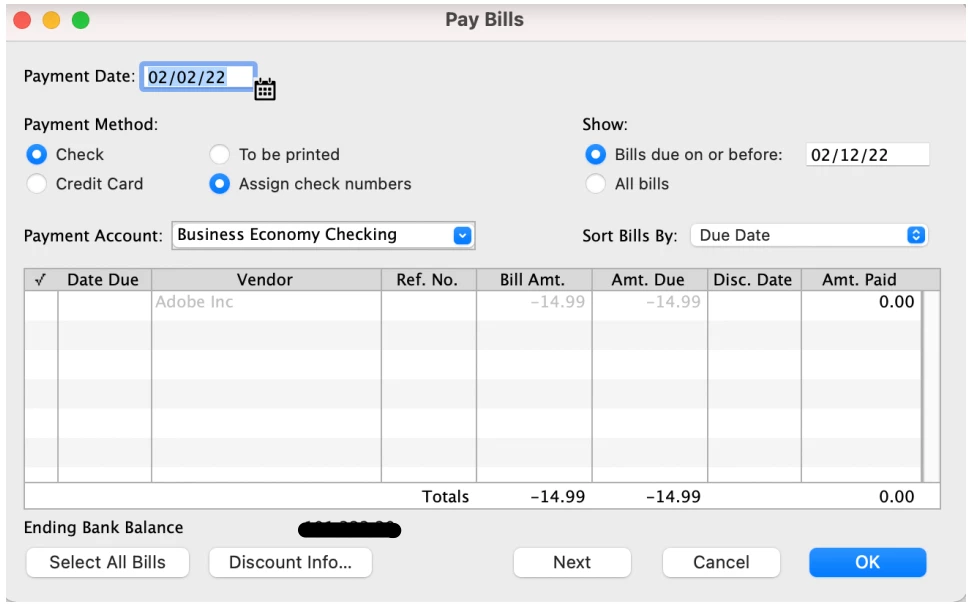
Where can I find the 'set credits' option is Quickbooks Desktop for Mac?

8 replies

Level 9
February 2, 2022

Hello @tandy1000, I'll help record a vendor refund.


In QuickBooks Desktop for Mac, the refund or credit created is linked to the vendor's profile and can be found in the discount section. Therefore, we'll have to click the Discount Info button and select Credits to see the vendor refund recorded.


I'll add the article you shared to continue following the rest of the steps needed to record and apply the refund: Record a Vendor Refund in QuickBooks Desktop for Mac.


I've also got you this reference for a compilation of articles to use while working with vendor bills and credits: QuickBooks Desktop for Mac - Vendors and Expenses.


If there's anything else that I can help you with aside from recording a vendor refund, please let me know by leaving a comment using the Reply option below. I'll be here to lend a hand. Take care always!

tandy1000Author
February 2, 2022

When I click the "Discount Info" button, I get a warning that says "You can only discount bills."  There's no credit option.

Rose-A
Level 10
July 28, 2022

If I follow your directions regarding vendor refund on a debit card, I see no place to deduct this from the customer:job expense in QB desktop.   Thanks.  


Thanks for joining this thread, JoAnnARS. Let's get your customer: job expense refunded in QuickBooks Desktop.


We can use the Create Credit Memos/Refunds option to compensate the customer: job's debit card. Here's how:


  1. Click Customers at the top menu bar and choose to Create Credit Memos/Refunds.
  2. Choose the Customer: Job name and enter the necessary information.
  3. On the upper-right, click Use credit to give refund.
  4. Select Debit Card to issue the refund.
  5. Hit OK.


We can go through this article: Give your customer a credit or refund in QuickBooks Desktop for Windows. This will provide us with more ways in handling credits and refunds in QuickBooks.


In case we're refunding a credit card, the following write-up might come in handy: Void or refund customer payments in QuickBooks Desktop. We can find more information regarding how many days the customer gets their money back.


Feel free to let me know if you still need help with the refunding process. I'm always here to keep helping, JoAnnARS.