Get 50% OFF QuickBooks for 3 months*

Buy now
Switch to QuickBooks and 70% off for 3 Months
Legacy_Brittany
October 24, 2018
Solved

Quickbooks desktop changes customer terms every time I change the invoice date. How do I keep it from automatically changing their terms and automatically changing it to the proper due date? Example, Net 30.

  • October 24, 2018
  • 19 replies
  • 63 views

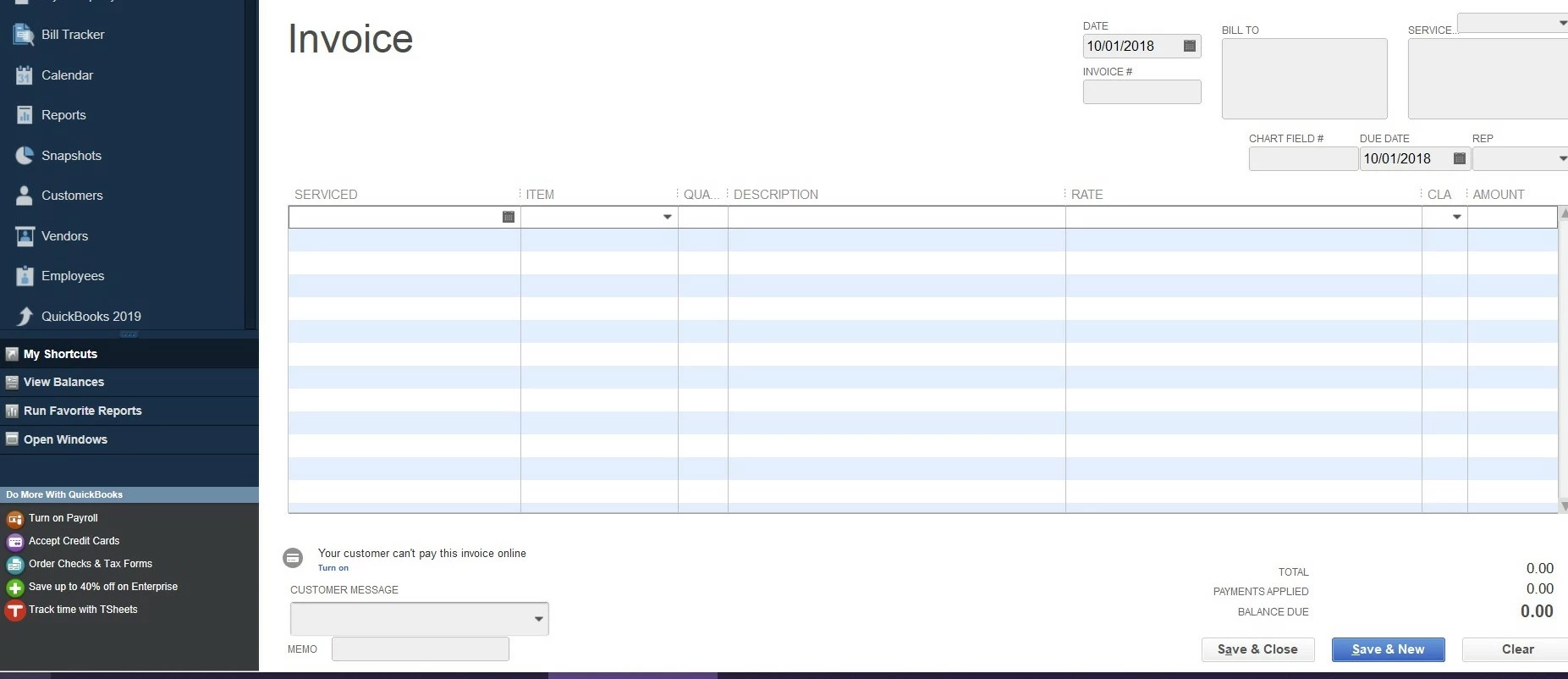
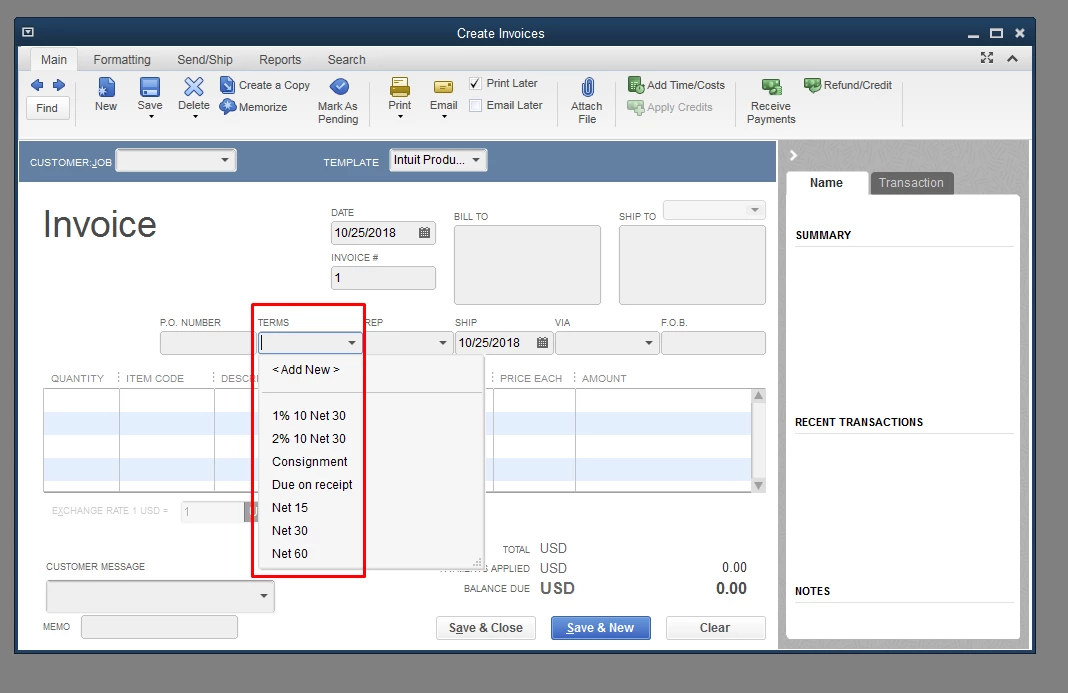
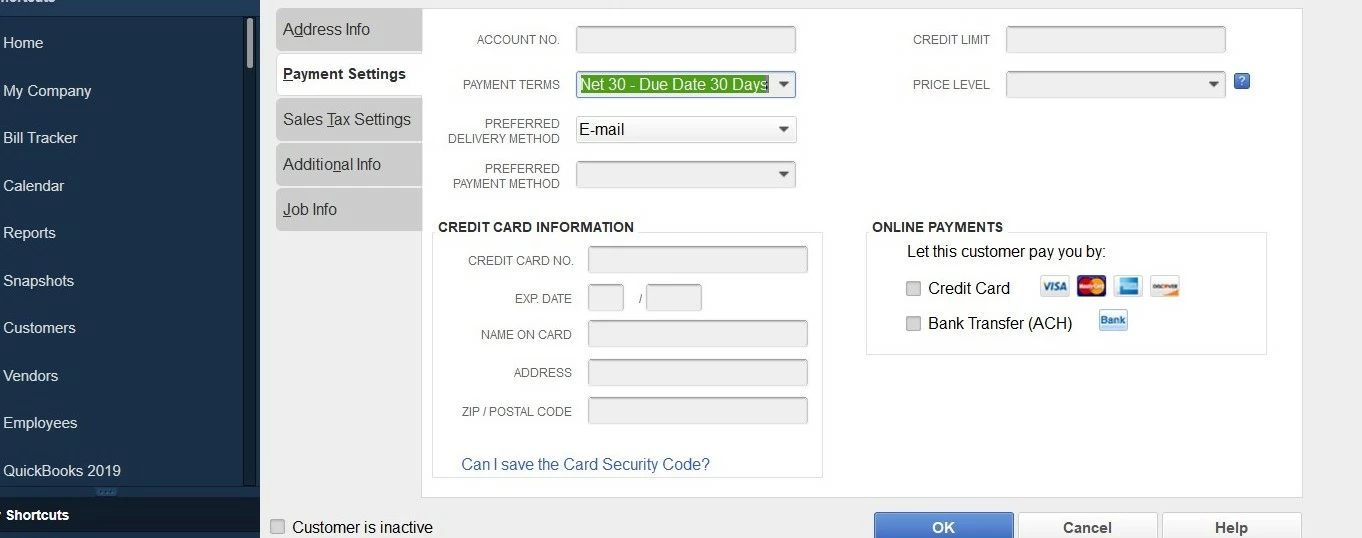
Quickbooks desktop changes customer terms every time I change the invoice date. How do I keep it from automatically changing their terms and automatically changing it to the proper due date? Example, Net 30. This customer is Net 30, but when I go to make a new invoice for them the invoice date is still used as the due date, then if I complete the invoice and save it, if I go back to the customer card than the payment terms will be defaulted back to no terms.


Example: 
Best answer by Rose-A

Good day, Legacy_Brittany.


You've come to the right place for help with invoices. I'd be happy to help give you more information on the payment terms and get you back to your business.


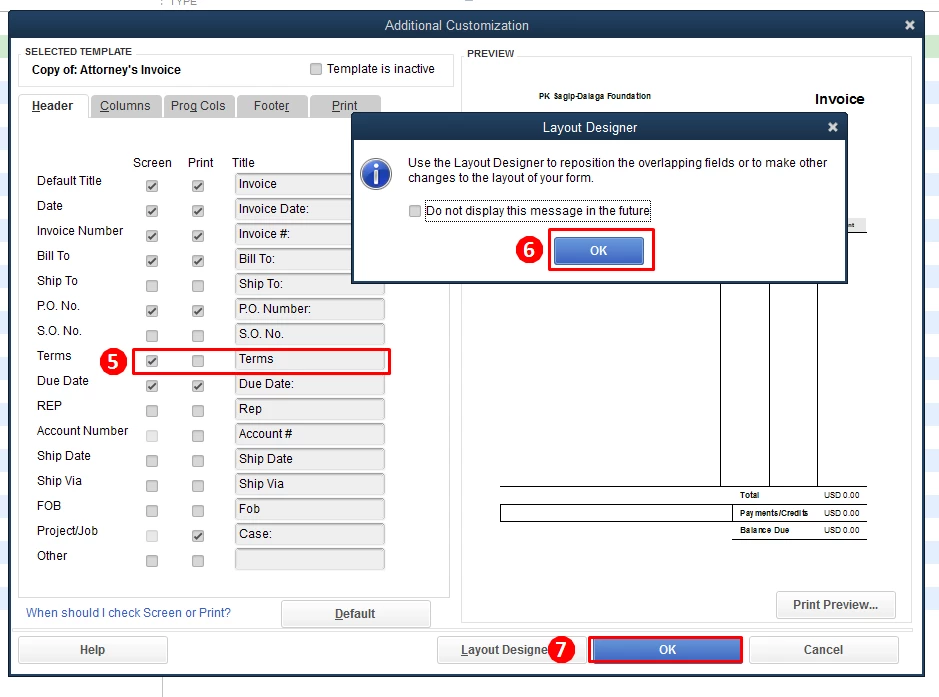
In order to set up your payment terms for invoices, you'll need to turn on this feature in the invoice template settings.


Here's how:


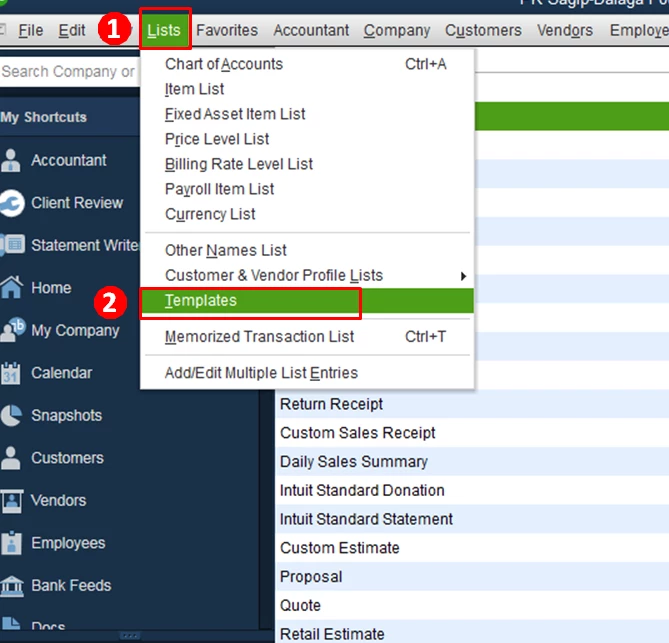
  1. Click List on the top menu bar.
  2. On the drop-down list, click Templates.
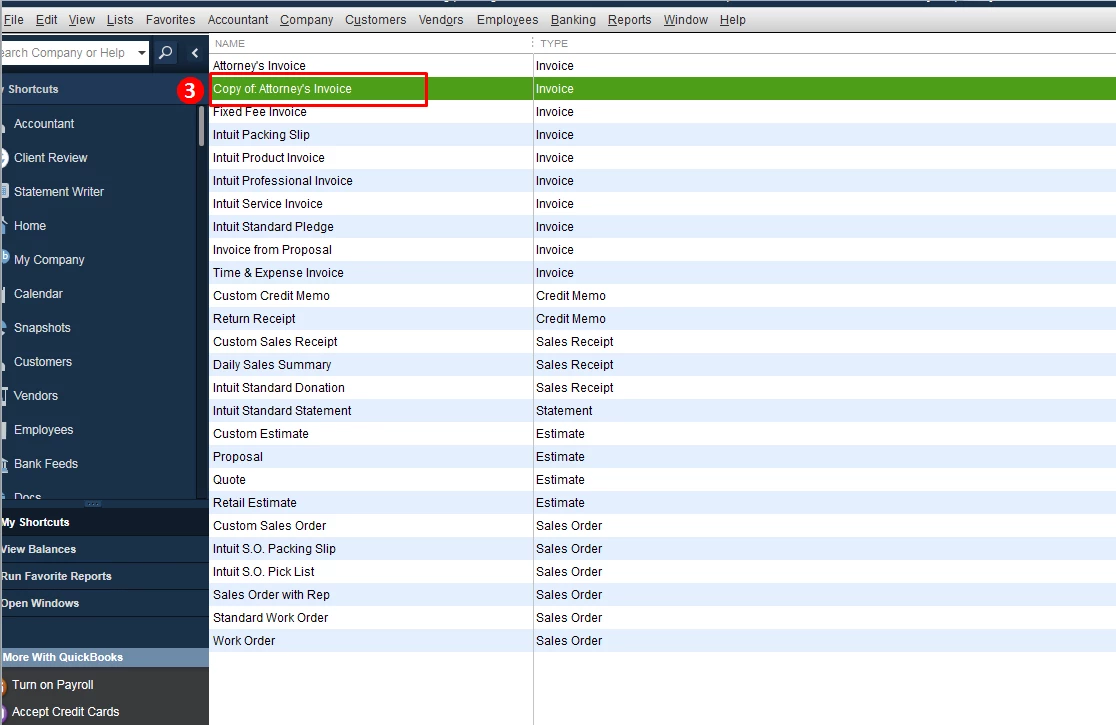
  3. Double-click the invoice template,
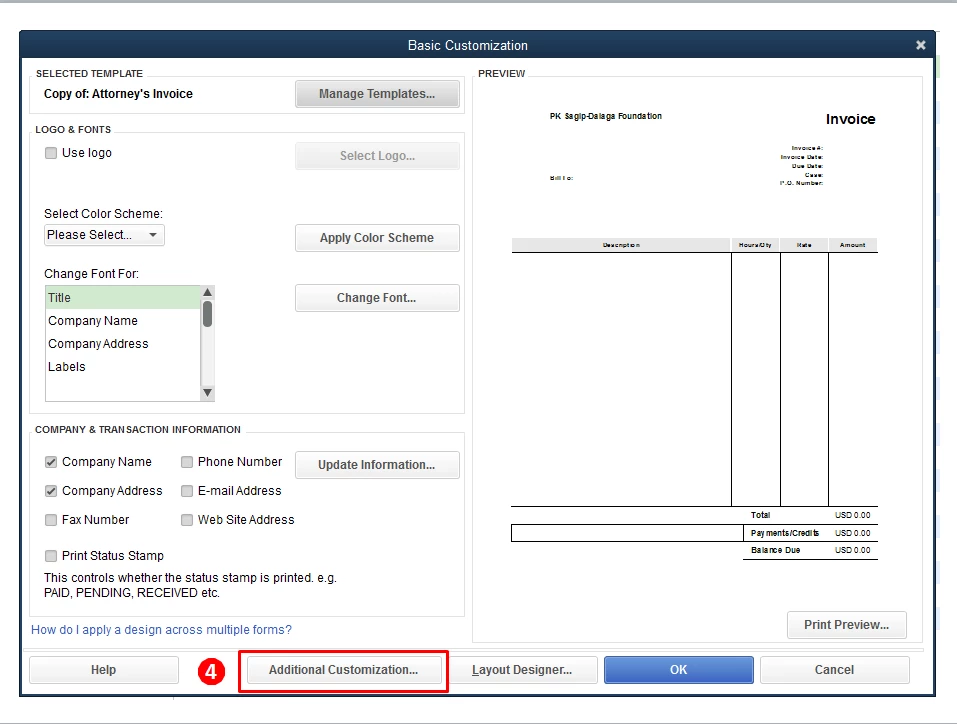
  4. Click Additional Customization at the bottom.
  5. Put a check mark under Screen for Terms.
  6. Hit OK.
  7. Click OK again.

I've attached screenshots to guide you through the steps.

You can always get back to me if there's anything else you need. Have a great day!

19 replies

Rose-A
Rose-AAnswer
Level 10
October 24, 2018

Good day, Legacy_Brittany.


You've come to the right place for help with invoices. I'd be happy to help give you more information on the payment terms and get you back to your business.


In order to set up your payment terms for invoices, you'll need to turn on this feature in the invoice template settings.


Here's how:


  1. Click List on the top menu bar.
  2. On the drop-down list, click Templates.
  3. Double-click the invoice template,
  4. Click Additional Customization at the bottom.
  5. Put a check mark under Screen for Terms.
  6. Hit OK.
  7. Click OK again.

I've attached screenshots to guide you through the steps.

You can always get back to me if there's anything else you need. Have a great day!

Legacy_Brittany
October 24, 2018

That definitely works!

However, if you "create a copy" of an invoice instead of creating a new invoice than it will return the due date to the invoice date and remove the terms from the customer card upon saving the invoice. It's silly to be irritated with it, but its just an unnecessary step to have to do.


Level 9
June 24, 2019

I have the same problem and it is very irritating.  If I don't check my terms list every day at least one of my customers will get a past due invoice when they should have Net 30 terms.  It doesn't look like this thread solved the issue, or did I miss it?


Hello there, MMiller22.


I appreciate you for sharing your experience with us. Let me bring clarifications about invoice terms in QuickBooks Desktop.


I've replicated this on my end and wasn't able to get the same result. Let's check if it's a data issue by running the Verify Data Utility tool. This helps resolve unexpected behavior like this.


Below are the steps on how to do it:

  1. Click File.
  2. Click Utilities.
  3. Click Verify Data.
  4. When prompted with error, click Rebuild Now.

Or you can follow these steps to rebuild your data:

  1. Click File.
  2. Click Utilities.
  3. Click Rebuild Data.

Once done, try checking your the bank account number again and see how it works.


For more detailed instructions, I’d recommend checking this article: Resolve data damage on your company file.


Let me know if you've got the chance to try the steps above and how it works. I'm always here if you need more help.