
Turn on suggestions
Auto-suggest helps you quickly narrow down your search results by suggesting possible matches as you type.
Showing results for
Get 50% OFF QuickBooks for 3 months*
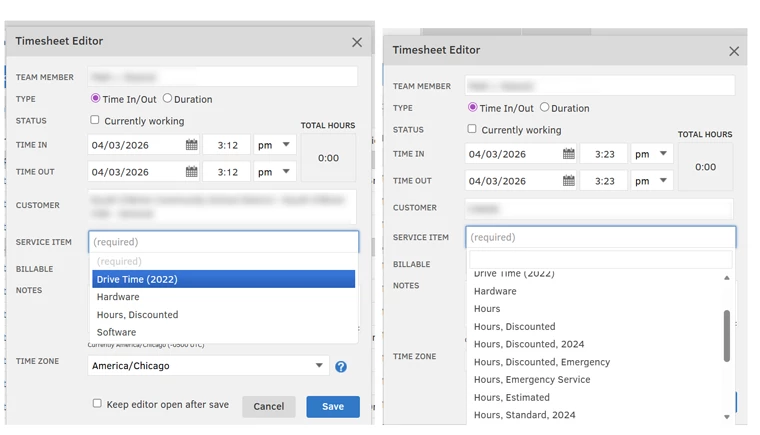
Buy nowI had previously configured Service Items on a per-customer basis so the techs don't have to select which hourly labor rate the customer receives. See the screenshot below with the customer on the left only seeing (4) service items available, and the one on the right showing all service items.
Since the latest updates, I can no longer find the option to assign these.
Does anyone have specific instructions on where I can access the setting to assign the service items on a per-customer basis for timesheets?
Solved! Go to Solution.
Hello there, Beemer. To manage which service items appear for specific customers, you can adjust the assignments directly within the Customer menu.
Go to Customers and select the specific customer you want to manage. Click Custom Fields and check the Service Item box, then select All Items. Use the right arrow to assign items to that customer and the left arrow to unassign them then click Save.
Once finished, your service items will be filtered specifically for that customer.
If you have any additional concerns, please reach out to us again. We’re always here to help.
Hi Beemer, is the Automatic import from QuickBooks option enabled in your QuickBooks Time settings? If not, have you already manually synced those changes from QuickBooks Online? If you haven't enabled the automatic import yet, I recommend turning it on. This ensures that any future changes made in QuickBooks will automatically reflect in QuickBooks Time.
You can do this by going to the QuickBooks icon > Preferences. From there, tick the Service Items in the Automatic import from QuickBooks section.
In the meantime, you can manually sync your service item updates by clicking Import in the QuickBooks icon. Once done, you can now assign the items to each customer.
If you have follow-up questions, let us know in the comments below.
Automatic sync is on, because new customers automatically appear in QuickBooks Time. How do I manage which service items appear for those customers, specifically?
Hello there, Beemer. To manage which service items appear for specific customers, you can adjust the assignments directly within the Customer menu.
Go to Customers and select the specific customer you want to manage. Click Custom Fields and check the Service Item box, then select All Items. Use the right arrow to assign items to that customer and the left arrow to unassign them then click Save.
Once finished, your service items will be filtered specifically for that customer.
If you have any additional concerns, please reach out to us again. We’re always here to help.
Thank you, I believe that solved the problem.
I'm glad to see you received the answer you were looking for, Beemer. The Community is always here to lend a hand if you ever need assistance again in the future. Take care!
You have clicked a link to a site outside of the QuickBooks or ProFile Communities. By clicking "Continue", you will leave the community and be taken to that site instead.
For more information visit our Security Center or to report suspicious websites you can contact us here