
Get 50% OFF QuickBooks for 3 months*

Buy now
Switch to QuickBooks and 70% off for 3 Months
June 18, 2020
Solved

Audit trail

  • June 18, 2020
  • 1 reply
  • 2 views

Is there a way to find out the date that an item was deleted from Quickbooks?  The audit trail shows that the item was deleted, but not the date.  I need to know whether the item was deleted in 2019 or in 2020.

Best answer by Angelyn_T

Thank you for getting back to us here on the Community page, @marjmccann2.


I'm glad to share the steps on how you can customize the report to see when was the transaction deleted. To check for this information, you can add the Entered/Last Modified column on the Audit Trail report. 


Here's how:
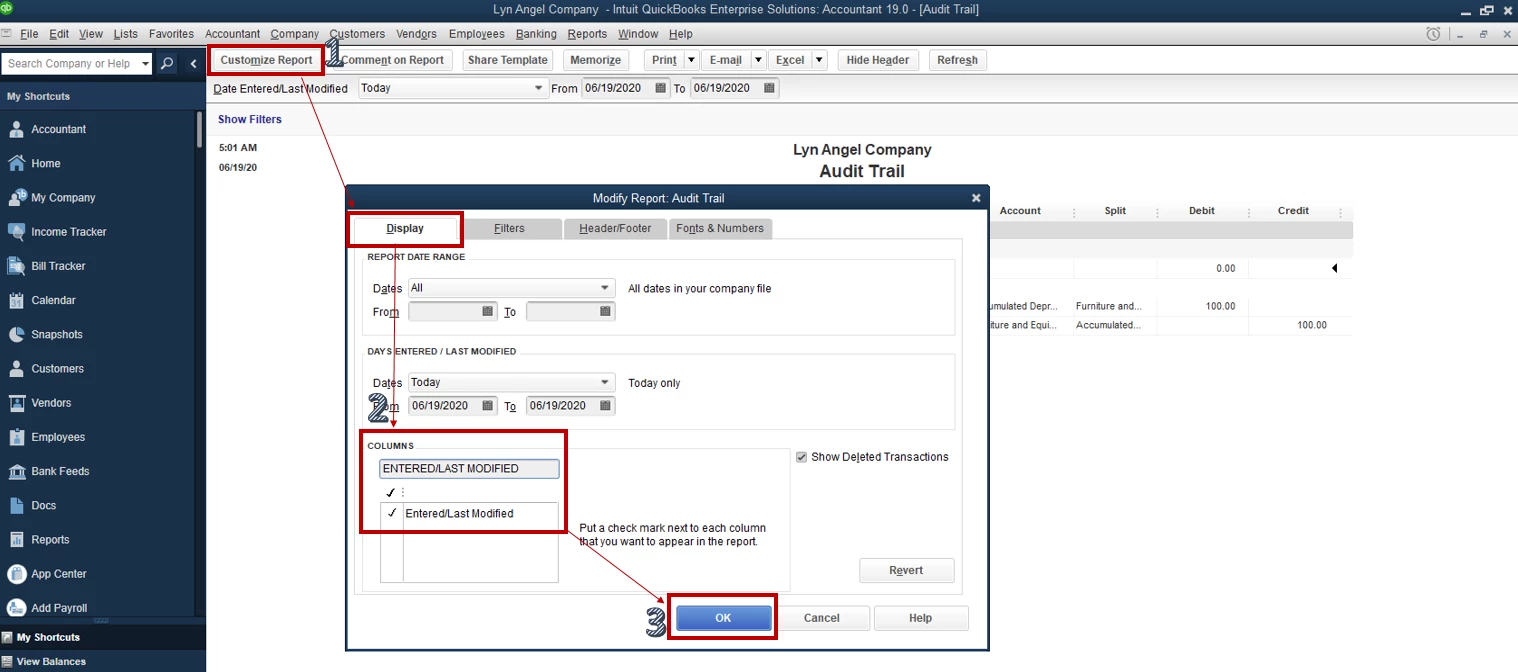
 

  1. From the report's page, click go to the Customize Report button beside Comment on Report.
  2. Click on Display and put check-mark beside Entered/Last Modified under Columns.
  3. Tap OK to record the customization.


For more information about running and customizing reports in QuickBooks Desktop, check out this article: Understand Reports.


Add a comment below if you have additional concerns. I'm here to keep helping. Have a great day!

1 reply

Level 8
June 18, 2020

I'll share some insights about how the Audit Trail report works in QuickBooks, marjmccann2.


This report tracks all the additions, deletions, and modifications made to transactions in your data file. Please take note that the Audit Trail is a transaction-based report. We're unable to track the changes made to your items and transactions that do not impact their accounting integrity.


When a transaction is modified or deleted, the change displays directly under the transaction heading. If a transaction is modified more than once, a prior entry for each change displays under the same transaction heading.


Although the report is sorted within the heading group by the date the original transaction was created, multiple changes to the same transaction are sorted by date of occurrence.
 

The information about a transaction that is tracked to determine whether it should be included in this report is:


  • Transaction Date

  • Document Number

  • Payment Terms

  • Sales Rep

  • Shipping Date

  • Modifying User

  • Account

  • Class

  • Associated name

  • Amount

  • Quantity

  • Unit Price

  • Item

  • Payment Method

  • Due Date

  • Whether the line item represents a discount or not

  • Reconciliation status

  • Posting status

  • Billed Date

  • Transaction Type

With QuickBooks Desktop, we can also design and personalize your reports to fit your business needs using the Customize feature.


If there's anything else that I can help you with, please don't hesitate to insert a comment below. Stay safe and have a pleasant day ahead.

June 18, 2020

Understood - but the entry when an item is deleted says ONLY that it was deleted - I need to know the date that deletion was performed.  Nothing in the Customization list of filters includes the date of the action in the audit trail - the date the action took place.  The list of filters includes transaction type, but not transaction date - 

Angelyn_T
Angelyn_TModeratorAnswer
Moderator
June 18, 2020

Thank you for getting back to us here on the Community page, @marjmccann2.


I'm glad to share the steps on how you can customize the report to see when was the transaction deleted. To check for this information, you can add the Entered/Last Modified column on the Audit Trail report. 


Here's how:
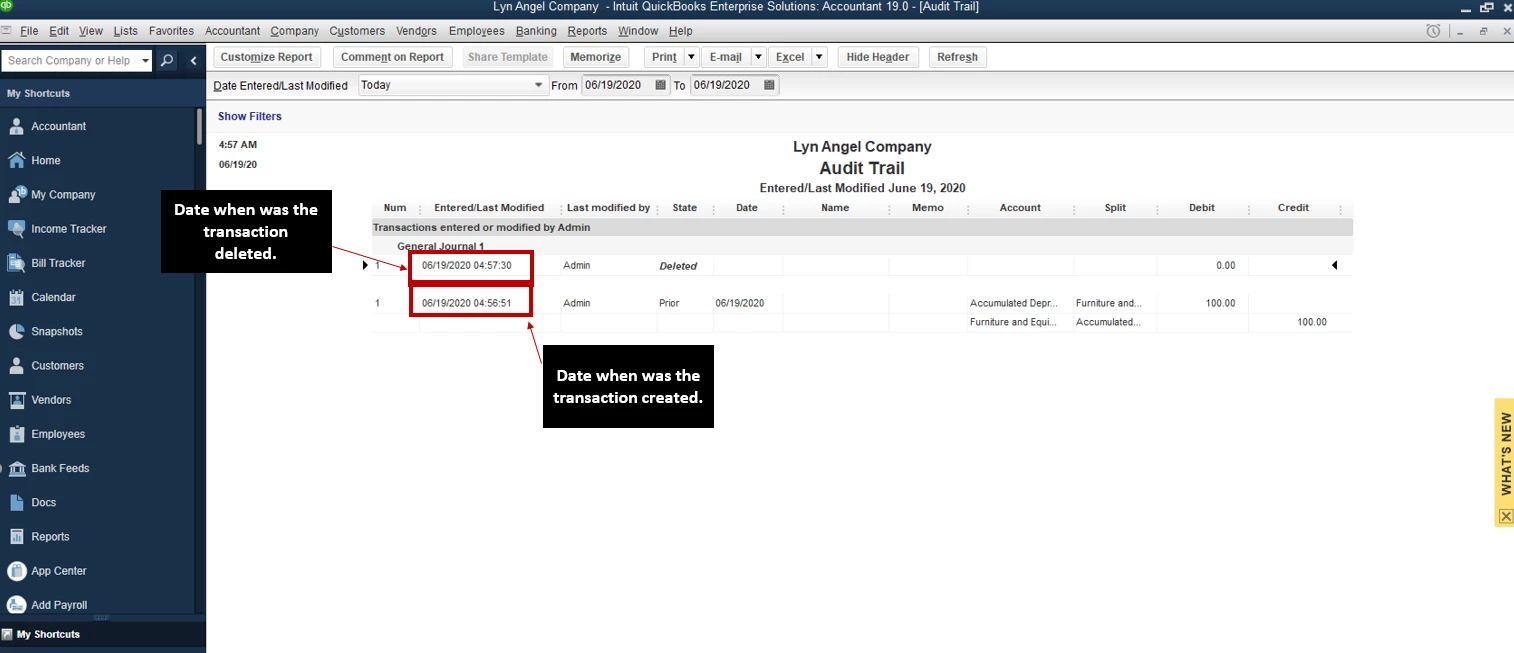
 

  1. From the report's page, click go to the Customize Report button beside Comment on Report.
  2. Click on Display and put check-mark beside Entered/Last Modified under Columns.
  3. Tap OK to record the customization.


For more information about running and customizing reports in QuickBooks Desktop, check out this article: Understand Reports.


Add a comment below if you have additional concerns. I'm here to keep helping. Have a great day!