Solved
Customer Statements
- November 5, 2023
- 2 replies
- 0 views

I just wanted to thank you for all of your help anyway. I am amazed at the levels of expertise of this community.
Based on your screenshot showing the AR account on the Create Statements window, you do have more than one A/R account.
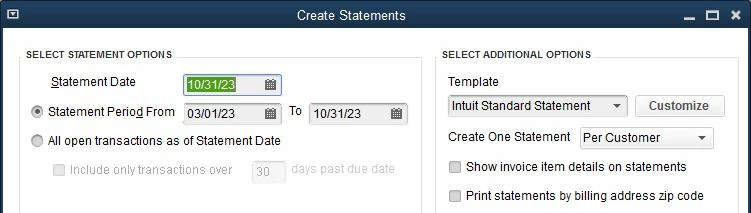
When there is only one A/R account, the Create Statements window looks like this:
When there is more than one A/R account, then QuickBooks adds the Account field so you can pick:
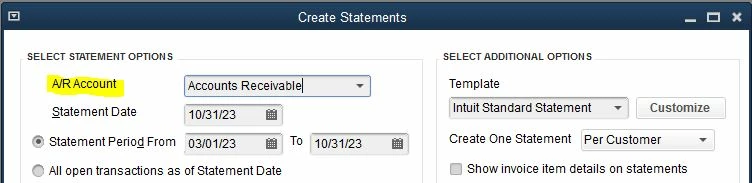
And - important! - the window picks whatever AR account it finds first on your chart of account, even if the first account is inactive/hidden.
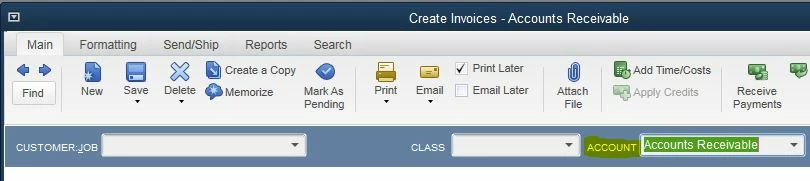
QuickBooks does the same thing on other windows like invoices. If you see an Account field at the top of your invoices or credit memos or on your receive payments window, that also means you have more than one A/R account:
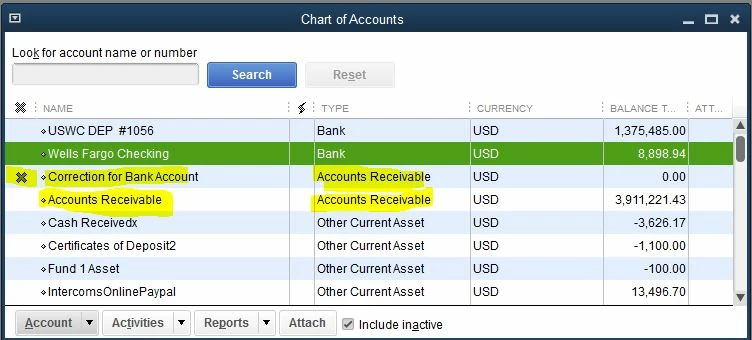
I suspect that if you open your chart of accounts and pick Show Inactive Accounts from the Account button, then you'll see the additional A/R account, like this, with an X next to it:
If the accounts don't appear together by type as above, but all jumbled like below, then click the little diamond thing at the top of the list next to the Name label, which returns the list to its natural order by account type:
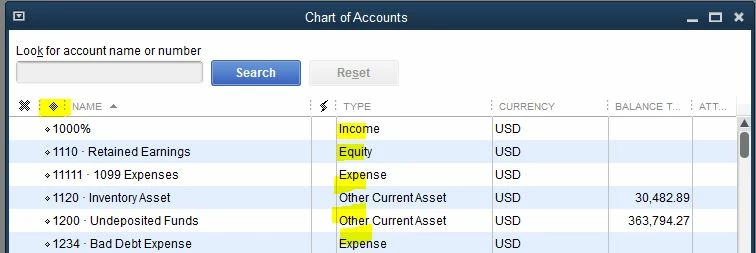
Also, normally an A/R account named "Accounts Receivable" would appear first before "Correction for Bank Account"- because the COAs is - by default - auto-sorted by account name within each account type. But that isn't happening in your case. I suspect this is because your list is in "custom sort" order.
So, to make your "Accounts Receivable" account appear first - so that it will appear by default when creating statements - you can do one of three things:
1 - Delete the unwanted AR account. - You can only do this if the account isn't actually used on a transaction.
2 - Return the entire Chart of Accounts to auto-sorted order: Do this by picking Re-sort List from the Account button at the bottom of the Chart of Accounts.
3 - With your mouse, click and hold the little diamond next to the the "Accounts Receivable" account and drag it above the "Correction for Bank Account" and then let go.
When you get done with steps two or three, the A/R accounts should look like this, with the "Accounts Receivable" account listed first:
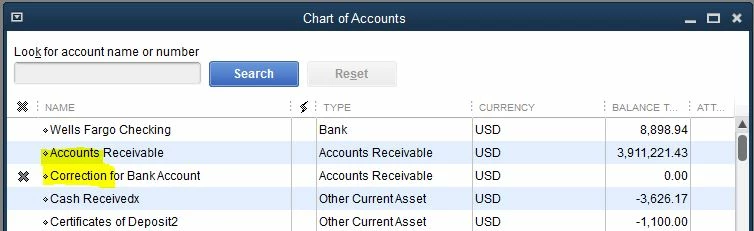
And if so, then the Create Statement window will pick the first account it finds, now the "Accounts Receivable" account.
Hope this helps!
Enter your E-mail address. We'll send you an e-mail with instructions to reset your password.