
Get 50% OFF QuickBooks for 3 months*

Buy now
Switch to QuickBooks and 70% off for 3 Months
February 27, 2023
Solved

How do I split a downloaded transaction between both an invoice and a category?

  • February 27, 2023
  • 1 reply
  • 10 views
I have a $600 Deposit.  I want $400 to go into a category, and $200 into an invoice. QBO won't let me, surely there is a work around?
Best answer by jamespaul

you have NOT answered my question. In addition,  what are stripe fees,  how are they relevant to my question.  PLEASE answer my 2 question,  they are very straight forward.


Hello, Kirkk. 


We're going off a tangent here. I'd like to help us get back on track, and I'll also clarify the details given by KurtKyle_M in splitting the downloaded bank transaction. 


There are two ways to do this. First, let's take a look at KurtKyle_M's reply. 


It looks like they want us to create a payment for the invoice first, then use the Bank deposit function to create a split between the invoice payment and the category. 


First, create an invoice payment: 
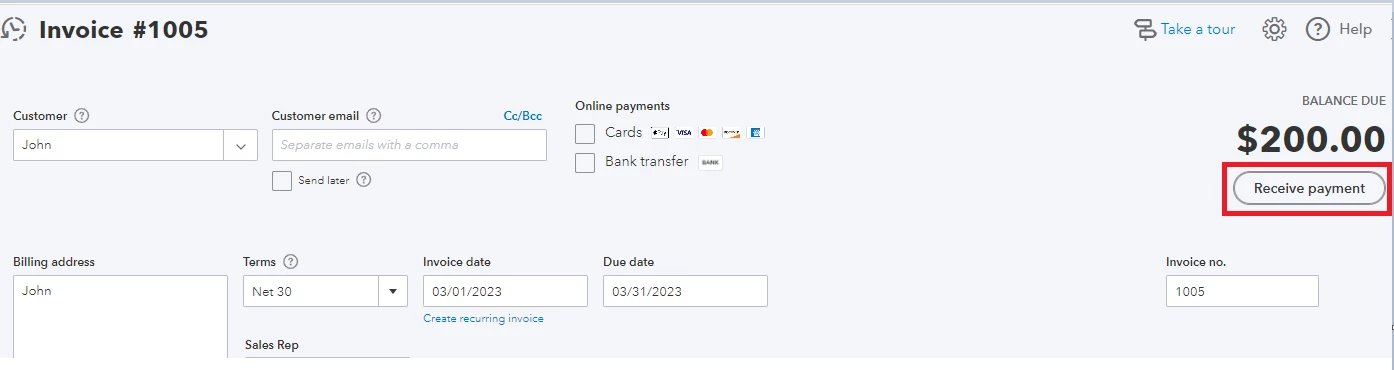
 

  1. Open the $200 invoice, then click Receive payment
  2. Set the correct Payment date
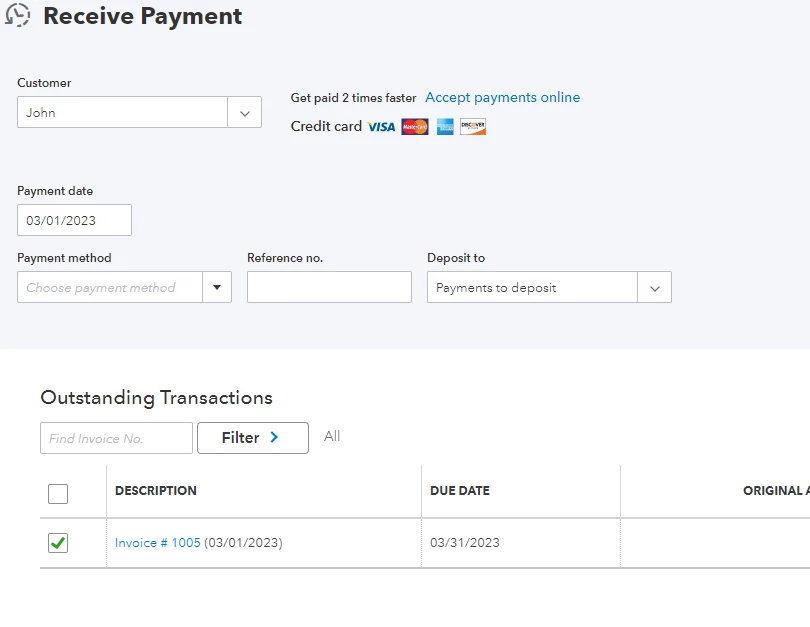
  3. Under Deposit to, select the Undeposited funds account or the Payments to deposit account. This is important since we're going to make the split on the Bank deposit screen later on. 
  4. Check the invoice, then add any other information such as a reference number or a memo. 
  5. Once done, click Save and close


The Receive Payment screen would look similar to this: 


Now, let's use the Bank deposit feature to create the split:


  1. Click the + New button, then select Bank deposit.
  2. Select the correct bank account under Account, then set the Date of the deposit. 
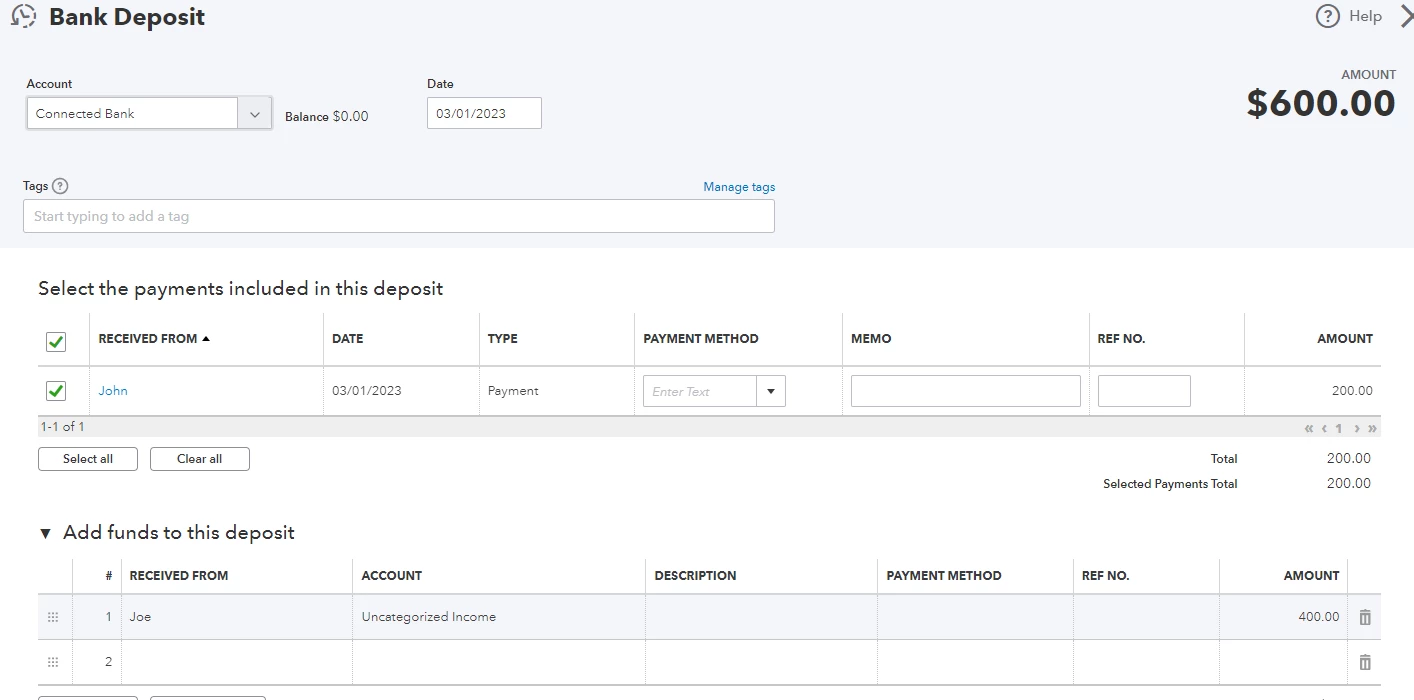
  3. Under Select the payments included in this deposit, check the invoice payment we created. 
  4. Under Add funds to this deposit, select the category or account where you want to post the $400 split under the Account column.
  5. If needed, select the customer profile under Received From.
  6. Add any other information such as the Description, Payment Method, or Memo
  7. Once done, hit Save and close


The Bank Deposit screen would look similar to this: 


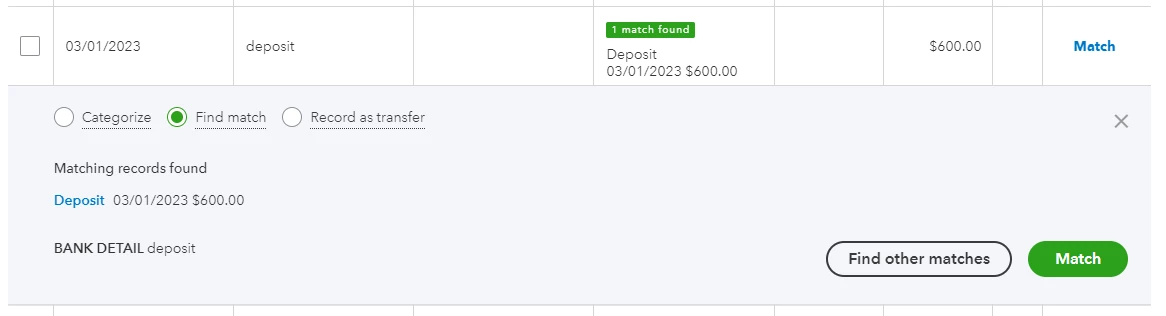
Finally, let's deal with the downloaded bank deposit of $600. The idea here is to match it with the deposit we created. Here are the steps: 
 

  1. Go to the Banking page, then select the box for your connected account (where we recorded the payments and deposit). 
  2. Find the downloaded transaction. Normally, QuickBooks would automatically mark the entry as a match to the deposit we created. 
  3. Review the entry, then click Match


Another way to do this is to use the Split function on the Banking page. Personally, I like doing this option since this involves less navigation. 


We don't have to create a bank deposit using this method. We're going to use the Banking page to create a split for the category and the invoice payment. 


Here are the steps: 
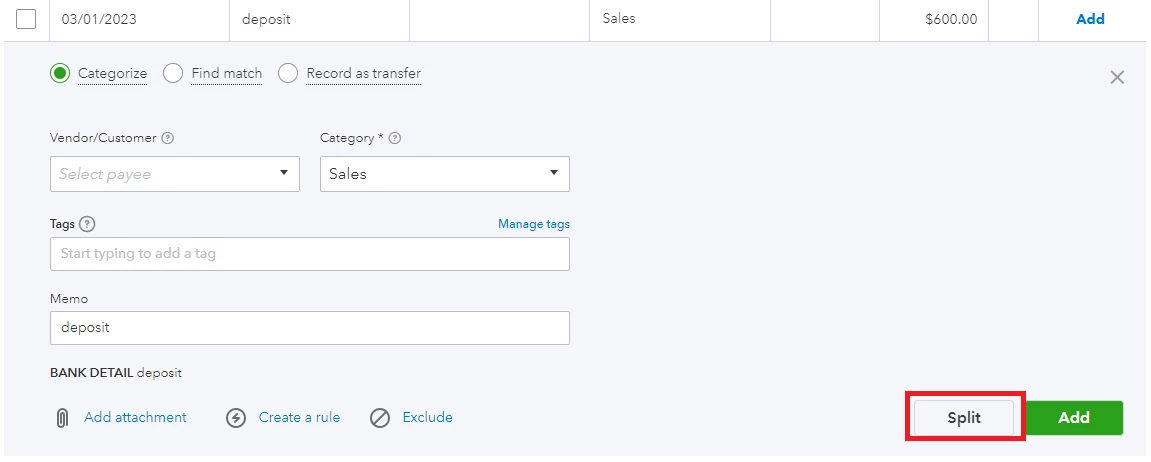
 

  1. Go to the Banking page, then locate the $600 bank deposit.
  2. Click the Split button.
  3. Under the Received From column, select the customer on the first line (where you recorded the $200 invoice). 
  4. On the first line again, select the Accounts Receivable account, then enter the amount of $200 under Amount
  5. For the second line, add a customer profile if needed under Received From.
  6. On the second line again, select the category where you want to post the $400 split. Add the amount under the Amount column.
  7. Add a memo if needed.
  8. Once done, hit Apply and accept


The Split transaction screen would look similar to this: 
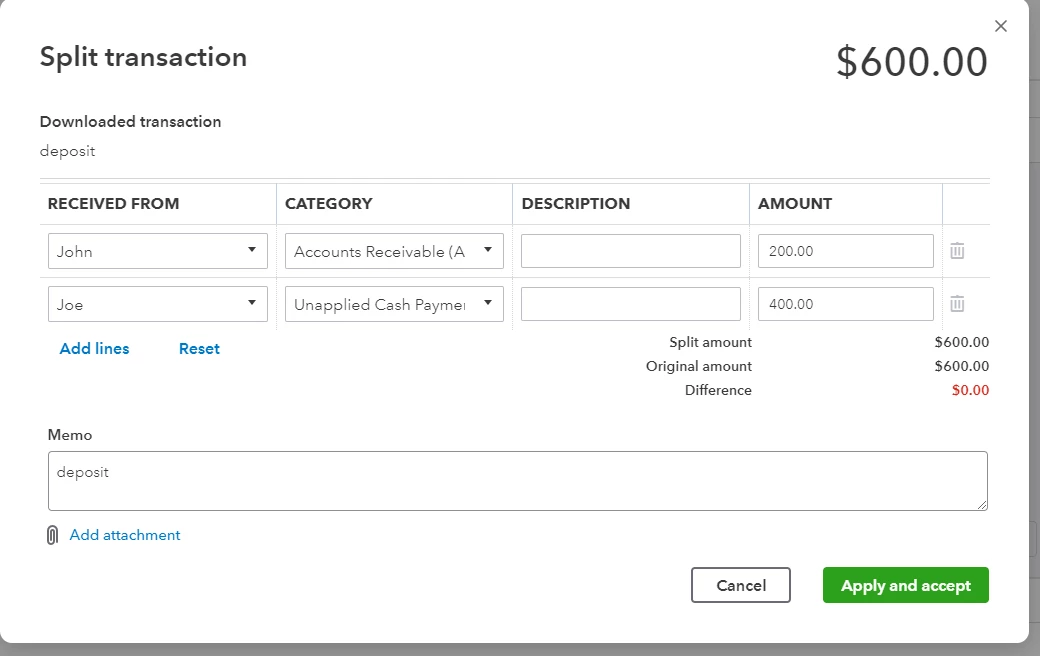


After accepting, an unapplied payment of $200 will be created under the customer's profile. As for the $400 split, this will be posted to the account you selected.


So, for the finishing touches, let's close the invoice by linking it with the $200 split we made on the Banking page. Here are the steps: 
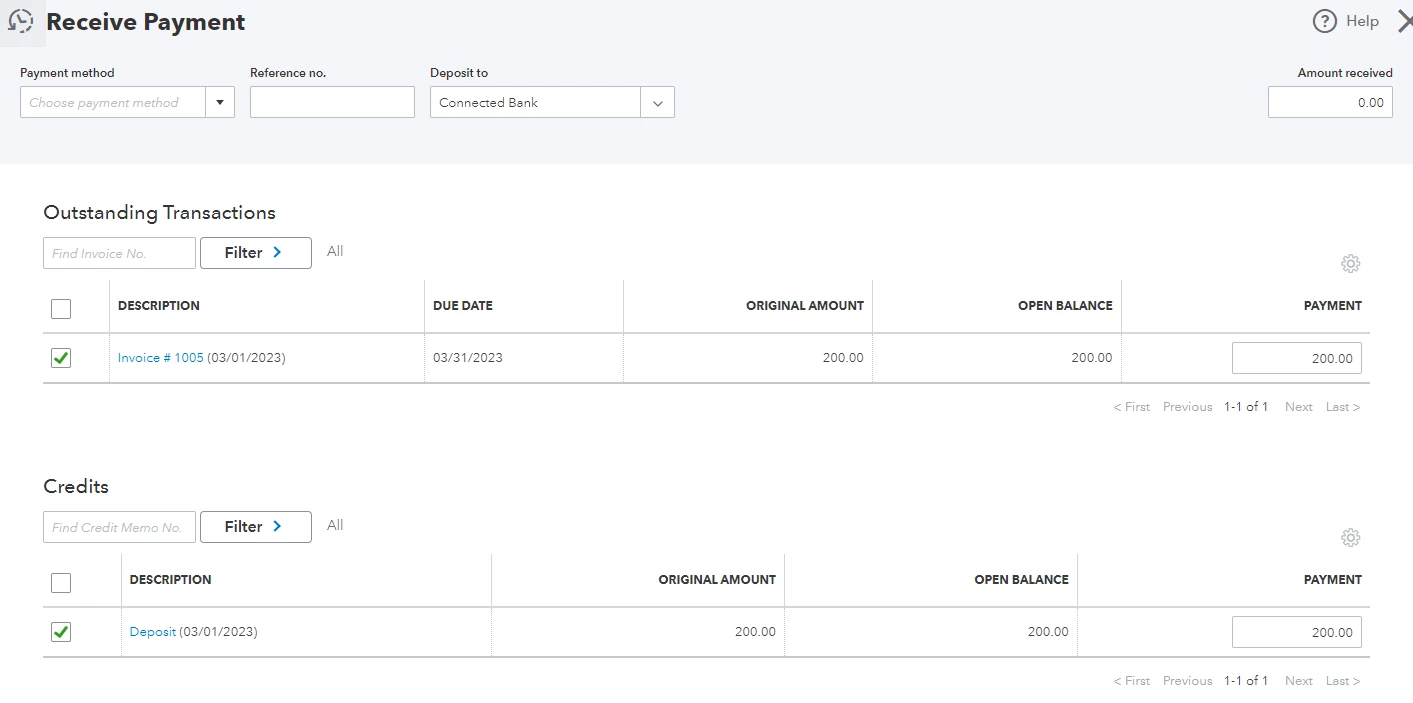
 

  1. Open the $200 invoice from the list of customers. 
  2. Click the Receive payment button.
  3. Set the correct Payment date
  4. Under Deposit to, select your bank account. 
  5. Under Outstanding Transactions, check the invoice.
  6. Under Credits, check the deposit transaction. 
  7. Add other information such as a reference number or a memo. 
  8. Once done, hit Save and close


If you'd like to see how the transactions would play out on your books, we can run some reports. If you need help doing this in the future, check out this article: Run reports in QuickBooks Online.


If you need help managing other downloaded bank transactions, let me know and I'll guide you through the steps. Would you like to raise some other concerns in other areas? Add the details to your reply, and I'll address them accordingly. 

1 reply

QuickBooks Team
February 28, 2023

Welcome to the Community space, @Kirkk. I'll share an insight about splitting downloaded transactions inside QuickBooks Online (QBO).


In QBO, know that you can only assign or split downloading bank transactions to multiple accounts. However, there's a workaround to get you out of this situation. You can split them but not in the banking page. I'll input the whole process below to get you started. To begin, these are the steps:


  1. Access your QuickBooks Online company.
  2. On the left navigational bar, click the +New button and then select Invoice.
  3. Enter all the needed information in each field, and then click Save.
  4. Click Receive payment, and then input the amount of the invoice.
  5. Once done, Save and close.

After receiving the payment for the invoice, you'll want to proceed to the bank deposit. When in the bank deposit tab, select the amount you want to include when depositing to the account, and then in the Add funds to this deposit section, enter the appropriate amount to assign to your account. Doing this allows you to split the funds between an account and an invoice.


You can refer to this article for further guidelines: Record and make bank deposits in QuickBooks Online.


Once everything is ready, follow these set of steps to ensure they're recorded correctly inside your company:


  1. Access your QuickBooks Online company.
  2. On the left navigational bar, go to the Banking tab.
  3. Locate and access the downloaded bank transaction, and then click Find other matches.
  4. Enter the appropriate date.
  5. Choose the correct transaction to match.


In addition, here's an article about generating reports inside QBO to ensure your data is accurate: Run reports in QuickBooks Online.


@Kirkk, it's been a pleasure to have you here today. Feel free me mention me in the comment section if you need further assistance with this. Take care!

KirkkAuthor
March 3, 2023

After the initial 5 steps, you're answer becomes clear as mud to me.  For Clarity I will  place ** before and after my questions. 

1. You said, " you'll want to proceed to the bank deposit. - ** Does this mean, Hit New and Bank deposit,  or to highlight the actual received deposit in my checking account?**


2. You said, "When in the bank deposit tab (** Which Tab,  where do I find this tab**),

Please answer from here and I will proceed


select the amount you want to include when depositing to the account, and then in the Add funds to this deposit section, enter the appropriate amount to assign to your account. Doing this allows you to split the funds between an account and an invoice.

QuickBooks Team
March 3, 2023

I appreciate you getting back to us and performing the steps provided by my colleague, @Kirkk. Let me share some clarification about the received payments in QuickBooks Online (QBO).


As my colleague mentioned above, after receiving the payment for the invoice, you'll have to add the category under the Add funds to this deposit section. From there, you can select the expense account you created on the Account dropdown.


I've attached this article to serve as your guide in recording bank deposits in QuickBooks Online: Record and make bank deposits in QuickBooks Online. This will also give you instructions on how you can edit or delete a deposit.


I'll also add this article you can refer to if you want to review your downloaded bank and credit card transactions and put them in the correct accounts: Categorize and match online bank transactions in QuickBooks Online.


Post again here if you have additional concerns about entering deposits. I'd be happy to assist you further. Have a great day ahead.
