
Get 50% OFF QuickBooks for 3 months*

Buy now
cancel
Showing results for 
Search instead for 
Did you mean: 
Announcements
Simplify payday and set payroll to run automatically on QuickBooks. Explore QuickBooks Payroll
Deadwood Al
Level 6

Printing vendor labels

QBDT Pro+ 2023

I saw a post about printing vendor labels from back in 2022, but it said "choose one vendor name" and then click on print label. Is there a process to print all active vendor labels instead of just "one vendor"?


Thanks in advance
Solved
Best answer February 16, 2024

Best Answers
BigRedConsulting
Community Champion

Printing vendor labels

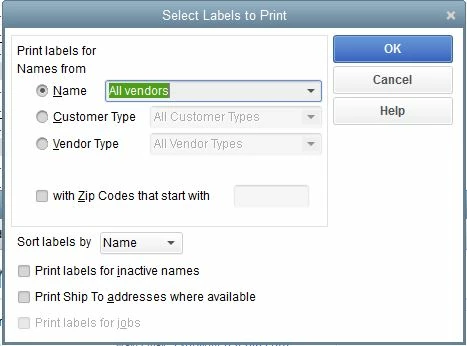
Yes. Start on the QB menu at File | Print Forms | Labels... and then pick All Vendors:

Capture.JPG

View solution in original post

4 Comments 4
BigRedConsulting
Community Champion

Printing vendor labels

Yes. Start on the QB menu at File | Print Forms | Labels... and then pick All Vendors:

Capture.JPG

Deadwood Al
Level 6

Printing vendor labels

I tried printing some labels on plain paper to see the format and learn what type of label was called for, and have a question:  What I was really looking for was a way to print only the Vendor Name - probably in a little larger type and perhaps bold -  on a label for file folders. The goal is to print the labels that would go on the vendor file folders for storing the 2024 invoices and communications. What is printing is the Vendor name and full address in 9 or 10 point type, and I really didn't want the address and was looking at perhaps doing 14-16 point type.


Is there a relatively easy way to change the label function to eliminate the address info and increase the type style for the name? I'm really trying to avoid making labels a purely manual effort ....


Thanks in advance.

AnneMariee
QuickBooks Team

Printing vendor labels

Hi there, Deadwood Al.


Having control over vendor label customizations is a helpful function that could benefit businesses like yours. However, this option isn't available in QuickBooks Desktop. Therefore, I encourage you to submit a feature request through the feedback section. This way, our product development team can take note of the demand for this functionality and consider it for future updates.


Alternatively, you can generate a Vendor Contact List report and customize it to show the Name column only. 


Here's how:


  1. On the top menu, click Reports.
  2. Hover on Vendors & Payables, then select Vendor Contact List.
  3. Click Customize Report.
  4. On the Display tab, uncheck all other columns except for Vendor.
  5. You can change the typeface and size in the Fonts & Numbers tab.
  6. Click OK.


Once done customizing the report, you can export it and then use the file to create vendor labels.


For more information on running reports, please see this article: Understand reports.


You might want to save a report's customization settings in the future. Here's an article that talks about it in detail: Create, access and modify memorized reports.


Please feel free to reply if you have any other concerns about printing vendor labels in QuickBooks. I'll be around to lend a hand.

Eleanor Cleverence
Level 1

Printing vendor labels

If you're usin QuickBooks desktop Pro+ 2023 and want to print all active vendor labels instead of just one, well, it's a bit of a puzzle but doable. Quickbooks itself doesn't have a direct way to print labels for all vendors, so you'll have to get a bit creative with a workaround. First off, export your vendor list to Excel. Head to the "Vendors" menu, then "Vendor Center," and click on the "excel" button to export your list. Make sure to only include active vendors by setting the filter in Quickbooks before you export.

Once you got your vendor info in Excel, you can format it to fit standard label formats, like those Avery labels. For this, use a function like "Mail Merge" in Microsoft Word, which lets you import that Excel data to set up labels. It's kinda manual and a bit tricky, ngl, but it lets you decide on which labels to print and how they look. I had to tinker with similar exports in the past myself, and while it’s not the fastest solution, it works when QuickBooks doesn’t quite cut it.

Need QuickBooks guidance?
Log in to access expert advice and community support instantly.

Need to get in touch?

Contact us