
SUMMER SAVINGS 90% OFF QuickBooks for 3 months* Ends 8/27

Buy now
Switch to QuickBooks and 70% off for 3 Months
October 25, 2018
Solved

Accounts Receivable by Class

  • October 25, 2018
  • 25 replies
  • 160 views

Is there a way to run the A/R Aging by Class?  I am using QB online for Contractors.

Best answer by vpcontroller

Currently, such an option to run the A/R Aging by Class report is not available in QBO yet.
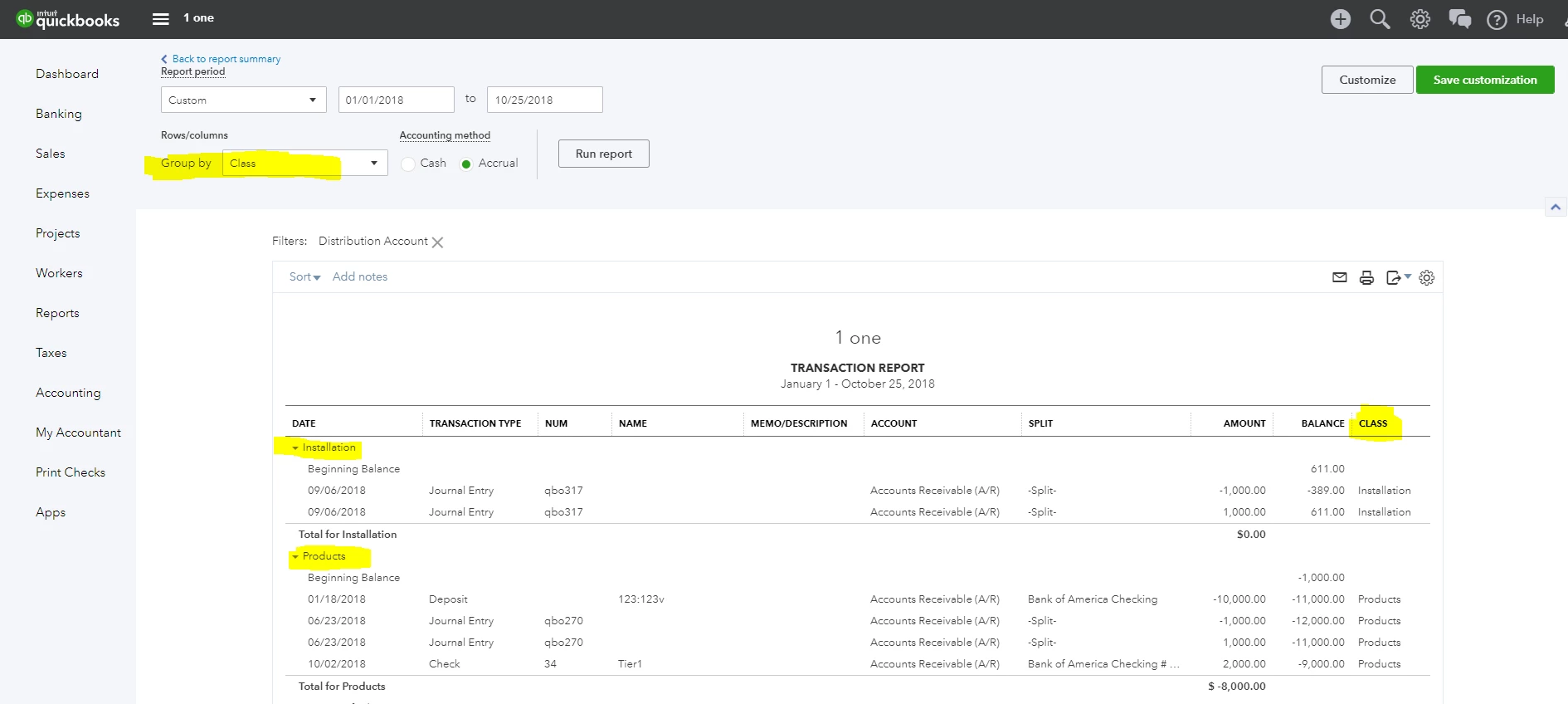
The workaround is to run the Account Receivable transaction report from the Balance Sheet (Run the Balance Sheet report and click the Account Receivable balance amount link). You can Group this report by Class. You can also customize and add a Class column to the report. But it will in AR detail format, not AR Aging format. See screenshot below for reference.

.
25 replies

vpcontroller
Level 7
October 25, 2018

Currently, such an option to run the A/R Aging by Class report is not available in QBO yet.
The workaround is to run the Account Receivable transaction report from the Balance Sheet (Run the Balance Sheet report and click the Account Receivable balance amount link). You can Group this report by Class. You can also customize and add a Class column to the report. But it will in AR detail format, not AR Aging format. See screenshot below for reference.

.

November 7, 2018

Thanks for this response.  I cannot figure out why "class" isn't available in my group by menu.  Can you advise?  I assign classes in AR and AP.  Thanks!

QuickBooks Team
January 19, 2023

Is it possible yet to run an accounts receivable aging by class in Quickbooks online?  I see that this question has been coming up since 2018 in this thread.  Seems ridiculous that the desktop version of quickbooks has this capability and we can't do it in Quickbooks online.  


I'm not interested in hearing what the "workaround" is for something that this software should just be able to do.  


Thanks for posting to the Community, Frank0219.


QuickBooks Desktop report options may differ slightly from the ones in QuickBooks Online. Both versions' packages do not share the same database, hence, features and preferences might not always be the same. Alternatively, we can run a customized Transaction Detail by Account report to show the Accounts Receivable by class. Just modify the Rows/Columns by class to show the Account Receivable transactions. Here's how: 


  1. Go to the Reports menu.
  2. Enter Transaction Detail by Account in the search field. 
  3. Click the Customize icon on the report and go to the Filter section.
  4. Choose the name on the Customer drop-down or Invoice for the Transaction Type.
  5. Mark the A/R Paid, Account, and Class filters.
  6. Update the Report period and the Accounting method.
  7. Lastly, click on Run report.
  8. You can use the Save customization option, so you don't need to redo it when pulling up the same report. Saved customizations are then moved to the Custom reports section.


You can save this report so you won't have to go through the same customization again. Just click the Memorize button and follow the on-screen instructions. Check out the Create, access, and modify memorized reports link for more details. Additionally, you can visit this link that contains video tutorials to help you customize a report: Customize reports in QuickBooks Online.


As we assess this, I encourage you to share your feedback with our product engineers. We continue to improve the product, and this feature might be available in the future. Here's how to submit feedback:


  1. Click the Gear icon in the upper-right corner.
  2. Tap Feedback under Profile.
  3. Share your feedback.
  4. Press Next to submit.


Please know that I'm only a few clicks away if you have any other questions or concerns. I'll be here to help. Have a great rest of the day!