
Get 50% OFF QuickBooks for 3 months*

Buy now
Switch to QuickBooks and 70% off for 3 Months
October 25, 2018
Solved

Accounts Receivable by Class

  • October 25, 2018
  • 1 reply
  • 95 views

Is there a way to run the A/R Aging by Class?  I am using QB online for Contractors.

Best answer by vpcontroller

Currently, such an option to run the A/R Aging by Class report is not available in QBO yet.
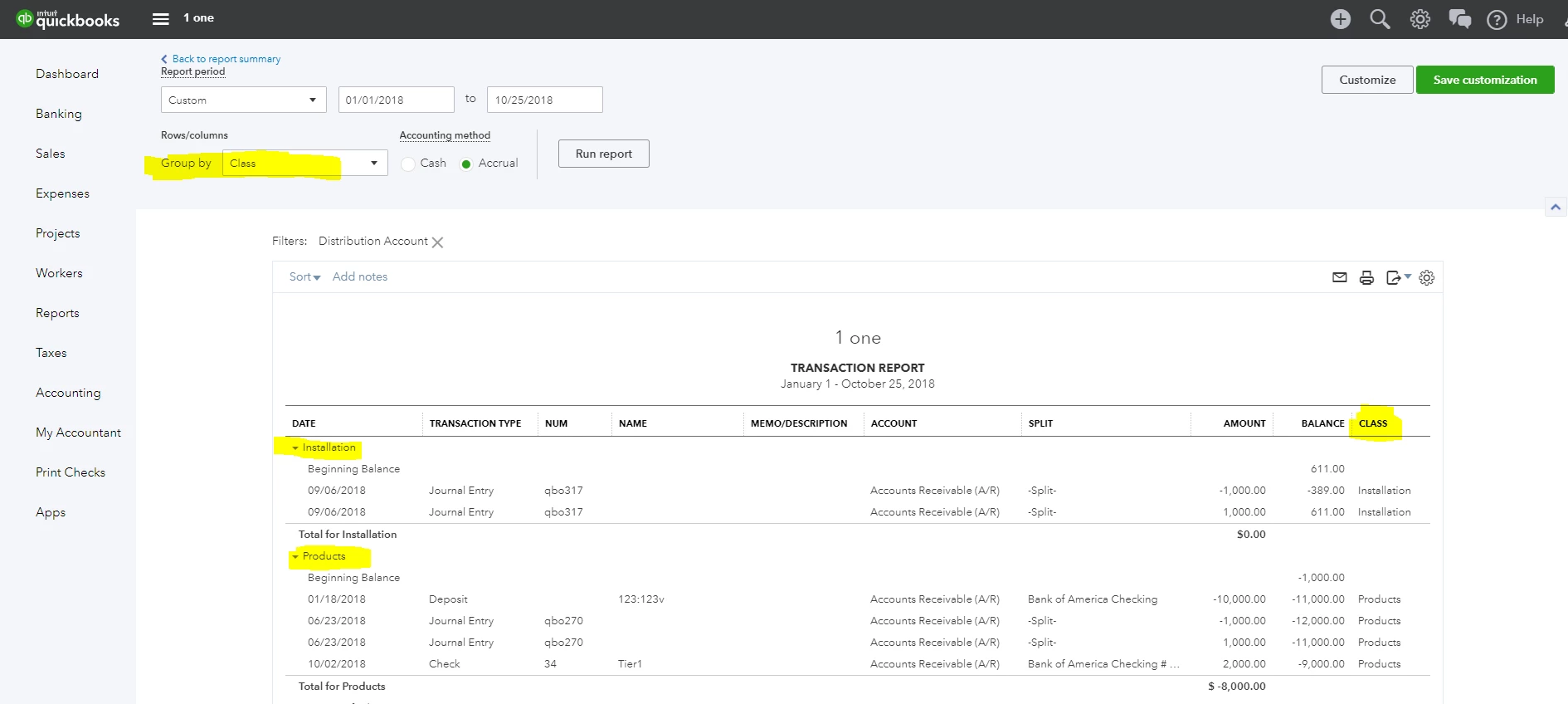
The workaround is to run the Account Receivable transaction report from the Balance Sheet (Run the Balance Sheet report and click the Account Receivable balance amount link). You can Group this report by Class. You can also customize and add a Class column to the report. But it will in AR detail format, not AR Aging format. See screenshot below for reference.

.
1 reply

vpcontroller
Level 7
October 25, 2018

Currently, such an option to run the A/R Aging by Class report is not available in QBO yet.
The workaround is to run the Account Receivable transaction report from the Balance Sheet (Run the Balance Sheet report and click the Account Receivable balance amount link). You can Group this report by Class. You can also customize and add a Class column to the report. But it will in AR detail format, not AR Aging format. See screenshot below for reference.

.

November 7, 2018

Thanks for this response.  I cannot figure out why "class" isn't available in my group by menu.  Can you advise?  I assign classes in AR and AP.  Thanks!

Moderator
March 20, 2019

Hi:


I am using Quickbooks Premier.  Is there a way to run accounts receivable by class using that version?


Basically, I want to be able to run a GL detail for the A/R account and see the transactions by class.


Thanks!


Hello there, @BaileyJr.


It's nice to have you in the Community. I'd be happy to help walk you through creating accounts receivable by class report in QuickBooks Desktop Premiere.


You can run and customize the Custom Transaction Detail Report to get the information you need. Let me show you how:

  1. From the top menu, select Reports.
  2. Choose Custom Reports then select Transaction Detail.
  3. At the top left, click Customize Report
  4. From the Display tab, click the Total by drop-down and select Class.
  5. Click the Filters tab.
  6. Under FILTER, select Account.
  7. Click the drop-down and select Multiple accounts.
  8. Mark Accounts Receivable then click OK.
  9. Under FILTER, select Paid Status.
  10. Click the drop-down and select Open then click OK.

I've attached an article and screenshots for additional reference: Customize reports in QuickBooks Desktop.


That should point you in the right direction today. Feel free to drop a comment below if you have any other questions about reports in QuickBooks. I'll be happy to help you further. Have a great rest of the week.