SUMMER SAVINGS 90% OFF QuickBooks for 3 months* Ends 8/27

Buy now
Switch to QuickBooks and 70% off for 3 Months
February 7, 2020
Solved

Can I set up an invoice with variable date and amounts for the future? Example, total amount $5000, $500 deposit due 1/1, $1,000 due 3/1, $1000 due 6/1, $2500 due 10/1

  • February 7, 2020
  • 8 replies
  • 71 views
No text available
Best answer by Angelyn_T

Happy to have you here on the Community page, @875409.


Creating one invoice can only have one due date. That being said, you can't deposit the payments on multiple due dates when recording the $5000 amount in an invoice. As a workaround, you can record an estimate first, then manually add the amounts to an invoice one at a time so the due date will be achieved.


To create an estimate:
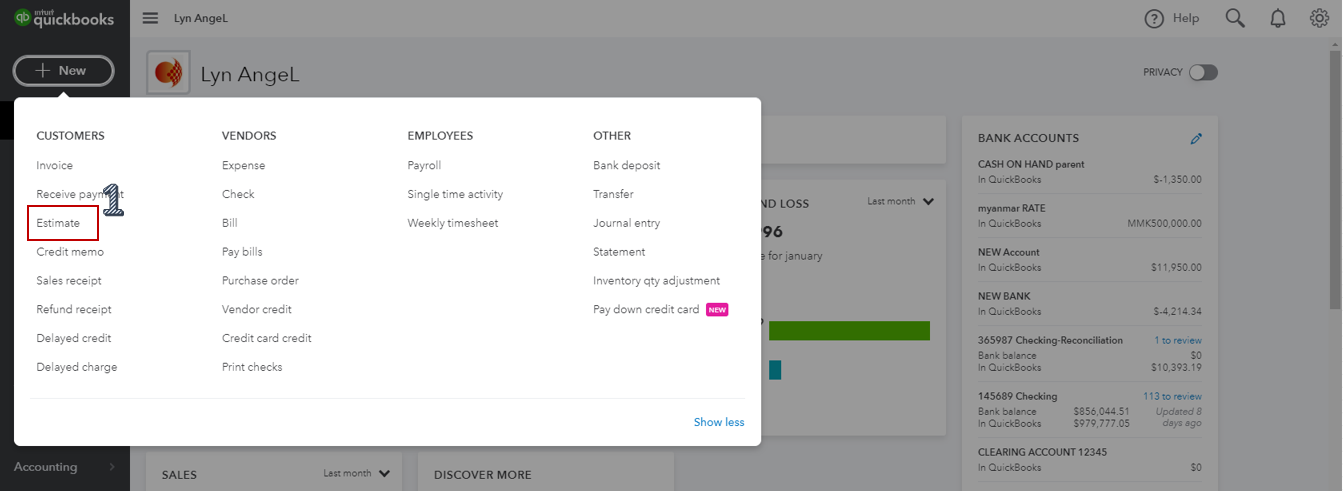
 

  1. Select Estimate under Customers from the Plus (+) icon.
  2. Choose the customer's name, then fill in the necessary information.
  3. Add the $5000 amount under the Amount column.
  4. Click on Save to record the transaction.


Once completed, convert it to an invoice:


  1. Pick Invoice from the Plus (+) icon.
  2. Select the customer's name under the Customer section, then look for the estimate at the right side of the page.
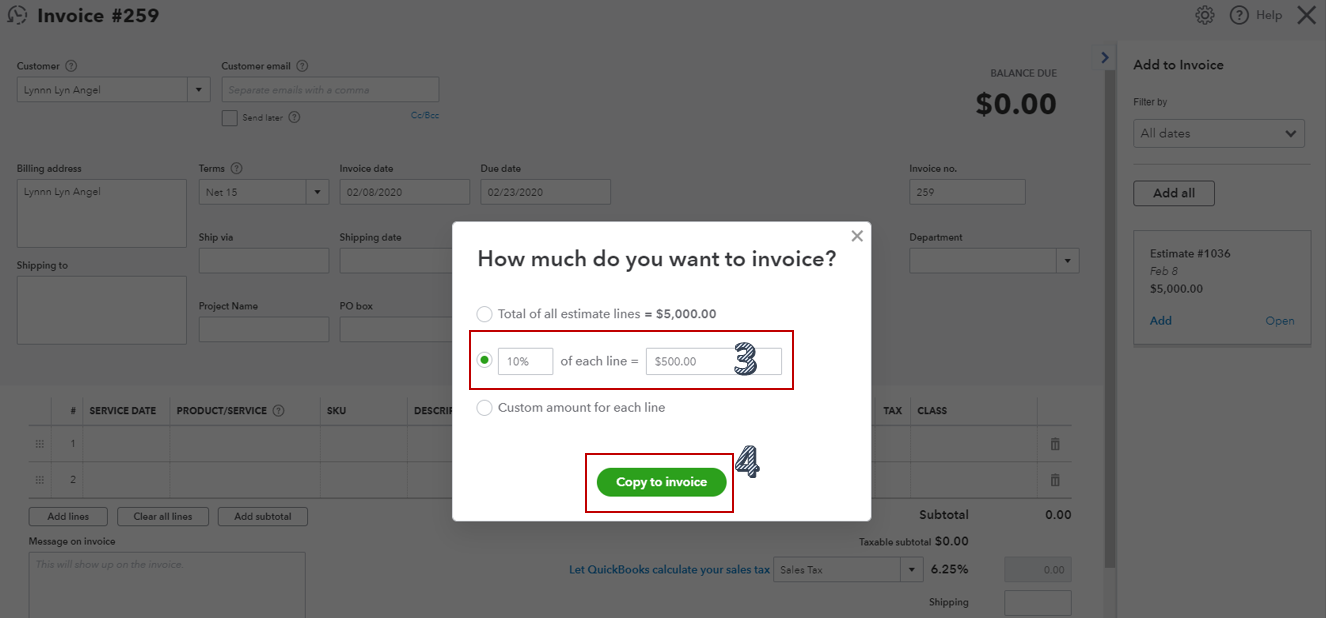
  3. Tap on Add, enter the amount on how much do you want to invoice ($500) on the pop-up window.
  4. Hit Copy to invoice.
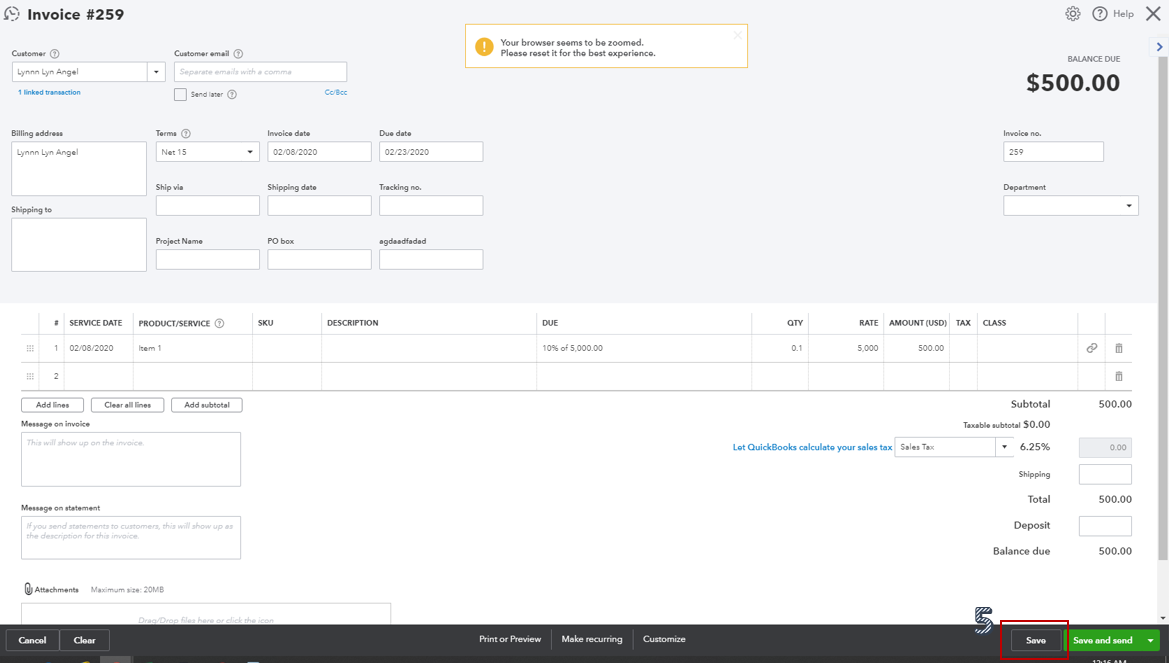
  5. Save the transaction.
  6. Repeat the steps for the rest of the amounts.


For additional reference about converting an estimate to an invoice, read this article: Convert an estimate into an invoice in QuickBooks Online.


Reach out to me if you have any other questions as I'm always here to help. Have a good day!

8 replies

Rustler
Level 15
February 7, 2020

No, in QB an invoice is a final sale, it does not do installment sales

Angelyn_T
Angelyn_TModeratorAnswer
Moderator
February 7, 2020

Happy to have you here on the Community page, @875409.


Creating one invoice can only have one due date. That being said, you can't deposit the payments on multiple due dates when recording the $5000 amount in an invoice. As a workaround, you can record an estimate first, then manually add the amounts to an invoice one at a time so the due date will be achieved.


To create an estimate:


  1. Select Estimate under Customers from the Plus (+) icon.
  2. Choose the customer's name, then fill in the necessary information.
  3. Add the $5000 amount under the Amount column.
  4. Click on Save to record the transaction.


Once completed, convert it to an invoice:
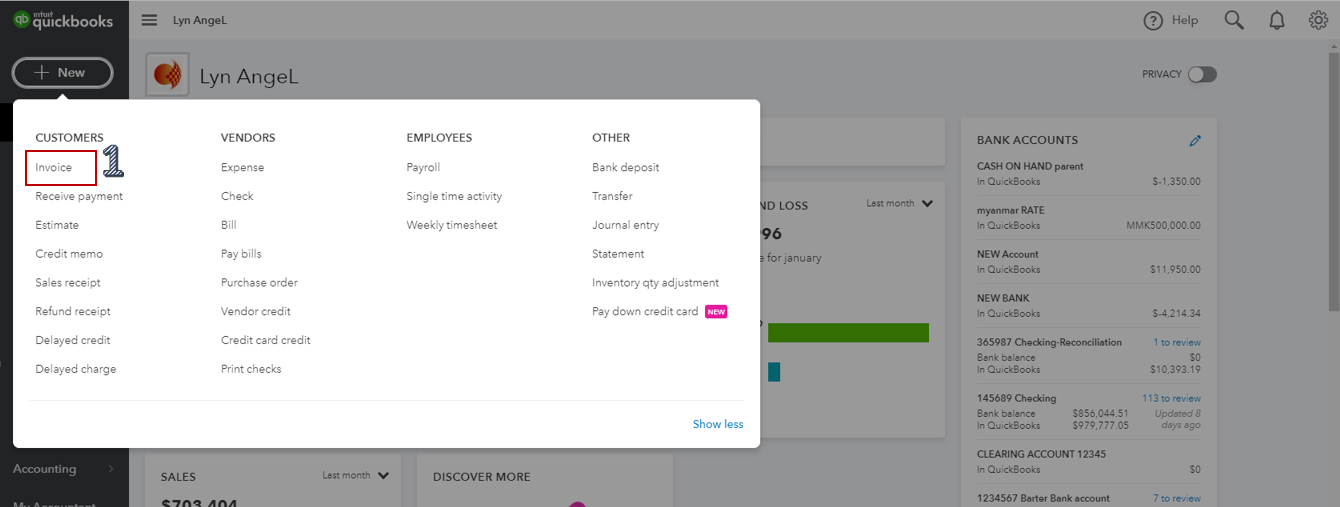
 

  1. Pick Invoice from the Plus (+) icon.
  2. Select the customer's name under the Customer section, then look for the estimate at the right side of the page.
  3. Tap on Add, enter the amount on how much do you want to invoice ($500) on the pop-up window.
  4. Hit Copy to invoice.
  5. Save the transaction.
  6. Repeat the steps for the rest of the amounts.


For additional reference about converting an estimate to an invoice, read this article: Convert an estimate into an invoice in QuickBooks Online.


Reach out to me if you have any other questions as I'm always here to help. Have a good day!

Rubielyn_J
Level 8
July 2, 2021

Is there any options for recording the bill with multiple due dates and payment terms?


Thanks for joining this thread, @Saifkhan19933. I can share some insights about recording bills in QuickBooks.


Currently, the option to register multiple due dates and payment terms in a single bill is unavailable. As an alternative, we can enter multiple bills to saves time on data entry. Note that this feature is available in QuickBooks Online Advanced. 


We can use the batch action to accomplish this. Let me show you how:


  1. Go to the New + button and then select Batch transactions.

  2. In the Select transaction type ▼ dropdown, choose Bills.
  3. Select any of the fields and enter the bill's info into the fields. 
  4. Choose the Type field. If you only need to enter flat rates, select Category details. Otherwise, click  Item details if you need to include specific product or service details on the form.
  5. Select the second line for the next bill and fill out the fields.
  6. Enter as many bills and expenses as you need as separate lines.
  7. When you're finished, click Save.


For more information, you may check out this article: Create multiple bills or expenses in QuickBooks Online Advanced


If you're using the Simple Start, Essentials, or Plus version, we can utilize the recurring option. For more detailed steps, please see this resource: Create recurring transactions in QuickBooks Online. It also includes measures on how to make, edit or duplicate an existing template.


Meanwhile, here's an article you can read to guide track bills and record the payments: Enter bills and record bill payments. It provides a more complete picture of your business and profits.


Know that I'm always around the Community to help you. Click the Reply button if you have other questions about managing vendor transactions in QuickBooks. Have a great rest of the day!