
Get 50% OFF QuickBooks for 3 months*

Buy now
Switch to QuickBooks and 70% off for 3 Months
October 30, 2020
Question

Inventory & Bin Locations

  • October 30, 2020
  • 1 reply
  • 56 views

We have never utilized the Inventory tracking and Bin locations for our Inventory. Now that we have turned it on, I am having trouble setting it up. 

I attempted to adjust inventory, and was able to assign which location I was using (using "unassigned" as we get things organized, then planning on assigning each part a bin). I could not save the inventory without adding an Inventory Bin Location, then still could not save the updated inventory list. 
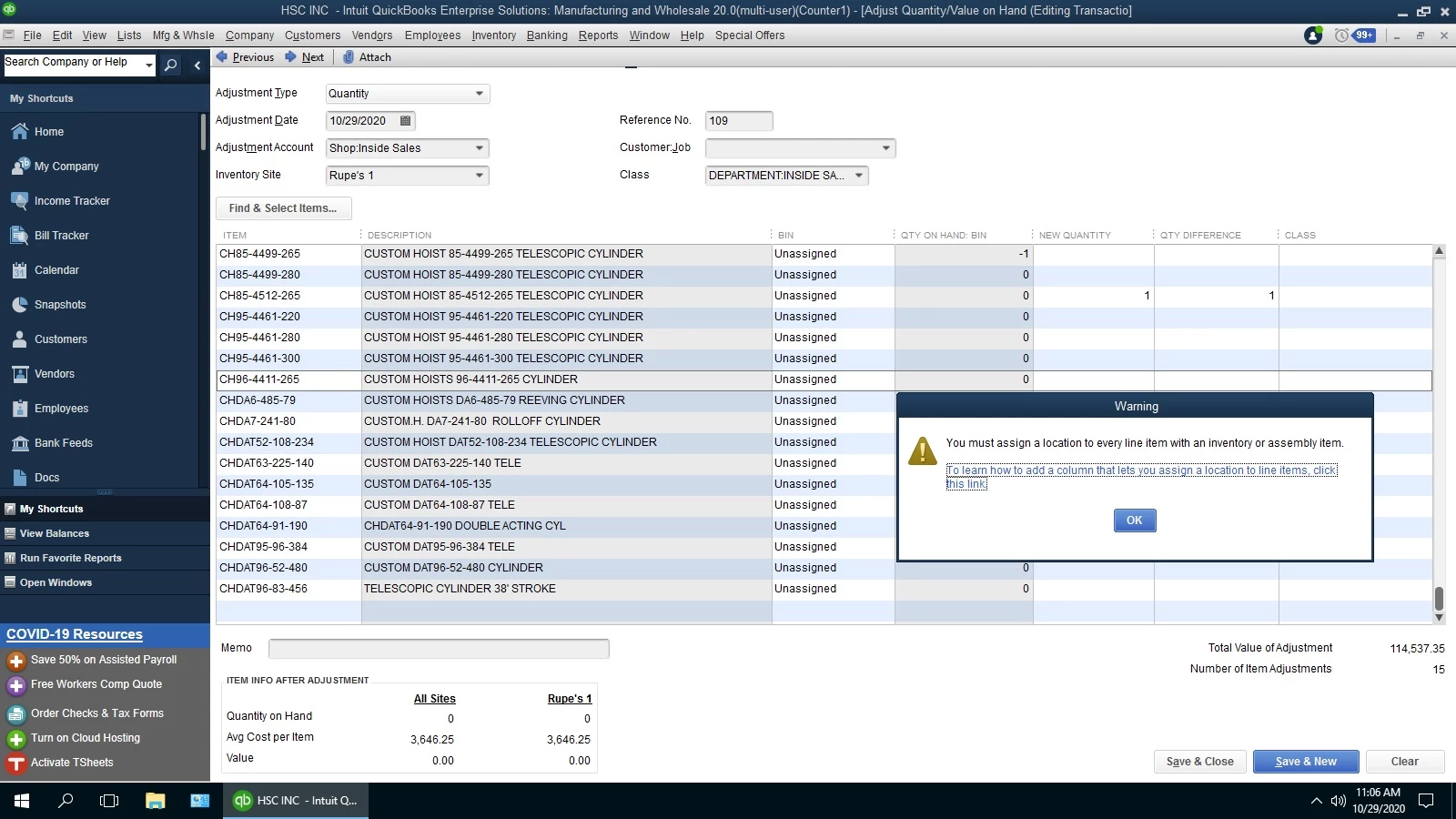


Also, I was unable to find a way to assign specific locations in the "Edit Item" screen for when we go in to add specific Bin locations.

1 reply

Level 9
October 30, 2020

Thanks for coming in today, @Sydney-Rupes.


I have an idea on how to get past the warning message. Looking at your attached screenshot, you should be able to save your quantity adjustment. You'll want to make sure each item in your adjustment has an assigned bin location.


You can tick on the sidebar arrow and scroll up and down to check if there's an empty bin location. Here's how it looks like:


Once found, assign a bin location and then save.


About assigning a specific location, you'll want to use the Add/Edit Multiple Items feature. It's where you can enter your desired bin location. Let me walk you through the steps.


  1. Go to the Inventory menu at the top. Then, select Item List.
  2. Scroll down towards the Item drop-down, and choose Add/Edit Multiple Items.
  3. In the Add/Edit Multiple Items screen, tap the Customize Columns button at the top.
  4. From the Available Columns field, search for the Default Sales Bin and Default Purchase Bin.
  5. Hit the Add > button to transfer the columns to Chosen Columns field.
  6. Click OK. See the attached image below.


After adding the column, pick the items you want to assign a specific location. For more information about managing inventory, check out this guide: Set up Advanced Inventory.


Additionally, here's a link that covers all tasks you can do when using the inventory feature.


If you still have questions or concerns, feel welcome to message me. I'll be happy to help. Take care and have a great weekend.

November 3, 2020

Hi, @ShiellaGraceA thanks for that info. 

The updating inventory bin tips worked well, thank you.


However, I am still having the same issue with updating inventory amounts. I even tried to just update one item, so that I would know that it was not missing info. 


Then, I went in and did the inventory bin assignment, hoping that would clear the background coding that is getting stuck, and that didn't work either. I double checked and every item has a location assigned. Unless there is some "line item" that is not showing up, that doesn't seem to be the issue. 


Level 9
November 5, 2020

Is anybody able to give me an idea of how long this will take? Even just an idea would be helpful for scheduling. 


Thank you


Hello there, Sydney-Rupes.


Verifying and Rebuilding your data will take minutes for it to complete. However, it will still depend on your company's file size as my colleague shared. If you get the same thing, I'd suggest contacting our Phone Support Team. They can a remote screen sharing with you so they can walk you through the process of resolving the prompts you're receiving.


Here's how to contact us:


  1. Open your company file.
  2. Go to Help and click QuickBooks Desktop Help
  3. Enter a brief description of your issue something about adjusting inventory.
  4. Click Continue and select an option you'll want to connect with us. 

You can also click here for our Chat Support direct link.


Feel free to post your questions here if you have other questions. Take care!