
Get 50% OFF QuickBooks for 3 months*

Buy now
Switch to QuickBooks and 70% off for 3 Months
June 22, 2022
Question

Invoice import "cant match customers"

  • June 22, 2022
  • 16 replies
  • 30 views

Hi all,


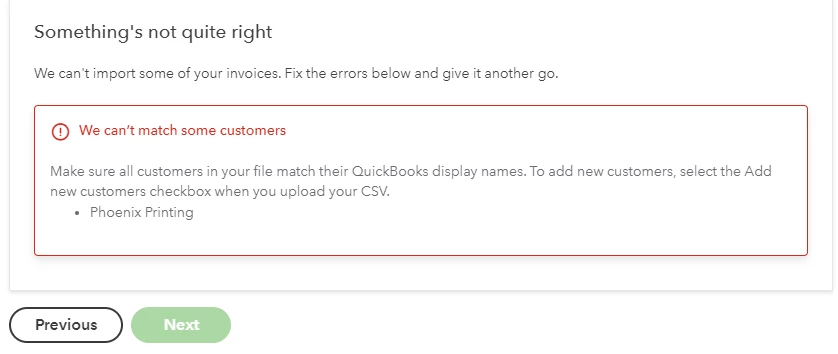
I am having an issue when importing a CSV file with an invoice. I am getting the below error where QB is telling me it cannot match the customer. On my CSV file I copied and pasted the exact display name for the Vendor so I am not sure what the issue can be. 

On the previous screen I even clicked the Add new customers to Quickbooks and when I upload i get an error that states the Customer already exists so clearly the display name is correct. Any help will be appreciated
 

16 replies

Level 9
June 22, 2022

Good to see your post here, Brianchaves.


I'll make sure you'll be able to import CSV file with an invoice in QuickBooks Online (QBO).


When importing your bank transactions, there are certain factors to consider.
 

  • Make sure the file is in a CSV (comma-separated values) format.
  • Ensure to save your data as a CSV or Comma delimited.
  • Check if the file has blank lines if it does delete them.
  • Please make sure to select the column header labels (from the dropdowns) that match the column header labels in your CSV file.
  • Your CSV file should contain the following information: DateDescription, and Amount.

Check out the additional pointers below that will guide you in reformatting your CSV file:

  • 0's are not allowed anywhere in the file, e.g Rs. 0 should be left blank
  • Commas for thousands are not allowed either e.g 2,111 should be 2111
  • Other special characters such as #, %, and & are not allowed
  • Correct any transactions with the amount shown in the description column

Please know that the standard date format is dd/mm/yyyy (01/02/20). I would also recommend shortening your description so that the program will be able to easily read your bank transactions.


Once verified, you can re-import your transactions following the correct format. Here's an article for more information and steps on importing these files, see this article: Manually upload transactions into QuickBooks Online.


For instructions on how to match transactions from the banking page, check out this guide for more insights into this process: Categorize and match online bank transactions in QuickBooks Online.


Feel free to visit these links about reconciliation in QBO as a reference for your next step:

Keep me posted if you have additional questions about QuickBooks. Please know that I've got your back. Wishing you the best.

June 22, 2022

Hi Mod,


The file set up seems to be completely correct so I am unsure why I am getting the error stating that the Customer does not match what is in Quickbooks. 

Clark_B
QuickBooks Team
March 11, 2024

I am having the same problem with a customer who has been in QB for 10 years and previously was able to import invoices for this customer.


I appreciate you for bringing this to our attention, @TastevinFC.


I'd be glad to help and provide information for you to import invoices for your customer in QuickBooks Online (QBO).


As my colleague @Charies_M said, when importing bank transactions, there are factors to consider. Which is making sure that your file is saved in a CSV format. Also, remember to save your data as a CSV or comma-delimited file. Before uploading your CSV file, please check for any blank lines and delete them if present. It's also important to select the column header labels that match the column header labels in your CSV file from the dropdowns. Your CSV file must contain the following information: DateDescription, and Amount.


Furthermore, check out the additional pointers below that guide you in reformating your CSV file:


  • 0's are not allowed anywhere in the file, e.g Rs. 0 should be left blank
  • Commas for thousands are not allowed either e.g 2,111 should be 2111
  • Other special characters such as #, %, and & are not allowed
  • Correct any transactions with the amount shown in the description column


It's important to note that the standard date format is dd/mm/yyyy. I recommend to consider shortening your transaction descriptions for easier reading.


After verifying your information, you can re-import your invoice transactions using the correct format. For more information and steps on importing files, please see this article: Manually upload transactions into QuickBooks Online.


I'll also add this article to guide you in reconciling your accounts so they always match your bank and credit card statements: Reconcile an account.


Feel free to click the Reply button below if you have other questions about importing invoices. I'm always here to help.