Get 50% OFF QuickBooks for 3 months*

Buy now
Switch to QuickBooks and 70% off for 3 Months
August 25, 2021
Solved

Send invoice at specific date automatically

  • August 25, 2021
  • 2 replies
  • 4 views

I'm new to quickbooks using quickbooks online. I have a specific client who i send a fixed invoice to each month. I would like to create the invoice and have it automatically emailed to them at X date. 

For the life of me I can't seem to figure out where this option is. I tried the "Send Later" check box but that didn't work.

Any help would be greatly appreciated. 

Best answer by AileneA

Hello, Hypomusk. 


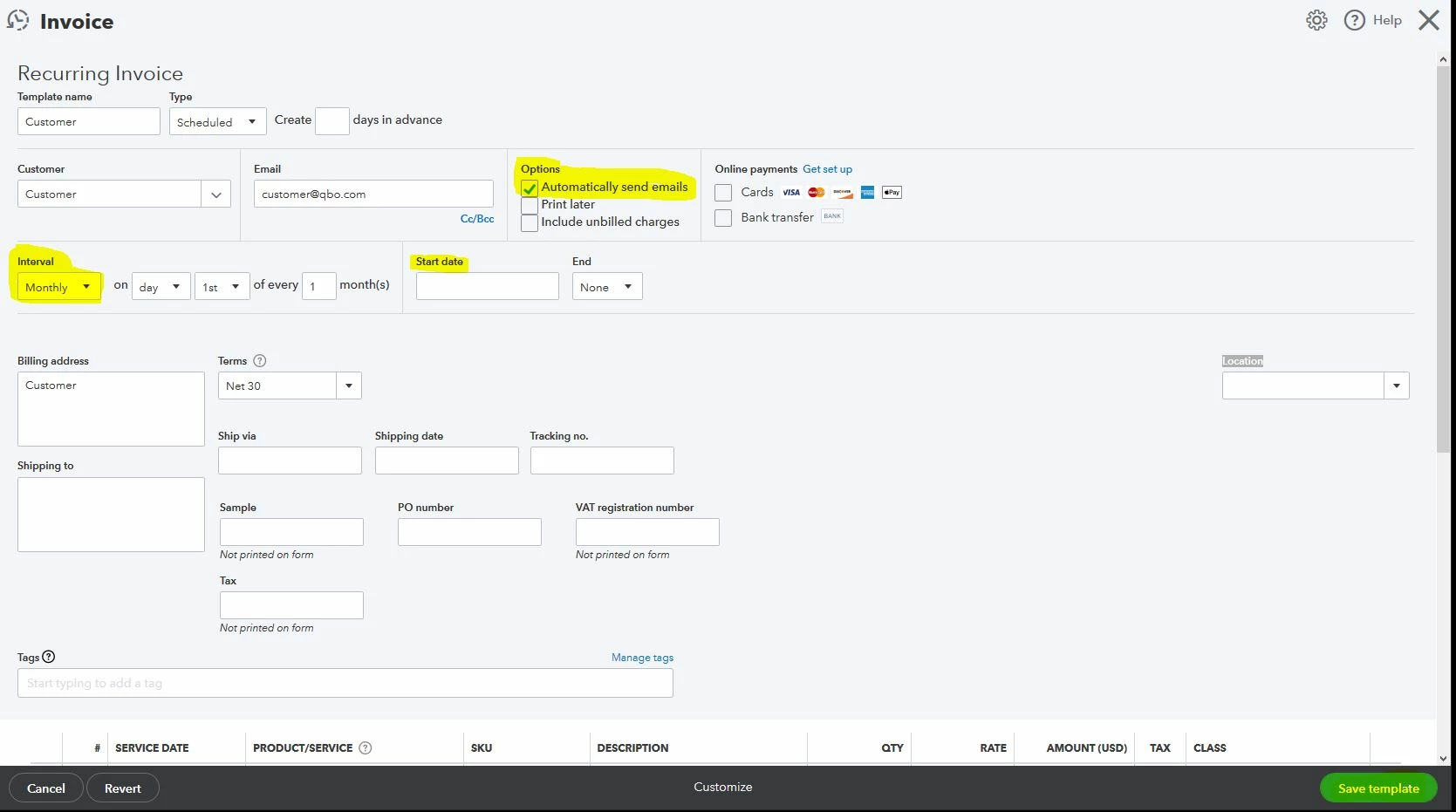
Thank you for reaching out to the Community. We can create a recurring invoice in QuickBooks Online. You can modify the interval and start date so that it will send on the specific month you'd like and mark check the Automatically send emails so the system will follow the command after it has been created.


Here's how: 

  1. Go to Settings and then Recurring transactions.
  2. From the Action column, select Edit for the transaction you want to modify.
  3. Under option mark check the Automatically send emails
  4. Input the Interval and the Start date
  5. Press Save template


I've included this article about the process: Create recurring transactions in QuickBooks Online. This also contains sub-articles that will help you with your future tasks such as troubleshooting and managing recurring transactions. 


That's it! You should now be able to use the template you need. 


Don't hesitate to let me know if you have other questions in mind. I'd be around. Stay safe!

2 replies

AileneAModeratorAnswer
Moderator
August 25, 2021

Hello, Hypomusk. 


Thank you for reaching out to the Community. We can create a recurring invoice in QuickBooks Online. You can modify the interval and start date so that it will send on the specific month you'd like and mark check the Automatically send emails so the system will follow the command after it has been created.


Here's how: 

  1. Go to Settings and then Recurring transactions.
  2. From the Action column, select Edit for the transaction you want to modify.
  3. Under option mark check the Automatically send emails
  4. Input the Interval and the Start date
  5. Press Save template


I've included this article about the process: Create recurring transactions in QuickBooks Online. This also contains sub-articles that will help you with your future tasks such as troubleshooting and managing recurring transactions. 


That's it! You should now be able to use the template you need. 


Don't hesitate to let me know if you have other questions in mind. I'd be around. Stay safe!

HypomuskAuthor
August 27, 2021

Thanks for the solution. I realise that this is part of the Essentials subscription but I'm on the EasyStart for now.

When I upgrade in the future I'll definitely check it out though!

February 8, 2024

Can this Recurring option work for single use? Meaning, can I use this to post date and invoice to generate a future dated invoice to send on a specific date but not have it generate in intervals?


for example: I want to create an invoice today to program to send on 03/30/2024 but I do not want it be recurring just one time send.


Is this possible? If so how should I set up the functions to do so?  

Level 2
February 8, 2024

Yes, it's possible, Erika. I'm here to guide you on how to set up a single use recurring invoice transaction.


In QuickBooks Online, you can create a future-dated invoice to automatically send it on a specific date and at a single time only. Before doing so, please note that the intervals won't be removed as this is a default in the program. However, you can disregard this section and add an End date or the number of occurrences on the template so this will send only once. Here are the steps to set it up:


  1. Go to the Gear icon, then select Recurring Transactions.
  2. Click the New button, then select Invoice as the Transaction type, then OK.
  3. Enter the template name, then select Scheduled for the Type. You can also create it in advance.
  4. Add other necessary information about the invoice, then in the Options section, select Automatically Send Emails.
  5. Enter the Start date in the field, then select By or After as the end date. If you choose the By option, enter the specific end date. If you select the After option, enter the number of occurrences.
  6. Click Save template.


Furthermore, you may record the invoice payments once you receive them from your customer to mark the existing invoices paid and make your accounts accurate.


You're always welcome to comment back if you have additional questions about recurring invoices. We'll be here 24/7 to assist. Take care and have a great day!

February 8, 2024

Thank you! I have set up a test template for a future date. If I run into any issues I will reach out.