


Finding Answers & Getting Help

Whether you're brand new or just getting your bearings, this guide walks you through the essentials: signing in, finding answers, asking for help, and reaching Intuit support when you need it.
Step 1: Sign In to Your Account
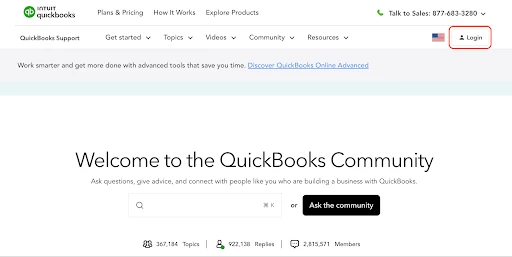
To personalize your experience and participate in discussions, sign in using your Intuit Account credentials.
- Go to the Community homepage and select Login in the upper-right corner.
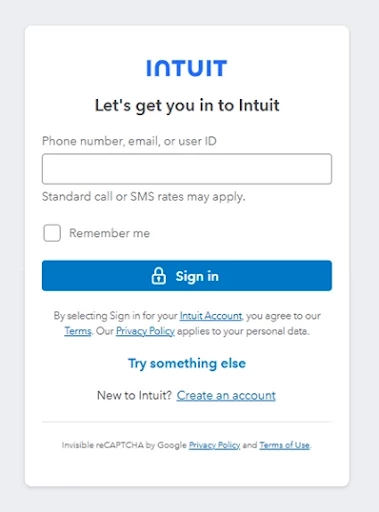
- Enter the phone number, email address, or user ID associated with your Intuit Account, then select Sign In.
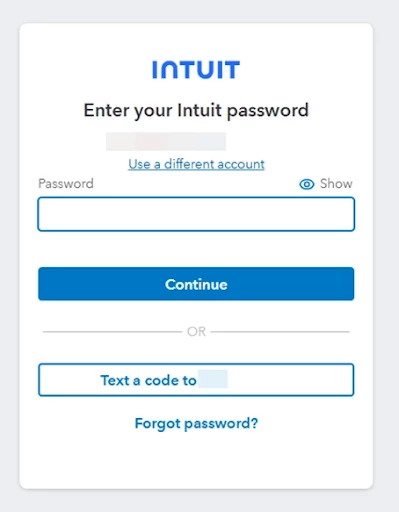
- Enter your password, or choose to receive a verification code by phone if one is linked to your account. Select Continue.
- Once your profile icon appears in the upper-right corner, you're signed in and ready to participate.
Having trouble signing in? These articles can help:
Step 2: Search for Your Answer
Chances are, someone's already asked your question, and the answer might just be waiting for you. A quick search before posting can get you to a solution in seconds, and often surfaces helpful context too, like related errors or workarounds others have found.
Where you search matters: searching from the Community homepage scans everything, while searching from inside a specific board narrows results to just that board.
The trick to a good search is being specific. Vague terms like "error" or "report won't work" return thousands of unrelated results. Instead, build your search from three ingredients:
Action + Detail + Product
- Action: What you're trying to do (reconcile, import, run, fix, set up)
- Detail: The specific feature, report, or error code (bank reconciliation, Error 6000-77, Profit and Loss, 1099 e-file)
- Product: The QuickBooks product you're in (QuickBooks Online, Desktop, Payroll, Self-Employed)
Example: You can search, “Reconcile bank account QuickBooks Online”.
This search is far more likely to return a result. The more specific your search terms, the more likely you are to find the answer you're looking for.
Step 3: Ask the Community
Didn't find what you were looking for? Post your question and let the Community help.
Note: You must be signed in to post a question.
- From any Community page, select + Ask the Community.
- Fill out the Create a Post form:
- What is your question? Enter a clear, descriptive title.
- Details: Describe your question or issue.
- Location: Choose the board where your post fits best.
- Tags: Add relevant tags to help others find your post.
- Include as much helpful context as possible:
- Which QuickBooks product or feature you're using
- What you were trying to do when the issue occurred
- Any error messages you received
- Steps you've already tried
- To add a screenshot, select the Insert Image icon and upload your file.
- When ready, select Post to share your question.
Tips for getting the best answers:
- Search the Community before posting to see if your question has already been answered.
- Use a clear, specific subject line.
- Keep posts focused on one question or issue at a time.
- Never share sensitive information like passwords, Social Security numbers, or financial account details.
- If a reply solves your issue, mark it as the Best Answer to help others with the same question.
Step 4: Contact QuickBooks Support Directly
The Community is a great place to find answers and connect with fellow QuickBooks users, but sometimes you need to go straight to the source. If you can't find what you need here, QuickBooks support is available to help.
Contact QuickBooks products and services support
We're glad you're here. Don't hesitate to jump in, ask questions, and share what you know. The Community is better when everyone participates!