
Get 50% OFF QuickBooks for 3 months*

Buy now
Switch to QuickBooks and 70% off for 3 Months
New Member
June 11, 2025
Solved

How to create a sub customer?

  • June 11, 2025
  • 3 replies
  • 44 views
No text available
Best answer by Nicole_N

We can create a sub-customer by navigating through the Sales or Customers & Leads menu in QuickBooks Online (QBO), Sisonnn.


Before you can create one, make sure the parent customer is already set up. Now, here's how to create a sub-customer:


  1. Go to Sales or Customers & leads menu, then select Customers
  2. Click the New customer button and enter the necessary information.
  3. Tick the Is sub-customer checkbox and choose the parent customer.
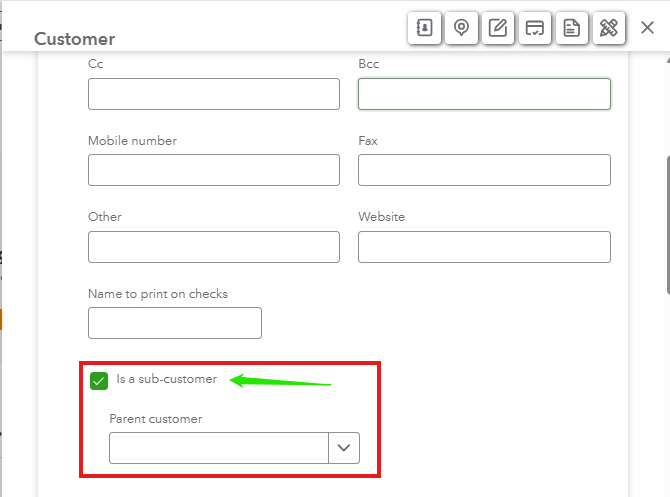

     
  4. Once done, hit Save.


You can also refer to this article for comprehensive instructions: Adding new customers in QuickBooks Online.


In case you want to change or add details to your customer's profile, you have the option to edit it in QuickBooks.


Do you have further questions or need additional assistance with? Please let us know in the comments below. The Community team is always available to help. 

3 replies

Nicole_N
Nicole_NQuickBooks TeamAnswer
QuickBooks Team
June 11, 2025

We can create a sub-customer by navigating through the Sales or Customers & Leads menu in QuickBooks Online (QBO), Sisonnn.


Before you can create one, make sure the parent customer is already set up. Now, here's how to create a sub-customer:


  1. Go to Sales or Customers & leads menu, then select Customers
  2. Click the New customer button and enter the necessary information.
  3. Tick the Is sub-customer checkbox and choose the parent customer.


  4. Once done, hit Save.


You can also refer to this article for comprehensive instructions: Adding new customers in QuickBooks Online.


In case you want to change or add details to your customer's profile, you have the option to edit it in QuickBooks.


Do you have further questions or need additional assistance with? Please let us know in the comments below. The Community team is always available to help. 

SisonnnAuthor
New Member
July 24, 2025

Thanks that worked!

Level 10
July 24, 2025

You're always welcome, Sisonnn!
 
Thanks for letting us know how it went—we truly appreciate your input.
 
Feel free to reach out anytime if you need more help with managing customers in QuickBooks. We're here for you!