
Get 50% OFF QuickBooks for 3 months*

Buy now
Switch to QuickBooks and 70% off for 3 Months
May 28, 2020
Question

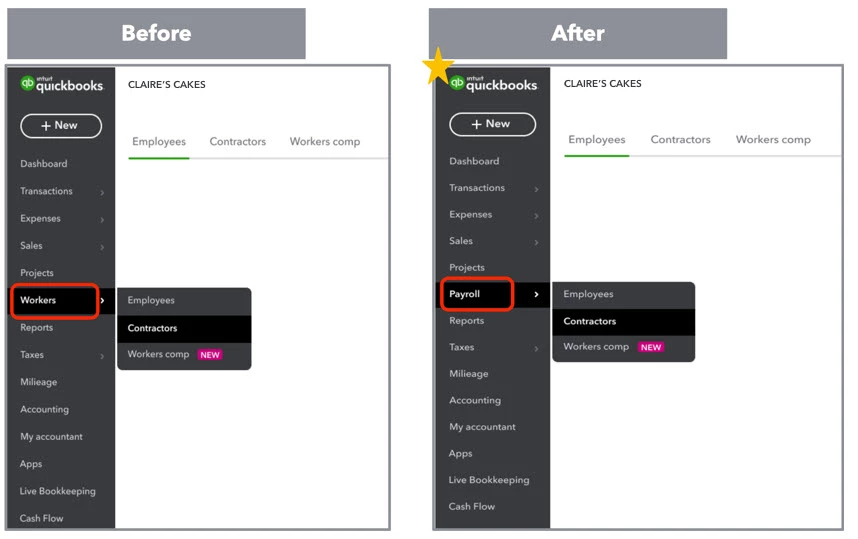
The Workers menu is now Payroll.

  • May 28, 2020
  • 5 replies
  • 21 views

A new name with the same great features for you to take care of payroll for your employees and contractors. You can also access payroll related resources like workers’ compensation, benefits and HR tools to help manage and grow your workforce.


5 replies

June 9, 2020

OK, but please also move Contractors up to the Expenses tab. Contractors are not on payroll; they belong with Vendors.


Morgan_B
QuickBooks Team
June 9, 2020

Hey there, David Kilbridge.


Thanks for your suggestion about moving Contractors to the Expenses area. I'll do my part and pass your feedback along to the Product Development Team to let them know you'd like to see this change. 


You can keep an eye out for these types of updates by visiting the QuickBooks Blog.


I'll be here if you have any other questions. Take care!

June 13, 2020

The notice for this should be on the main page. Otherwise, one would have to "Workers" has changed to "Payroll" to get the message. Not too smart a location.


Second, the instructions updating to the compliance requirement, the "Let's go" ling goes to workers comp, not to the place to compliance update.


Jim

June 22, 2020

I do not see my employees on the payroll section I only see them on the overview section, how do I move them to the payroll section so I can pay them this upcoming week???

RenjolynC
Level 9
June 22, 2020

Hello, fobaum.


Sometimes, your browser stores cache, which causes information to be missing on a page. I'm here to help you perform some troubleshooting steps to display your employees in the Employees section. 


Let's start by opening your company in an incognito or private browser. You can use the keyboard shortcut below:

  • Chrome: Press Ctrl + Shift + N
  • Firefox and Internet Explorer: Press Shift + Ctrl + P
  • Safari: Press Ctrl + Option + P

Next, go to Payroll > Employees. If you see all of your employees in both Overview and Employees page, our final step is to return to the regular browser and clear the cache. I've got this article for the instructions: Clear cache and cookies to fix issues when using QuickBooks Online.


You can also use a different browser as an alternate solution. 


Otherwise, reach out to our Customer Care Team via chat or call for further investigation. Please check our support hours here: Support hours and types. Then follow these steps:


  1. Click the Help icon located in the upper right-hand corner.
  2. In the Help window, click the Contact Us button located at the bottom.
  3. Enter your question and click Let's talk.
  4. Select Start messaging or Get a callback.

Please let me know how it goes. I'll be around to help if you have other questions or concerns. Thanks.

June 26, 2020

How do I find the info that would be used for W-2's.  Went QB on line with first payroll in April, previously was QB desktop..would like a report of YTD numbers..where might I find that?

Moderator
June 27, 2020

Thanks for joining the thread, @Judy1897.


You can run either the Payroll Details or Summary reports to show the year-to-date info that you'll find in W-2's. Here's how:


  1. Go to the Reports menu.
  2. Enter and look for either the Payroll Details or Summary reports in the search bar. 
  3. Choose the Date range you want. You can also show only employees you'd like to pull up in the Employee drop-down ▼.
  4. Click Run Report once ready. The YTD values will be displayed at the bottom of the report.

You'll also want to customize your reports in QuickBooks Online to personalize them: Customize reports.


Fill me in if you have more questions about managing your reports or anything else related to QuickBooks. I'll be here to help you. Take care and have a nice day.

June 28, 2020

This change has apparently deleted our employees, at least I can not find them in any of the menus. Payroll is due Tuesday, so I'd appreciate your help getting this sorted, especially given all the trouble we've had with payroll core over the last 6 months.

JenoP
QuickBooks Team
June 28, 2020

We'd really want to have this sorted out so you can find your employees and run payroll on Tuesday, NAGP.


Have you already tried logging in to your account in an incognito or private browsing session? If so, please contact our Payroll Support Team. They'll take a closer look at this to determine why you're unable to see your employees in QuickBooks Online.


Here's how:


  1. Click the Help menu and click Contact Us.
  2. Let me them know that you need to enter old payroll transactions, then click Let's talk.
  3. Click Start messaging or Get a call.


Also, please take note that due to the ongoing pandemic, our Payroll Team is only open between 6:00 AM to 6:00 PM from Monday-Friday, and from 6:00 AM to 3:00 PM on Saturday. Here's a quick guide for more details: Support hours and types.


Please don't hesitate to add another reply if you need anything else. 

June 29, 2020

Thank you for replying. I did all the things you suggested and our employee showed back up - but it wouldn't let me run payroll, either in a normal Safari browser window or a private browser window. This morning when I logged back in I could no longer see our employee, one through the same sequence of steps, with the same result.

Suggestions?

I have had and inordinately difficult time with Payroll Core (it literally took me 6 months to get it to work even with more than 25 hours of voice and chat help sessions) so I am getting extremely frustrated with the product.