Get 50% OFF QuickBooks for 3 months*

Buy now
Switch to QuickBooks and 70% off for 3 Months
March 11, 2021
Solved

Workforce Invite not going through

  • March 11, 2021
  • 5 replies
  • 19 views

I have resent numerous invitations to an employee and he is not receiving them.  Changed the email to another that he has and still nothing.  I even changed the email to one of MY secondary emails on a different server and it still didn't go through.  And yes, we have checked spam and junk folders.  Been using workforce for years and have never seen this. 

Best answer by jamespaul

Hello, Tim Ashton. 


I have news about the issue you've encountered when sending Workforce invitations. 


We currently have a reported issues where employees can't receive the Workforce invitation email. Our engineers are now working around the clock to get this invitation system back to normal again. 


In the meantime, you'll want to manually send your paychecks or paystubs to your employees. Here's how: 


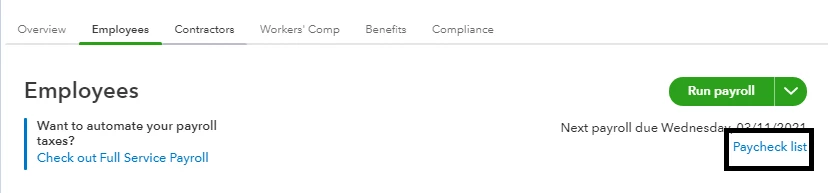
  1. Go to Payroll, then click the Employees tab.
  2. Click the Paycheck list link.
  3. Set the date range for the paychecks you want to send. 
  4. Check the paychecks.
  5. Click the Print button, then save it as a PDF.
  6. Email them to your employees. 


Also, I recommend contacting our support agents if you want to get updates regarding the issue. I'd like to do it here but it requires me to access your contact information (which we're unable to do in a public space). 


Here's how to reach them: 


  1. Click the the Help menu.
  2. Select Talk to a human
  3. In the chat box, enter "I'm affected by the Workforce invitation issue. Reference number:

    INV-55693.

  4. Proceed with I still need a human.
  5. Click the Get help from a human link.
  6. Select Get a call back or Start a message


You'll receive an email as soon as the issue is fixed. 


Need to run your next payroll or want to manage your employees? We have guides to help you complete your payroll-related tasks. Check them out in the Payroll articles list page.


We appreciate your patience as we're getting the service back to normal. If you have other questions, I'll hear them out. I'll give some guides and pointers to address them.  

5 replies

jamespaulAnswer
Level 8
March 11, 2021

Hello, Tim Ashton. 


I have news about the issue you've encountered when sending Workforce invitations. 


We currently have a reported issues where employees can't receive the Workforce invitation email. Our engineers are now working around the clock to get this invitation system back to normal again. 


In the meantime, you'll want to manually send your paychecks or paystubs to your employees. Here's how: 


  1. Go to Payroll, then click the Employees tab.
  2. Click the Paycheck list link.
  3. Set the date range for the paychecks you want to send. 
  4. Check the paychecks.
  5. Click the Print button, then save it as a PDF.
  6. Email them to your employees. 


Also, I recommend contacting our support agents if you want to get updates regarding the issue. I'd like to do it here but it requires me to access your contact information (which we're unable to do in a public space). 


Here's how to reach them: 


  1. Click the the Help menu.
  2. Select Talk to a human
  3. In the chat box, enter "I'm affected by the Workforce invitation issue. Reference number:

    INV-55693.

  4. Proceed with I still need a human.
  5. Click the Get help from a human link.
  6. Select Get a call back or Start a message


You'll receive an email as soon as the issue is fixed. 


Need to run your next payroll or want to manage your employees? We have guides to help you complete your payroll-related tasks. Check them out in the Payroll articles list page.


We appreciate your patience as we're getting the service back to normal. If you have other questions, I'll hear them out. I'll give some guides and pointers to address them.  

May 20, 2021

I am having the same issue. The only person who got the email was a new employee I added, but even he got an error message saying "Your employer isn't connected to Quickbooks Payroll." Is there a way to fix this?

AlcaeusF
Level 14
May 20, 2021

Thanks for joining this conversation, @YMB2021.


The investigation that was mentioned by my colleague above was already resolved. If you're getting the same issue, have your employee open the email using a private browser (incognito). This will help us check if this is a browser-related (cache and cookies) issue.


Here's how:


  • Press Ctrl Shift (Google Chrome).
  • Ctrl Shift (Firefox).
  • Control Option (Safari).


If it's successful, have him/her return to their default browser and perform a clear cache to refresh the system. However, if the issue persists, try using other supported browsers.


For tips and other resources about payroll, I recommend visiting our website for reference: Payroll articles lists.


Please know that I'm only a post away if you have any other concerns or questions. I'll be here to help. Have a good one!

July 19, 2021

I noticed the March 11th post to Workforce Invite not going through and that they are working around the clock to fix it.  That is joke since I requested support for this same issue over a week ago.  Quickbooks has been working around the clock now from March 11, 2021 to the current date of July 19, 2021.  I would like a direct answer on when this will be fixed (not that you are working around the clock).

Level 9
July 19, 2021

Hello there, Greatestcommand.


Have you tried performing the browser troubleshooting steps provided by my colleague? You can try isolating the issue of not being able to send and accept the invitation. 


The issue has been resolved and if you get the same thing after performing the troubleshooting steps, I suggest contacting us so we open a case of why you're still getting the same concern. For us to directly help you, you can use this link for more details about our support hours and types


Feel free to post your questions here if you have other questions. We are always ready to help. Take care!

June 21, 2022

I need help. My workforce won't even open for me to invite the employees. This issue occured a few months ago and every time I call in, no one is able to figure out the issue. My IT department can't even get this fixed. Has anyone else had this issue? My new employees are unable to get an invite, and this is very frustrating.


Employees > Manage Payroll Cloud Services > then nothing pops up like it should......

Level 9
June 21, 2022

Hello, AshMarieExpress.


I am taking note of the experience you share about our support. Let me make it up to you and continue the help until your employees get the invite to Workforce.


Based on your scenario, after clicking Manage Payroll Cloud Services, nothing happens. This behavior indicates that you need to update your QuickBooks Desktop to the latest release so you can proceed.


Here's how to manually update your software:


  1. Go to the Help menu.
  2. Select Update QuickBooks Desktop.
  3. Click the Options tab.
  4. Select Mark All and then click Save.
  5. Go to the Update Now tab.
  6. Select the Reset Update checkbox.
  7. When you're ready, select Get Updates.

To give you more insight and a visual guide on how to update QuickBooks Desktop, please check out this article: Update QuickBooks Desktop to the latest release.


Once done, let's make sure that the QuickBooks Workforce option is turned on. I'll guide you on how:


  1. Select Employees from the top menu bar.
  2. Choose Manage Payroll Cloud Services. ( If you don't see this option, please update your QuickBooks Desktop to the latest release.)
  3. Under QuickBooks Workforce, toggle the status to On, then select Save.

Alternatively, we can go to the Employee Center to check the profile of your employees. If the status of those employees is inactive, their accounts won't be able to establish a connection with QuickBooks Workforce. 


Here's how to check it:


  1. Select Employees from the top menu bar.
  2. Choose Employee Center.
  3. Go to the Employees tab, then select All Employees from the drop-down menu.
  4. Review the employee profile. (An X mark will show beside the employee name if it's inactive).
  5. Simply click the X mark to reactivate the employee.

For more information about the whole process of inviting an employee to see their pay stubs, W-2s, check out this article: Invite your employees to QuickBooks Workforce to see pay stubs, W-2s, and more.


Once they accept the invitation, your employees can view their paychecks.


The Community is always open if you have other questions while using Workforce. I'll be around to help. Wishing you a great day ahead!

June 21, 2022

We updated QuickBooks today and all the other times we have tried to get this to work. I have even been on with the support team where they were able to see my screen. They tried everything and couldn't get it. After hours, they give up. I have had this experience with several support teams members over the last few months.


When I click on "Manage Payroll Cloud Services" nothing opens up. The screen glitches like something is about to open but nothing ever does.


This used to work. I have 80% of my employees enrolled. It just stopped working and now I can't get the window to open. The support team even took down all our firewalls and it still wouldn't open.

February 15, 2023

I have the exact same issue. I have added a new employee and workforce invite is not received. I have tried a secondary, personal email and yes, we have checked spam folders.  Can this be fixed?

Moderator
February 15, 2023

Your presence in the Community thread is greatly appreciated, @Mary Allen. My priority is to assist you with inviting your employee to QuickBooks Workforce.

Your employees can easily access their pay stubs and W-2s at any time with the help of QuickBooks Workforce. Your invited employees will receive an email containing a link to set up QuickBooks Workforce and add their personal data.

I appreciate your troubleshooting efforts to make your employee receive your invitation. However, since the issue persists, it's possible that the email address is wrong or incorrectly formatted, and their mail servers block emails from Intuit.

To isolate the issue, let's delete your employee and then reenter their information again. Be sure not to use any extra characters or leave any blank spaces before, within, or after the email address. Once done, send the invitation again.

You can also click this link and review the Intuit's hostname and IP address if you want to add them to your server to prevent invitations from being labeled as spam.

You may want to contact our payroll live support team to request a screen sharing session to assist you further in inviting your employee to utilize QuickBooks Workforce.

I've also included the following article to help you understand the Workforce and how it functions: View your paychecks and W-2s online in QuickBooks Workforce.

I value your patience while we're working on it. If you need any clarifications or have any other concerns, please get in touch with us by clicking the Reply button below. The Community is available 24/7. Keep safe!

June 5, 2023

I figured out what the issue was. My employees had to login with username instead of email. Why? I don’t know. But if you forgot your username, select the option for forgot username and or password. Reset if you need to then login with username