Get 50% OFF QuickBooks for 3 months*

Buy now
Switch to QuickBooks and 70% off for 3 Months
December 7, 2020
Solved

Bounced Check

  • December 7, 2020
  • 3 replies
  • 4 views

We have a customer who mailed us a bad check for $1,806.87 on 07/10 that paid two invoices.  It was deposited on 07/13.  The bank debited our account on 07/16 and charged us $15.  We won't charge the customer the $15.  We received a second check from the customer for the same amount on 08/10.  


How do we record these transactions?

Best answer by LieraMarie_A

Thanks @BettyJaneB but this a QB problem, not a CPA problem.  They will not be able to help.  

Are you asking if I'm choosing the correct customer when creating an invoice to use the billable costs on?  Yes I am.  I would have thought that was obvious.  


Hi there, @PoolHero1. Let me share with you a simple fix that I found. 


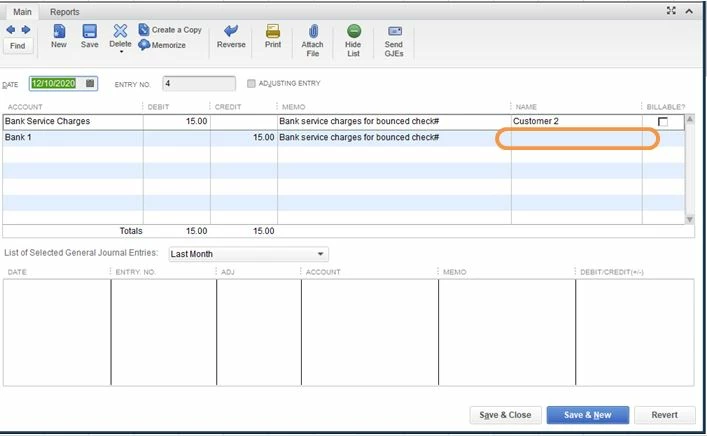
While we need to have the customer/job entered in the Journal Entry line that lists the Accounts Receivable account, you don't need to have the customer/job entered in the line that has the other account. In this case, we can remove the customer's name for the Bank asset account. This will remove the transactions from the Unbilled Cost by Job report. 


  1. Go to the Customer menu and select Customer Center.
  2. Select the customer's name.
  3. Locate the general journal entries under the Transactions tab. Then, double-click each entry to open it.
  4. Remove the customer's name that has the Bank asset account.
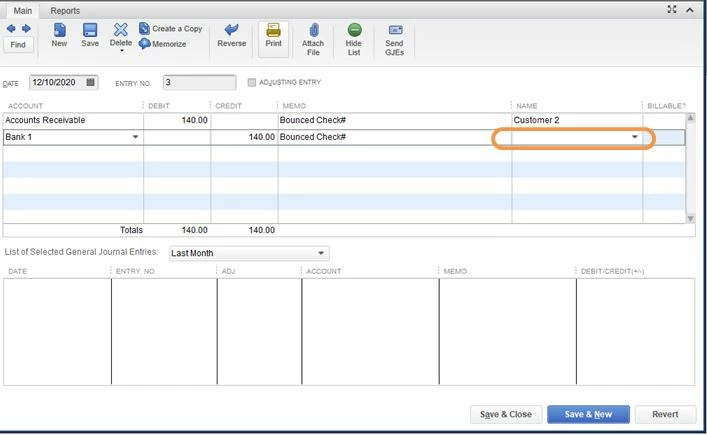
  5. Click Save & Close.
  6. Select Yes.


You can also check out our guide on handling NSF check from customer for your convenience. It gives you two options on how to do it. You can either use the Record Bounced Check feature or do the manual process.

Please let me know if you need further assistance. I'll be around to help. Have a great day.

3 replies

Jessica_young
Level 4
December 7, 2020

Let's get this taken care of for you, @PoolHero1.


We'll use the Bounced Check Feature to record these transactions. Please note, the Record Bounced Check feature can only be used in single-user mode and only applies to check payments done through the Customer Payment window. 

  1. Go to Customers, then select Customer Center.
  2. Select the Transactions tab, then choose Received Payments.
  3. Double-click the payment you want to record as NSF.
  4. On the receive payments window, select the Record Bounced Check icon on the Main ribbon tab.
  5. In the Manage Bounced Check window, enter the following information, then select Next.
    Note: For Bank Fee and Date, this is where you will want to enter the $15 bank fee charged for the bounced check.
  6. QuickBooks will show you the Bounced Check Summary, for you to know what will happen behind the scenes. For example, you may see:
    • The following invoices will be marked unpaid
    • The following fees will be deducted from your bank account.
    • This invoice will be created for the fee you want to charge your customer.
  7. Select Finish.

To read more about this process in greater detail, check out this article: Handle Non-Sufficient Funds (NSF) or bounced check from customers.


Let me know if you have any other questions about this process. I'm here to help! Have a fantastic week.

PoolHero1Author
December 7, 2020

Thanks @Jessica_young 


When I do that the summary shows

1) the two invoices being marked unpaid

2) the two fees being deducted to from my bank acct

3) An invoice what will be created for the fee to charge to customer (it's blank).


I then go into the second payment and apply it to the two original unpaid invoices.  What do I do with the journal entry that it created?  In the customer payment window, the journal entry for $1,806.87 is showing like unpaid invoice.  In addition, both journal entries, $1,806.87 and $15, are showing up on our unbilled accounts report.  That report is a listing of anything purchased with a Customer:Job name and marked as billable.

Level 8
December 7, 2020

Thanks for keeping us updated, PoolHero1.


I'm here to share additional information about recording bounced check from customers.


When you use the Record Bounced Check feature, QuickBooks will make sure that all related details on bounced check transactions are well-documented. As mentioned, above, the Bounced Check Summary will show you what happens behind the scenes.


The two invoices that were paid by the bad check worth  $1,806.87 will be marked as unpaid. Additionally, the amount that you entered in the Customer fee field from the Manage Bounced Check window will be deducted from your bank account. 


Lastly, a particular invoice will be automatically created for the $15.00 bank fee. Since you don't want to charge your customer for it, you may just disregard this transaction. For the journal entries, I'd recommend consulting your accountant on how to handle them to avoid discrepancies on your records.


I've also included an article that will guide you on what to do when a check bounces and your bank account has non-sufficient funds.


Keep us posted if you have any other concerns or questions about checks. The Community always has your back.

PoolHero1Author
December 7, 2020

Thanks @Klent 


In addition to the $1,806.87 journal entry showing up in the receive payments window for the customer, the journal entry was also creating a credit which I was then able to apply to JE in the receive payment window.  


My last festering issue is with the two journal entries still showing up in the report.  If you click Reports->Jobs...->Unbilled Costs by Job, the journal entries are listed.  Please try to recreate the issue on your end and let me know if you're having the same issue.

PoolHero1Author
December 9, 2020

Is anyone else seeing bounced check transactions in the Unbilled Costs by Job report?

QuickBooks Team
December 9, 2020

Hello there, @PoolHero1.


Yes, I can see the bounced check transactions in the Unbilled Costs by Job report in QuickBooks Desktop (QBDT).


If you're unable to locate those on your end, there may be data damage. To fix this, let's run and verify rebuild your data.

Here's how:

  1. Go to the File menu, then hover over Utilities.
  2. Select Rebuild Data.
  3. On the QuickBooks Information window, select OK. Follow the onscreen steps to save a backup.
  4. Let the tool repair your file. It may take some time. QuickBooks may seem stuck, but as long as you can move your mouse, the tool is working.
  5. When the tool finishes, select OK.
  6. Go to the File menu, and then hover over Utilities.
  7. Select Verify Data.
  8. Let the tool check your file for data issues.

If QuickBooks doesn't find any problems, select OK. However, if QuickBooks finds an issue with your company file, click Rebuild Now.


Check this link for more information: Verify and Rebuild Data in QuickBooks Desktop.


I've also added this article about customizing customer jobs and sales reports in QBDT.


Stay in touch with us if you have other questions. We're always here to help.

PoolHero1Author
December 9, 2020

Hi @Maybelle_S 


I am also able to see it which is the problem.  How do I get it off of the report?  Also, I happen to have rebuilt the data yesterday for another reason.