Get 50% OFF QuickBooks for 3 months*

Buy now
Switch to QuickBooks and 70% off for 3 Months
Best answer by MaryGraceS

Hello there, @dterrasolutions.


It's nice to have you in the Community. I'd be happy to help walk you through in customizing the Open Purchase Order report to show the "ship date" you've entered.


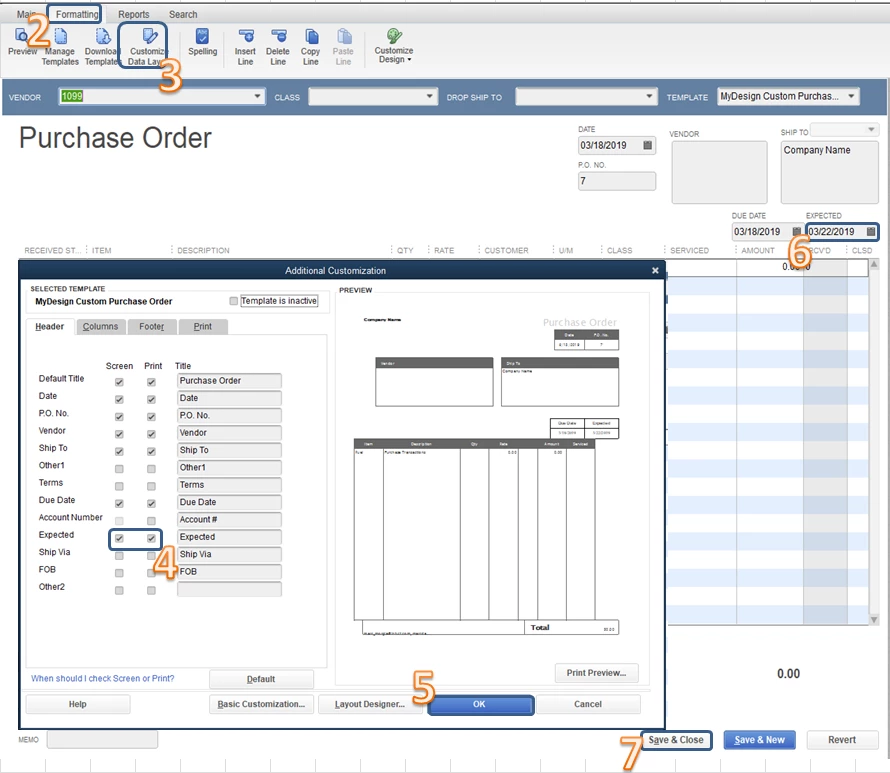
In order to show the Ship Date correctly on the report, you need to customize the Purchase Order (PO) template first and add the Expected date. Let me show you how:

  1. Open the PO. 
  2. At the top menu, select the Formatting tab.
  3. Click Customize Data Layout.
  4. From the Header column, mark the Expected check boxes.
  5. Click OK.
  6. Enter the ship date in the EXPECTED field.
  7. Click Save & Close.

After that, you can create and customize the Open Purchase Order report to show the ship date.

  1. From the Reports menu, select Purchases.
  2. Select Open Purchase Orders.
  3. At the top left, click the Customize Report button.
  4. From the Display tab, select Ship Date.
  5. Click OK

I've attached some articles below for additional reference: 

That should point in the right direction today. Drop me a comment below if you have any other questions about adding the correct ship date in the Open Purchase Orders report, or if you have any other questions about QuickBooks. I'll be happy to help you out.

2 replies

Moderator
March 18, 2019

Hello there, @dterrasolutions.


It's nice to have you in the Community. I'd be happy to help walk you through in customizing the Open Purchase Order report to show the "ship date" you've entered.


In order to show the Ship Date correctly on the report, you need to customize the Purchase Order (PO) template first and add the Expected date. Let me show you how:

  1. Open the PO. 
  2. At the top menu, select the Formatting tab.
  3. Click Customize Data Layout.
  4. From the Header column, mark the Expected check boxes.
  5. Click OK.
  6. Enter the ship date in the EXPECTED field.
  7. Click Save & Close.

After that, you can create and customize the Open Purchase Order report to show the ship date.

  1. From the Reports menu, select Purchases.
  2. Select Open Purchase Orders.
  3. At the top left, click the Customize Report button.
  4. From the Display tab, select Ship Date.
  5. Click OK

I've attached some articles below for additional reference: 

That should point in the right direction today. Drop me a comment below if you have any other questions about adding the correct ship date in the Open Purchase Orders report, or if you have any other questions about QuickBooks. I'll be happy to help you out.

April 2, 2019

Thank you, worked to perfection!

Morgan_B
QuickBooks Team
April 2, 2019

I'm happy to hear this worked for you, dterrasolutions. You can always count on the Community for support if you ever have any other questions in the future. Take care.

May 30, 2020

Good morning my order was shipped to the wrong address how can we fix that before it's get there 

Level 9
May 30, 2020

 Hi there, Wrong shipping address.


Since the order was already shipped, I suggest contacting the courier to inform them that the address was entered incorrectly. This way, they can change the address and deliver it to the correct one.


After that, I recommend changing the address from the Purchase Order you entered in QuickBooks Desktop. This is to make sure that the information you entered in your account is accurate.


Here's how:


  1. Click the Vendors menu.
  2. Choose the Vendor Center.
  3. Find the vendor who you've created P.O
  4. You'll be routed in the Vendor Information page. Then, double click the P.O to expand the page.
  5. Change the address in the box under Ship to.
  6. Hit Save&Close.


Please check this article to see steps on how to use the purchase order management worksheet: Use the purchase order management worksheet. This will help you identify what purchase order is being received, then sent to the QuickBooks Desktop Warehouse app.


Please let me know if you have other questions related to QuickBooks. I'm always here to help.