
Get 50% OFF QuickBooks for 3 months*

Buy now
Switch to QuickBooks and 70% off for 3 Months
December 28, 2020
Question

cannot export item code separately in report.

  • December 28, 2020
  • 1 reply
  • 0 views

Hello, anyone can advise how can separate the item code from item description in any report that related to inventory? When I created inventory item, I used only item code in Item Name Column as per picture. 
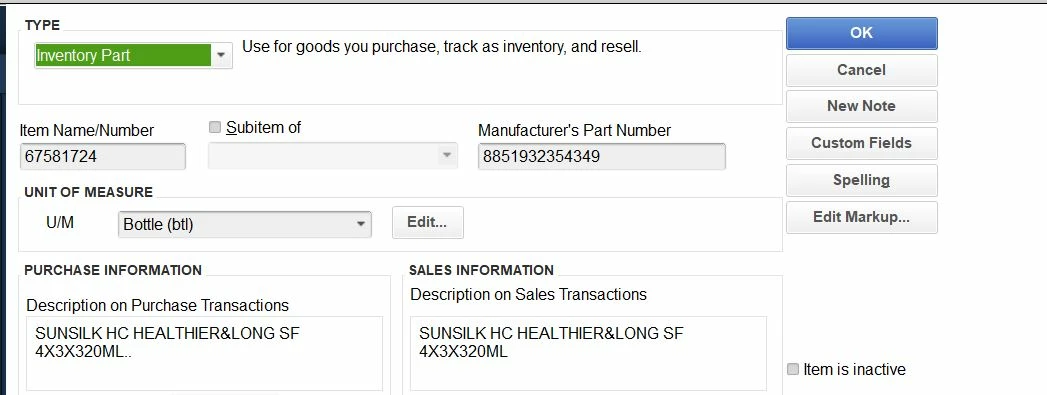
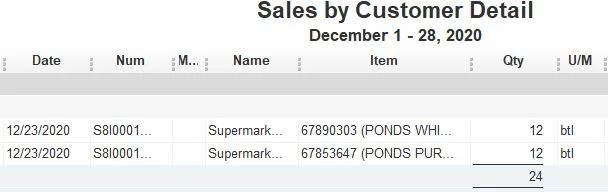
When I export any report related to inventory, the item code and description are always in the same column. I want only item code in one separate column in my report so that it is easy to use excel formula. 

Appreciate your quick advise. 

Thanks, 
 

1 reply

Rebecca R
December 28, 2020

Hi there KHTheany,


When it comes to exporting reports and lists, being able to view the data you need and manipulate it accordingly is an important feature. Exporting data from QuickBooks Desktop is an easy process, but when it comes to manipulating the data or adjusting the columns, you'll need to do a little extra work on your end. Let me explain.


When you export reports or lists from QuickBooks Desktop to Excel, the data will be exported exactly as it's stored in QuickBooks. When you open the Excel file, you'll be able to adjust columns and manipulate the data you see to suit your needs, but there isn't an option to do that in QuickBooks prior to exporting. Here are a few articles that go over the exporting process for you to review:


I can see how expanded capabilities when it comes to manipulating data prior to exporting it from QBDT would be handy. Letting our product development team know that this is something you'd like to see worked on would be the best way to have your voice heard in this situation. To do that, navigate to the Help button and look for the option to submit Feedback. I'll be sure to pass this along on my end as well.


It's possible that you might come across a third-party app that'll make the process of exporting your data a little easier. Check out the apps that are available here, ensuring that you select the Canada flag from the drop down at the top to filter through apps available in your region. 


I wish you all the best and hope you have an enjoyable week.

KHTheanyAuthor
December 31, 2020

Thanks Rebecca for spending your time responding to my question. However, I still cannot find a way to make my report goes easier as I still need to remove the item number and item description from ITEM Column manually. 

Level 8
December 31, 2020

Hi KHTheany,


Welcome back. I can see this is an important task for you, and, like my colleague, I'm with you on how separating those columns in QuickBooks Desktop before exporting would be easier. I can clarify what Rebecca mentioned above.


QuickBooks Desktop has certain ways that it organizes information in reports. In this case, the item number is included in the same column as the description, and the two cannot be separated in the report itself. Because of that, it'll mean manual work on your end once you get the file into Excel.


What you can consider, if you haven't already done so, is including the Item Description column in your Sales by Customer Detail report. This won't separate the item number and description from one another, but it does add an additional column where the item description is by itself. In doing that, all you would have to do once the file is in Excel is remove the additional description information from the item number column. To add the Item Description column, select Customize Report, then use the Columns section on the Display tab to add the Item Description column. Click OK when you're ready to run the report again.


I know this can cause extra work, especially if the report has a lot of data, however there isn't another way to handle this at this time. This is why the Feedback option is such a valuable asset. Our product development team loves hearing from users about how certain features are impacting them and what might be done to make things even easier. Don't hesitate to share your thoughts using the feedback option via the Help menu.


I hope that helps clear things up, but don't hesitate if you have further questions.