
Get 50% OFF QuickBooks for 3 months*

Buy now
Switch to QuickBooks and 70% off for 3 Months
July 20, 2020
Solved

Change Order

  • July 20, 2020
  • 3 replies
  • 48 views

I have looked at every “how to” and multiple threads on this website. What do I do if the “change order” box doesn’t populate when I make changes to an estimate? Pls help. sos

Best answer by Charies_M

You've made the right choice of coming here, JRH2.


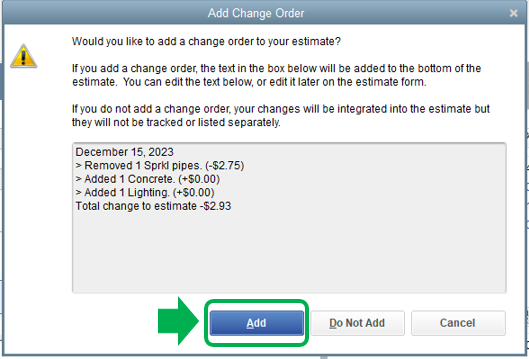
When you make changes to your estimates, the Add Change Order box will pop up after the Recording Transaction window appears. I'll show you some screenshots below:


This the Recording Transaction pop-up. Just click Yes and the Add Change Order will automatically appear.

This is the Add Change Order box. Click Add to save the changes made.
 

You can have this article handy for more information about creating estimates in QuickBooks Desktop: Create an estimate.


If it still doesn't give you the change order box, I suggest running the Verify and Rebuild Utility Tool. This helps repair any data damage in the system. Below are the steps on how to do this:
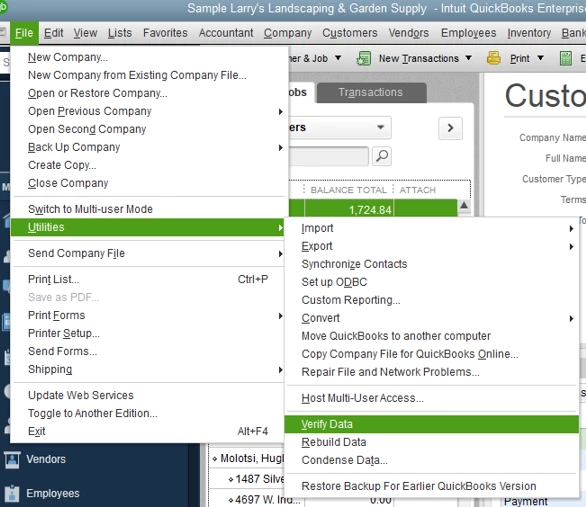
 

  1. From the File menu.
  2. Click on Utilities.
  3. Select Rebuild Data/ Verify Data.

I've got your back whenever you need help while working with QuickBooks. It will be a pleasure to assist you further. Enjoy the rest of the day!

3 replies

Charies_MAnswer
Level 9
July 20, 2020

You've made the right choice of coming here, JRH2.


When you make changes to your estimates, the Add Change Order box will pop up after the Recording Transaction window appears. I'll show you some screenshots below:


This the Recording Transaction pop-up. Just click Yes and the Add Change Order will automatically appear.

This is the Add Change Order box. Click Add to save the changes made.


You can have this article handy for more information about creating estimates in QuickBooks Desktop: Create an estimate.


If it still doesn't give you the change order box, I suggest running the Verify and Rebuild Utility Tool. This helps repair any data damage in the system. Below are the steps on how to do this:


  1. From the File menu.
  2. Click on Utilities.
  3. Select Rebuild Data/ Verify Data.

I've got your back whenever you need help while working with QuickBooks. It will be a pleasure to assist you further. Enjoy the rest of the day!

December 8, 2020

Hello, I am having the same issue when updating an estimate. the change order box does not populate. I have ran the rebuild/verify tool, however, it says there are no issues. The box populates for our admin user of the company, but not my user. Thoughts on how else to fix? 

March 15, 2021

Thanks for actively responding, @CarreBrown. I appreciate you for trying all the steps to fix the issue. 


A damaged component can be a culprit for this issue. That is why the change order box does not populate in the test file. 


I have some troubleshooting steps for you to fix the QuickBooks program-related issues. We can run the repair tool for QuickBooks Desktop. First off, let's create a back up your company file to avoid any accidental data loss. Restart your computer to ensure there are no programs that may affect the repair.


Then, follow these steps below:


  1. Open your Windows' Control Panel and select Programs and Features. If you don't see the option, hit on Programs, and then Program Features.
  2. Press on QuickBooks and click Uninstall/Change.
  3. Hit on Continue, then tap on Next.
  4. Tap Repair and click Next.
  5. Click on Finish when the repair is complete. 


Once done, update your QuickBooks to the latest release. Then, start your computer and open the sample file again. Check to see if it works. 


However, if the issue persists, I suggest you check out this great resource for more troubleshooting steps: Fix QuickBooks Desktop install errors.


Get back to me if you have other questions, I'd be happy to help.


Okay I've done literally everything thats been suggested and the change order function just does not pop up.


I've verified files and and rebuilt them.  I'm new to quickbooks as of this year and it has been nothing short of infuriating.  I'm a contractor and was trying to get things better organized and more stream lined with quickbooks but so far the only things its helping with is replacing computers after smashing them to pieces. 

October 25, 2022

I'm sure this is out of date. With the current edition of QBO, how do we make change orders?

JenoP
QuickBooks Team
October 25, 2022

We're glad to see you here in the Community, Modern Dwellings.


Allow me to share details about changing orders to estimates.


First, you're following a thread for QuickBooks Desktop. Although the steps are not outdated, they will not be applicable to you since you're using a different platform. 


Second, the online version or QBO does not have a similar feature for changing orders. However, you can edit the estimate to include additional products or items to the transaction. Here's how:


  1. Go to the Sales menu and proceed to the All Sales tab.
  2. Look for the estimate and click on it to open the transaction.
  3. Add or edit any details in the Product/Service column.
  4. Click Save.


You would also need to edit the linked invoice so they would have the same information. Just click the 1 linked invoice link in the upper-right hand corner of the estimate. Then, make the same changes to make sure both the estimate and invoice have similar details. 


After that, click Save and send if you want to send another copy of the transaction to the customer. 


Let me know if you're able to save the changes to your estimates. I'd be glad to get back here if you need anything else. 

June 12, 2025

Once I enter a change order on an Estimate, can I get rid or delete it from the estimate?