Get 50% OFF QuickBooks for 3 months*

Buy now
Switch to QuickBooks and 70% off for 3 Months
September 3, 2020
Solved

QuickBooks Automatic Backup

  • September 3, 2020
  • 2 replies
  • 2 views

Hello Everyone.


I am running the QuickBooks Premier 2019 (the desktop version of QuickBooks) in multi-user mode, and in the past my automatic backups were running, and apparently about two months ago they quit working. Thankfully we have other albeit less accessible forms of backup so we were still able to restore from that. How do I go about fixing this? Is there something I have to do on my PC, or maybe the server where QuickBooks is running?


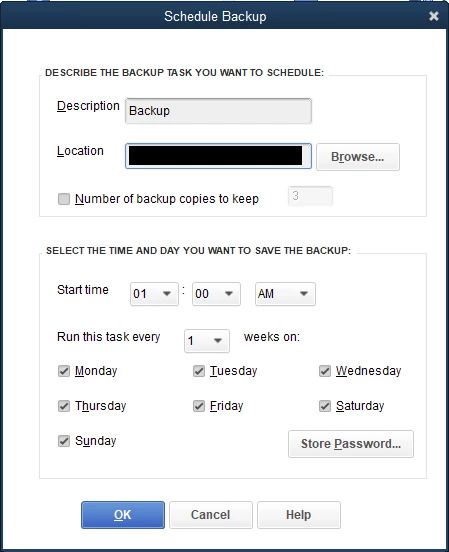
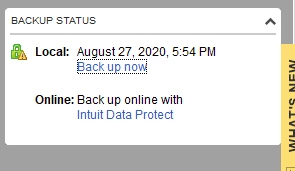
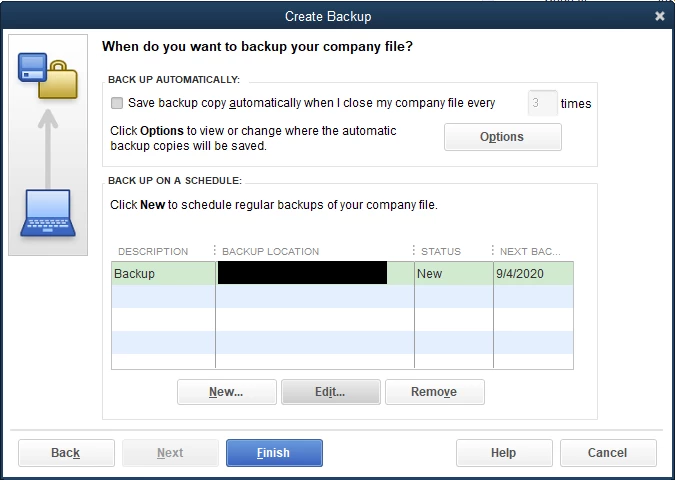
I've attached some photos of how I have everything setup. Any help would be appreciated!
Best answer by jh2399

While I appreciate the responses from the QuickBooks team, the solution for me was as follows:


I followed the directions of the individual at THIS POST which was essentially to open your task scheduler on the machine where you're trying to setup the automated backups and change the option that says "Configure For:" to "Windows 10" on the task titled <Your Company File Name> ##########.


If I didn't find that post I would have never found the connection, as we upgraded all of our machines to Windows 10 in July.

2 replies

Pabz_L
September 3, 2020

Hello, @jh2399.


Thank you for sharing detailed information. Let me provide you some troubleshooting steps that will help you fix this issue on your Intuit Data Protect.


First, you’ll have to update your QuickBooks to the latest release.


Here’s how.


  1. Open your QuickBooks Desktop. 
  2. Click the Help button located at the top.
  3. Select Update QuickBooks Desktop.
  4. Click the Update Now tab, and scroll down and put a checkmark on Data Protect.
  5. Then, click the Get Updates button.


Once done, update your Intuit Data Protect to the latest release to avoid errors or unexpected behaviors. This will also ensure that your backups go smoothly.


  1. On your desktop toolbar, select the up arrow ^ It’s usually in the lower-right corner near the clock, and look for Intuit Data Protect icon.
  2. Right-click on the icon and select About Intuit Data Protect.
  3. Click the Update button.


I’m adding here an article on how to fix issues when you can’t back up your QuickBooks Desktop file with Intuit Data Protect: Troubleshoot Intuit Data Protect


Please leave a comment below if you need further assistance. I am here to help. Keep safe.

jh2399Author
September 3, 2020

My QuickBooks says that it already has Intuit Data Protect installed, however, I don't have any process like that running in my taskbar, or do I see anything called that installed in my QuickBooks folder.

jh2399Author
September 3, 2020

.

jh2399AuthorAnswer
September 8, 2020

While I appreciate the responses from the QuickBooks team, the solution for me was as follows:


I followed the directions of the individual at THIS POST which was essentially to open your task scheduler on the machine where you're trying to setup the automated backups and change the option that says "Configure For:" to "Windows 10" on the task titled <Your Company File Name> ##########.


If I didn't find that post I would have never found the connection, as we upgraded all of our machines to Windows 10 in July.

November 21, 2020

Open Task Scheduler

Go to the QB Backup task

Open task properties

On the General Page at the bottom is an option for Configure For: 

    Use the drop down and select Windows 10