Get 50% OFF QuickBooks for 3 months*

Buy now
Switch to QuickBooks and 70% off for 3 Months
September 3, 2020
Solved

QuickBooks Automatic Backup

  • September 3, 2020
  • 2 replies
  • 19 views

Hello Everyone.


I am running the QuickBooks Premier 2019 (the desktop version of QuickBooks) in multi-user mode, and in the past my automatic backups were running, and apparently about two months ago they quit working. Thankfully we have other albeit less accessible forms of backup so we were still able to restore from that. How do I go about fixing this? Is there something I have to do on my PC, or maybe the server where QuickBooks is running?


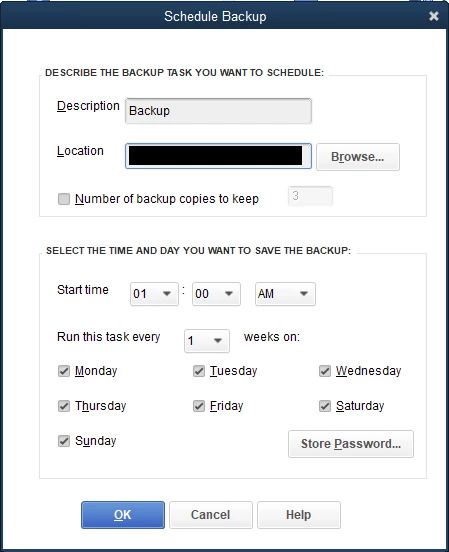
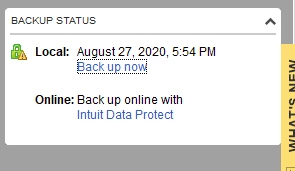
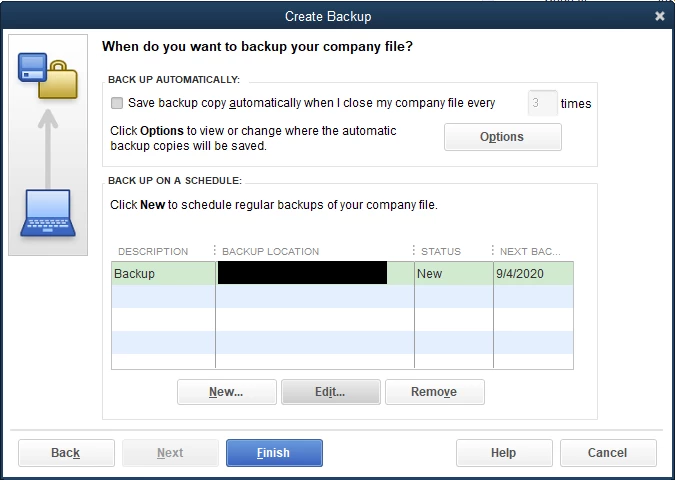
I've attached some photos of how I have everything setup. Any help would be appreciated!
Best answer by jh2399

While I appreciate the responses from the QuickBooks team, the solution for me was as follows:


I followed the directions of the individual at THIS POST which was essentially to open your task scheduler on the machine where you're trying to setup the automated backups and change the option that says "Configure For:" to "Windows 10" on the task titled <Your Company File Name> ##########.


If I didn't find that post I would have never found the connection, as we upgraded all of our machines to Windows 10 in July.

2 replies

Pabz_L
September 3, 2020

Hello, @jh2399.


Thank you for sharing detailed information. Let me provide you some troubleshooting steps that will help you fix this issue on your Intuit Data Protect.


First, you’ll have to update your QuickBooks to the latest release.


Here’s how.


  1. Open your QuickBooks Desktop. 
  2. Click the Help button located at the top.
  3. Select Update QuickBooks Desktop.
  4. Click the Update Now tab, and scroll down and put a checkmark on Data Protect.
  5. Then, click the Get Updates button.


Once done, update your Intuit Data Protect to the latest release to avoid errors or unexpected behaviors. This will also ensure that your backups go smoothly.


  1. On your desktop toolbar, select the up arrow ^ It’s usually in the lower-right corner near the clock, and look for Intuit Data Protect icon.
  2. Right-click on the icon and select About Intuit Data Protect.
  3. Click the Update button.


I’m adding here an article on how to fix issues when you can’t back up your QuickBooks Desktop file with Intuit Data Protect: Troubleshoot Intuit Data Protect


Please leave a comment below if you need further assistance. I am here to help. Keep safe.

jh2399Author
September 3, 2020

My QuickBooks says that it already has Intuit Data Protect installed, however, I don't have any process like that running in my taskbar, or do I see anything called that installed in my QuickBooks folder.

jh2399Author
September 3, 2020

.

jh2399AuthorAnswer
September 8, 2020

While I appreciate the responses from the QuickBooks team, the solution for me was as follows:


I followed the directions of the individual at THIS POST which was essentially to open your task scheduler on the machine where you're trying to setup the automated backups and change the option that says "Configure For:" to "Windows 10" on the task titled <Your Company File Name> ##########.


If I didn't find that post I would have never found the connection, as we upgraded all of our machines to Windows 10 in July.

February 19, 2021

Task Scheduler -> QB backup task -> Edit properties

You many also need to change the task to you as administrator.

June 14, 2023

Thanks for the update, but this issue has been ongoing for YEARS.  I doubt Intuit is serious about looking at this.  The issue seems two fold:


1) The Task Scheduler task is added by Quickbooks using the wrong "Configure For" setting.  It appears this setting should be "Windows 10", but the QB backup/scheduling wizard creates it as "Windows Server 2003, Windows XP or Windows 2000".


This issue has been repeatedly documented since 2018 (https://quickbooks.intuit.com/learn-support/en-us/install/scheduled-backups-are-not-working-in-windows-10-after-upgrading/00/210985) , yet despite yearly updates, it is never addressed.  Your users are doing the work for your developers, but it seems to be falling on deaf ears.


2) Even though in QB versions prior to 2022, the above fixed worked, after this year's update (to QB 2022), the backups were failing with a status code of 0x2 in the Task Manager.


After hours of hair pulling, I *think* I found the solution, by defining the backup location (network drive) using UNC (ie: "//server/sharename") rather than using a Mapped drive letter (which worked fine in the past).  This seems to work now, but I have to give it a couple days to ensure that my settings (max number of backups, scheduling, etc, are being honored).


I truly don't understand why Intuit cannot release (or document the existing AutoBackupEXE.exe) a standalone executable that we could run via a batch file, etc.  It appears that the existing EXE file has no options, and no debugging/error output that could help diagnose these issues.  The only command line option seems to be an obscure number, presumably so it can cross reference the desired settings within QB?


Apologies for my frustration but our experience with Intuit (after being a client for 10+ years) is that support is slow, and often ignores the actual problem at hand.


Another version, same problem.


We recently upgraded to QB Desktop Pro 2023.  As always, the installer kills the previous scheduled tasks.  As always, QB incorrectly sets up the "Configured For" field.  As always, the mapped drive letters don't work, so you must use the UNC path.


I had to look up my own post on how to fix this......again.


Intuit: why do you have such high contempt for your own, paying clients?  The fact that you own user community has had to identify the problem, and find a solution, which you refuse to implement in multiple subsequent product versions is unexcusable.