
Get 50% OFF QuickBooks for 3 months*

Buy now
Switch to QuickBooks and 70% off for 3 Months
January 23, 2025
Solved

Setting up vendor payment terms.

  • January 23, 2025
  • 1 reply
  • 90 views

How do I set up my vendor payment term for when the bill is due the 25th of the following month? It keeps saying that it is due the 25th of this month when I choose that 25th option. 

Best answer by GianSeth_A1

To set up vendor payment terms in QuickBooks Online, so the bill is due on the 25th of the following month, you'll need to create a custom payment term. I'll be assisting you to achieve that, Sunny. Here’s a step-by-step guide on how to do it:
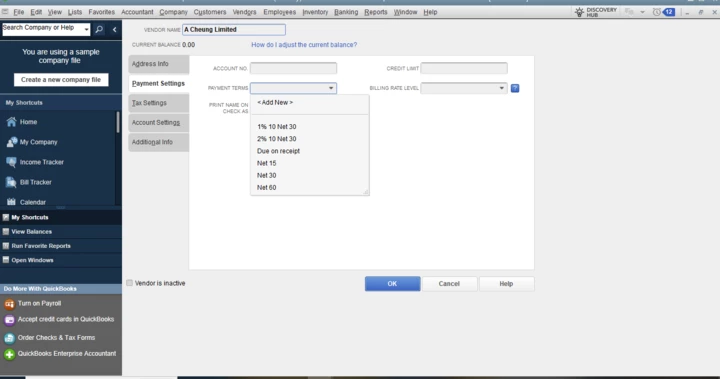
 

  1. Go to the Lists menu.
  2. Click on Customer & Vendor Profile Lists.
  3. Select Terms List.
  4. Proceed to Create New Term:
  5. In the Terms List window, click the Terms button at the bottom left corner.
  6. Click on New.

For setting up the payment term, follow the steps below:
 

  1. In the New Terms window, you’ll see two options: Standard and Date Driven.
  2. Choose Date Driven and use the following settings:
  3. Enter 25 for the due date.
  4. Set to 31 days (this ensures that it applies to all bills regardless of when they're issued in the month).

After completing the steps above, proceed to name the term "Due 25th of Next Month" and save.
 

Moreover, when assigning the custom term to vendors, the following steps will guide you:
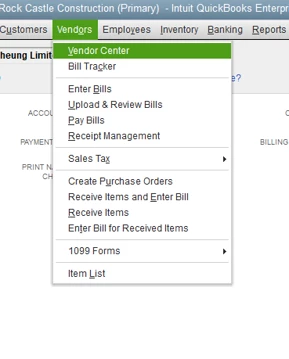
 

  1. Navigate to Vendors, then select Vendor Center.
  2. Choose a vendor and double-click the vendor you want to assign this term to.


In applying the custom term, follow the guide below: 

  1. Go to the vendor's edit window and proceed to the Payment Settings tab.
  2. In the Terms drop-down, select the term you just created, "Due 25th of Next Month".

If you continue to experience issues, double-check that the custom term is correctly applied to your vendors and try creating a sample bill to ensure it reflects the correct due date.


For further reference in setting up payment terms, check out this article: Payment Terms.


If you're looking to take your business to the next level, QuickBooks Enterprise is the solution you've been searching for! As a leading financial management software, QuickBooks Enterprise offers a comprehensive suite of features specifically designed to meet the needs of growing businesses, large or small.

Additionally, you may explore these two articles, which provide information about the customer transaction workflow and receiving payments in your QBDT account:

By following the steps outlined above, you will be able to establish specific terms for a vendor. If you require any additional help, please feel free to reach out. I am always available to assist you. Have a wonderful day!

1 reply

QuickBooks Team
January 23, 2025

To set up vendor payment terms in QuickBooks Online, so the bill is due on the 25th of the following month, you'll need to create a custom payment term. I'll be assisting you to achieve that, Sunny. Here’s a step-by-step guide on how to do it:
 

  1. Go to the Lists menu.
  2. Click on Customer & Vendor Profile Lists.
  3. Select Terms List.
  4. Proceed to Create New Term:
  5. In the Terms List window, click the Terms button at the bottom left corner.
  6. Click on New.

For setting up the payment term, follow the steps below:
 

  1. In the New Terms window, you’ll see two options: Standard and Date Driven.
  2. Choose Date Driven and use the following settings:
  3. Enter 25 for the due date.
  4. Set to 31 days (this ensures that it applies to all bills regardless of when they're issued in the month).

After completing the steps above, proceed to name the term "Due 25th of Next Month" and save.
 

Moreover, when assigning the custom term to vendors, the following steps will guide you:
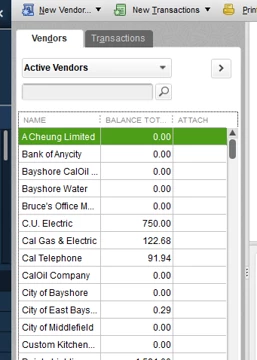
 

  1. Navigate to Vendors, then select Vendor Center.
  2. Choose a vendor and double-click the vendor you want to assign this term to.


In applying the custom term, follow the guide below: 

  1. Go to the vendor's edit window and proceed to the Payment Settings tab.
  2. In the Terms drop-down, select the term you just created, "Due 25th of Next Month".

If you continue to experience issues, double-check that the custom term is correctly applied to your vendors and try creating a sample bill to ensure it reflects the correct due date.


For further reference in setting up payment terms, check out this article: Payment Terms.


If you're looking to take your business to the next level, QuickBooks Enterprise is the solution you've been searching for! As a leading financial management software, QuickBooks Enterprise offers a comprehensive suite of features specifically designed to meet the needs of growing businesses, large or small.

Additionally, you may explore these two articles, which provide information about the customer transaction workflow and receiving payments in your QBDT account:

By following the steps outlined above, you will be able to establish specific terms for a vendor. If you require any additional help, please feel free to reach out. I am always available to assist you. Have a wonderful day!

July 9, 2025

I have a vendor that let's us pay our invoice on 30-60-90 day term. This lets me pay 1/3 of the invoice every 30 days. Is there a way to set up terms in QuickBooks desktop?

QuickBooks Team
July 9, 2025

Yes, you can set up vendor payment terms to record discounts and meet financial obligations with your suppliers, Wesnv.


To do this, go to Lists from the menu bar and select Customer & Vendor Profile Lists. From there, refer to these steps:


  1. Select Terms, then click New.
  2. Enter the name for the payment term and select either:
    Standard - If you want to have a payment due within a specific number of days from the invoice date.
    Date-Driven - If you want to enter the specific days of the month when a payment is required within the due date.
  3. Once done, click OK to close or Next to create another payment term.


Just reply to this thread if you require further assistance.