
Get 50% OFF QuickBooks for 3 months*

Buy now
Switch to QuickBooks and 70% off for 3 Months
May 5, 2020
Question

Asset Value Calculations incorrect

  • May 5, 2020
  • 1 reply
  • 14 views

Hello, 

In my inventory evaluation summary report, the calculations for inventory asset value is off by a few $.

760 units X  $37.38 = $28408.00
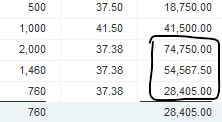
 

Can anyone explain why?


Thank you for your time.

1 reply

Rubielyn_J
Level 8
May 5, 2020

Welcome to the Community, @2000yearsago.


Let me sort things out for you. Your asset value will depend on the transactions entered in your QuickBooks. Possible reason that the calculation is incorrect is because of some data damage. To fix this you can Verify and Rebuild Data in QuickBooks Desktop. 


I'll show you how:

  1. Close all the windows in your QuickBooks.
  2. Go to the File menu, then choose Utilities.
  3. Select Verify Data.
  • If the result will be QuickBooks detected no problems with your data, no further action is needed.
  • When a specific error message pops up, you can search it ou QuickBooks Desktop support site for specific instructions.
  • When the result is Your data has lost integrity, follow the steps below to rebuild the data to correct the problem.
  1. Go to the File menu.
  2. Select Utilities, then choose Rebuild Data.
  • If it detects additional damage, locate the error within the qbwin.log and look for a resolution at the QuickBooks Desktop Support site.
  • If the error can't be found, try to restore a recent backup copy. Make sure not to overwrite your existing company file. 


If you're still having the same result after performing all the troubleshooting, you can contact our support team. They have the necessary tools to further investigate and fix your concern.


Please let me know if you need further assistance. I'd be glad to help you. Keep safe.

May 6, 2020

Thanks for the reply.

Tired the steps above and it said "QuickBooks detected no problems with your data"


The math is still wrong.

June 3, 2024

Hello,
I realize this is a very old thread, but it is still very relevant. I have an inventory item where QB calculated the rate to the third digit, but for the FIFO cost, it was rounded to only two. This means when the inventory quantity is zero, the inventory value is a negative .04 cents. I need help to clear this negative, but there is no way to change the rate or FIFO cost. Plus, the beginning inventory is from many years ago, so I'm unable to make an adjustment there as well.

I'll try to paste from the inventory valuation detail report:
Rate FIFO Cost
12 15.425 185.100
-1 15.425 (15.430)
-1 15.425 (15.430)
-3 15.425 (46.280)
-1 15.425 (15.430)
-1 15.425 (15.430)
-1 15.425 (15.430)
-1 15.425 (15.430)
-3 15.425 (46.280)
0               (0.040)

I have this situation on three other items that we no longer carry, and showing negative values on the inventory report for the years to come is not ideal. I hope you can help!


I appreciate the time and effort you've put into participating in the Community thread, NiknicW.


To maintain accurate inventory status in QuickBooks Desktop, it's important to update inventory quantities and values as you track purchases and sales. However, occasional adjustments may be necessary to ensure the accuracy of your inventory records.


As a business owner, it's common to make adjustments to your product quantities as needed. These adjustments help you keep track of any changes in your inventory that are not related to sales or purchases. Once you've set up your adjustment account, you have the flexibility to update a product's quantity, value, or both. Follow the steps below to manage your product inventory effectively.


  1. Select Vendors and then Inventory Activities. Then, select Adjust Quantity/Value on Hand.
  2. Select Inventory and then select Adjust Quantity/Value on Hand
  3. Select the Adjustment Type ▼ dropdown, then select QuantityTotal Value, or Quantity and Total Value. Select the adjustment type option and then select your adjustment account.
  4. Enter the Adjustment Date.
  5. Select the Adjust Account ▼ dropdown, then select the adjustment account you set up.
  6. Add Reference No. You can also assign a customer, job, or class.
  7. Select Find & Select Items. Select the items you want to adjust. If you have a lot, search for any product in the Find field.
  8. Select Add Selected items.
  9. Add a new quantity or new value (or both) for each item. Tip: It helps to check the quantity difference when recording a quantity adjustment. The difference should be negative if you’re recording a decrease in quantity. If you’re recording an increase, it should be positive.
  10. Select Save and Close.


For a comprehensive understanding of how to modify the quantity or total value of your products, I suggest taking a look at this article: Adjust your inventory quantity or value in QuickBooks Desktop. This resource furnishes a thorough breakdown of the procedures involved in adjusting a product's quantity as needed.


Additionally, you can visit the outlined article for more insights and information on how to receive inventory with or without a bill in QuickBooks Desktop.


If you have any questions about other processes in QuickBooks Desktop, please don't hesitate to ask me in the comments below. Have a fantastic day!