Get 50% OFF QuickBooks for 3 months*

Buy now
Switch to QuickBooks and 70% off for 3 Months
June 26, 2020
Solved

Creating a Custom Invoice Template

  • June 26, 2020
  • 1 reply
  • 0 views

QuickBooks Desktop Pro 2018

I have made a copy of the Intuit Product Invoice Template and am making changes to it.  In Layout Designer, I am having a problem with the columns in the detail area (item, description, quantity, price, etc).  The problem is that I am unable to resize the width of the first column (most left column) - it is so narrow.  I can't seem to grab the right column line and move it.  The screen with show me line pointer that indicates I have the column line but when I move it, it shows dashed lines like I am attempting to draw a box. When I release the mouse, the resulting dotted line box disappears. I am able to grab and move the lines bordering the other columns, however, they have no effect on column one.  The problem originated when I changed the order of the columns in the additional customization's screen.  


Secondly, why are some columns unable to be selected for both screen and print?  I would like all columns to appear for both screen and print.  


Thanks

Best answer by Jen_D

Thank you for the detailed and informative input, @Jay-M-21,


This is odd. I've tried the same thing in my company file and was able to adjust the first column's width after changing its order randomly. At the same time, all the boxes in the Screen and Print columns can be marked.


See these snapshots:


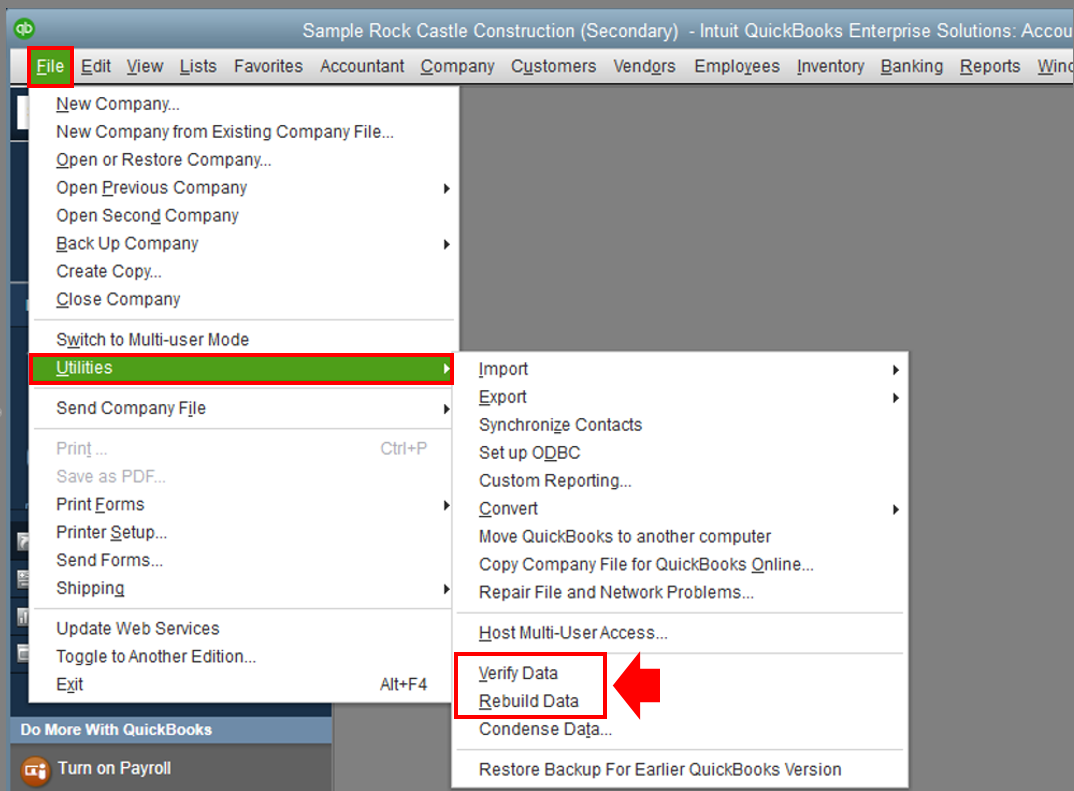
As a workaround, let's run the Verify/Rebuild Utility to diagnose and fix unexpected issues in QuickBooks Desktop. Here's how:

  1. Go to the File menu then Utilities.
  2. Select Verify Data then wait until the diagnosis is done.
  3. If there are issues, proceed to rebuilding the company file.
  4. Tap File menu and Utilities again.
  5. Use Rebuild Data this time then click OK.
  6. Follow the onscreen steps to save a backup.

​​​​​​​Once done, delete and copy the template again and see if the same thing occurs. It would also be helpful if you can share some screenshots with us showing the fields that's having the problem.


If you already tried these steps and still unable to customize the template, please reach out to our Technical Team directly. They can provide additional troubleshooting to complete your work.


Contact us through these steps:


  1. Go to your QuickBooks Home page, then click the Help menu at the top.
  2. Choose QuickBooks Desktop Help from the drop-down.
  3. Hit the Contact us icon.


Kindly update me on how things go by adding another comment here. I want to make sure you're all set, and I'm here if you need further guidance. Have a great day!

1 reply

Jen_D
Jen_DAnswer
Level 8
June 26, 2020

Thank you for the detailed and informative input, @Jay-M-21,


This is odd. I've tried the same thing in my company file and was able to adjust the first column's width after changing its order randomly. At the same time, all the boxes in the Screen and Print columns can be marked.


See these snapshots:


As a workaround, let's run the Verify/Rebuild Utility to diagnose and fix unexpected issues in QuickBooks Desktop. Here's how:

  1. Go to the File menu then Utilities.
  2. Select Verify Data then wait until the diagnosis is done.
  3. If there are issues, proceed to rebuilding the company file.
  4. Tap File menu and Utilities again.
  5. Use Rebuild Data this time then click OK.
  6. Follow the onscreen steps to save a backup.

​​​​​​​Once done, delete and copy the template again and see if the same thing occurs. It would also be helpful if you can share some screenshots with us showing the fields that's having the problem.


If you already tried these steps and still unable to customize the template, please reach out to our Technical Team directly. They can provide additional troubleshooting to complete your work.


Contact us through these steps:


  1. Go to your QuickBooks Home page, then click the Help menu at the top.
  2. Choose QuickBooks Desktop Help from the drop-down.
  3. Hit the Contact us icon.


Kindly update me on how things go by adding another comment here. I want to make sure you're all set, and I'm here if you need further guidance. Have a great day!

Jay-M-21Author
June 26, 2020

Thank you for the information.  I did the verify and rebuild (0 issues reported).  I then copied the Intuit Product Invoice and opened the copy to edit it.  When I went in to it for the first time, I got the attached for the columns.  The order of the columns on the additional customizations screen does not agree with the preview - the screen shot was before I did anything.  That seems odd, doesn't it? 

Moderator
June 26, 2020

Hi @Jay-M-21,


Thank you for your prompt reply. I also appreciate you sharing a screenshot of your current situation.


Since you're still having issues with the invoice template after following the steps provided by my colleague @Jen_D, I suggest getting in contact with our Technical Support team for further assistance. They can pull up your account information within a secure environment, and investigate as to why you're having this issue with the invoice template.


Here's how:


  1. On your QuickBooks homepage, go to the Help menu.
  2. Choose QuickBooks Desktop Help.
  3. Tap the Contact us button.

You can keep this article for future reference as well: Support hours and types. It has a complete list of Technical Support teams for our Intuit products, including their operating hours.


Feel free to come back and post a question below, if you have other concerns. I'll get back to you as soon as I can.