
SUMMER SAVINGS 90% OFF QuickBooks for 3 months* Ends 8/27

Buy now
Switch to QuickBooks and 70% off for 3 Months
New Member
October 14, 2026
Question

Data Import - Total Disaster

I need some major help.

I exported my products and service data and batch change the Expense Account to a new sub account so I can split and view the cost of sales on two different types of product. I reimported the data file to be presented with a total mess. How can importing the same data file which was exported make such a mess. I only changed one section. I checked the overwrite duplicate names and now I I have normal all my service swapped over the stock items and assets and generally it’s a mess. I’ve tried to import the original export, unedited file back in and it still throws up a load of issues. 

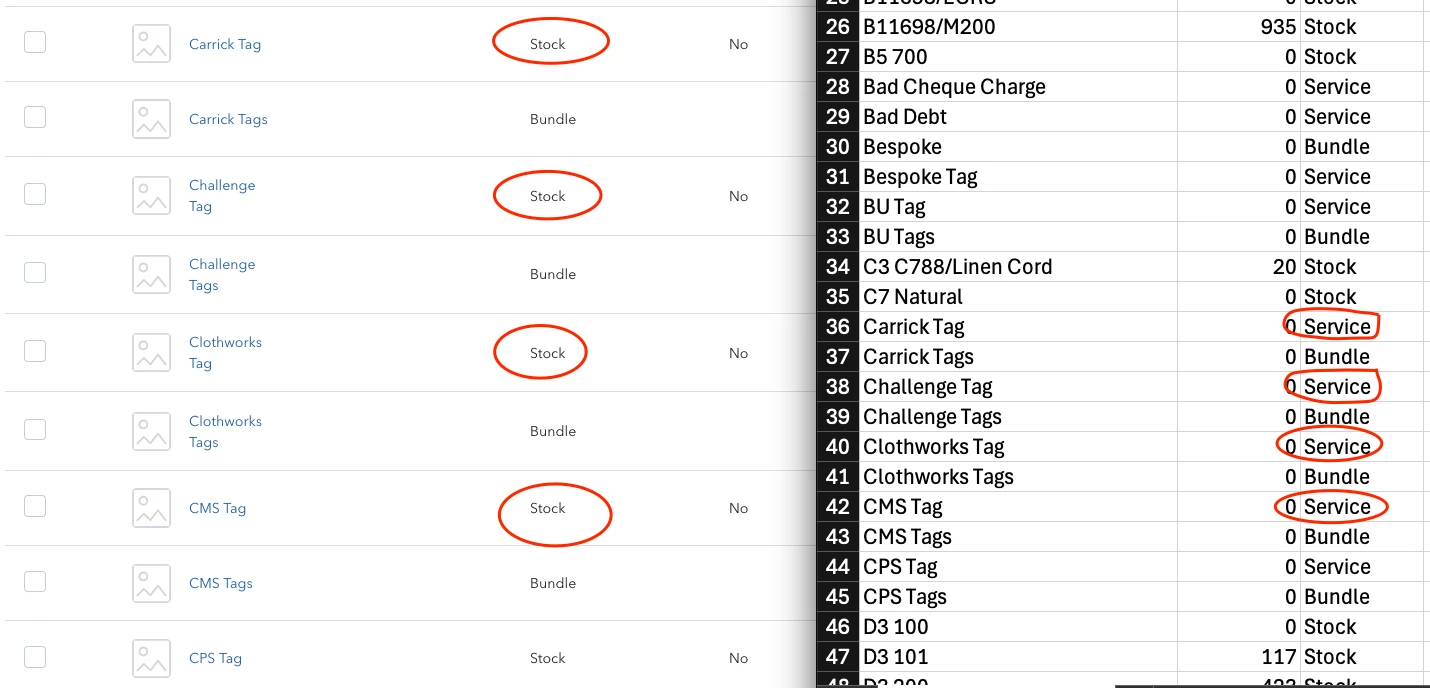
See the attached screenshot show how the original civ shows Service, but the import is not showing Stock
Please advise as my books are now a total mess….!!!!!!

1 reply

QuickBooks Team
October 15, 2026

You’ll need to rename and inactivate the corrupted items first, and then perform a clean import with all required inventory fields mapped.

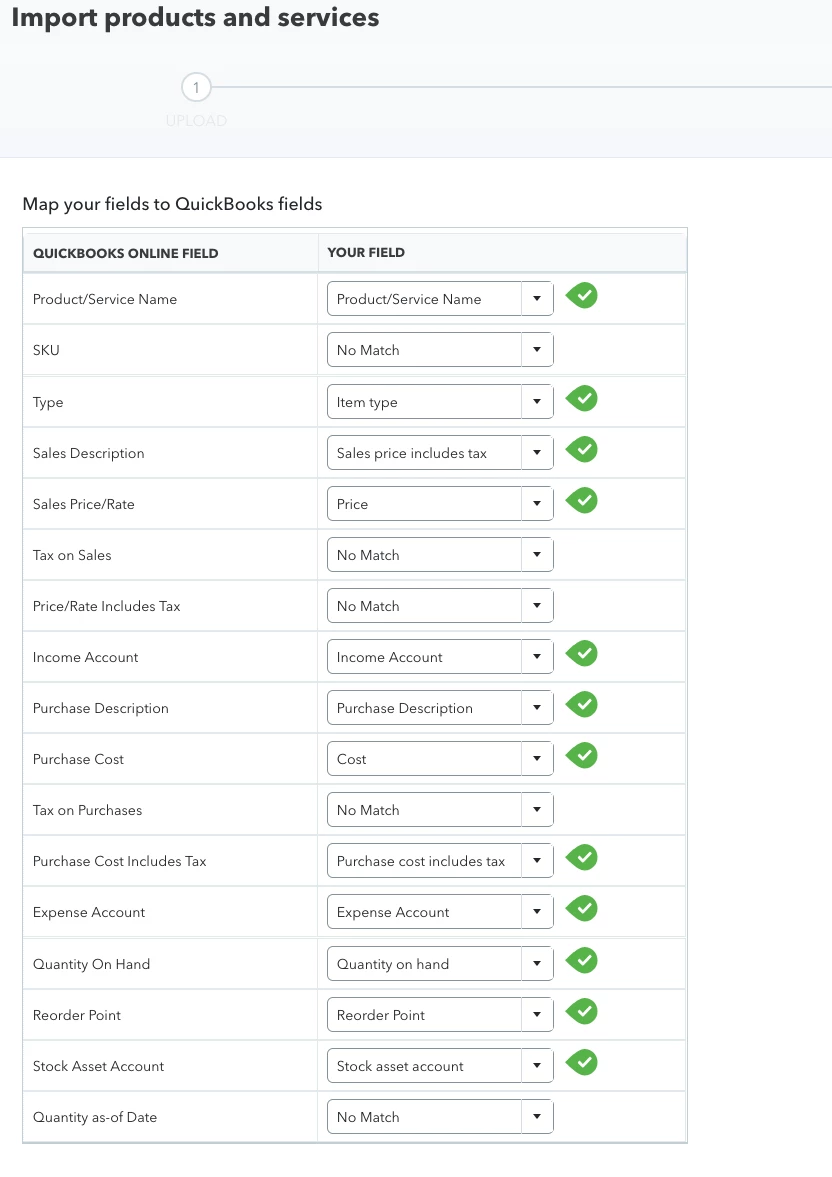
QuickBooks automatically turned your Stock items into Services because the Quantity as-of Date field was left unmapped during the import screen. When you checked Overwrite existing items, and the Quantity as-of Date field was unmapped, QBO couldn't complete the inventory setup, so it saved those items as Services instead.

Additionally, QuickBooks Online cannot automatically convert Service profiles back into Inventory items during a re-import. If the item has no transactions, you can manually edit the type directly. However, if it does have transactions, the type field is locked and you'll need to inactivate and recreate.

To fix it, here's how:


  1. Go to Sales  and select Products and services.
  2. Rename and make the corrupted items inactive first. This frees up those item names so the reimport can create clean Stock-type items without hitting a name conflict.
  3. Open your import spreadsheet and ensure every Stock item includes its Item Name, Type to set to Stock or Inventory, Income Account, Expense Account, Stock Asset Account, Quantity On Hand, and a valid Quantity as-of Date.
  4. Check that no Stock row leaves the Quantity On Hand or Quantity as-of Date fields blank.
  5. Reimport your data, explicitly map the Quantity as-of Date column, and leave the Overwrite existing items box unchecked so QBO creates brand-new inventory items rather than trying to overwrite the renamed inactive ones.


You’ll also want to make sure your new sub-account is set up as a Cost of Goods Sold type in your Chart of Accounts, not an Expense type. Inventory items require a COGS account in the Expense Account field and using the wrong type can cause posting issues even after everything else is fixed.

In the future, if you only want to update the Expense Account without importing files, you can manually review the product details of your inventory and modify the Expense account in the Purchasing section.

Feel free to click the Reply button if you have other questions about QuickBooks.