
Get 50% OFF QuickBooks for 3 months*

Buy now
Switch to QuickBooks and 70% off for 3 Months
Best answer by MadelynC

I’m here to ensure you can process your 1099’s in QuickBooks, @Ali60.


Thanks for posting in the Community. Let me provide information on how you can create and file 1099s with QuickBooks Desktop.


You can follow the outlined steps below to process your 1099s:
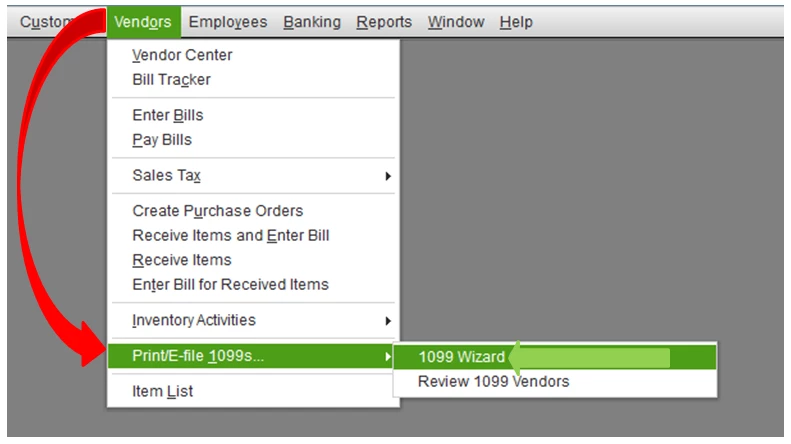
 

  1. Go to Vendors, then select 1099 Forms.
  2. Select Print/E-file 1099 Forms.
  3. Choose 1099 Wizard.
  4. Create a backup.
  5. Click Get started for the 1099 form you want to create. If you need to create both 1099-NEC and 1099-MISC, you’ll want to repeat the instructions.
  6. Select the vendors and hit Continue.
  7. Verify the vendor information, then map the payment accounts.
  8. Review all information.
  9. Choose whether to print 1099s or e-file.


Here’s the detailed guide on how to prepare and file your federal 1099s with QuickBooks. Just select each step to ensure everything is set and filed successfully.


In case you'd like to know more about payment categories for the 1099-MISC and 1099-NEC, the link is sure to be of assistance.


Don’t hesitate to reach out again if you have other 1099 concerns. I’m always here to help you out. Have a great day ahead!

2 replies

MadelynCModeratorAnswer
Moderator
January 26, 2021

I’m here to ensure you can process your 1099’s in QuickBooks, @Ali60.


Thanks for posting in the Community. Let me provide information on how you can create and file 1099s with QuickBooks Desktop.


You can follow the outlined steps below to process your 1099s:


  1. Go to Vendors, then select 1099 Forms.
  2. Select Print/E-file 1099 Forms.
  3. Choose 1099 Wizard.
  4. Create a backup.
  5. Click Get started for the 1099 form you want to create. If you need to create both 1099-NEC and 1099-MISC, you’ll want to repeat the instructions.
  6. Select the vendors and hit Continue.
  7. Verify the vendor information, then map the payment accounts.
  8. Review all information.
  9. Choose whether to print 1099s or e-file.


Here’s the detailed guide on how to prepare and file your federal 1099s with QuickBooks. Just select each step to ensure everything is set and filed successfully.


In case you'd like to know more about payment categories for the 1099-MISC and 1099-NEC, the link is sure to be of assistance.


Don’t hesitate to reach out again if you have other 1099 concerns. I’m always here to help you out. Have a great day ahead!

January 28, 2022

Is it just me or is the new (as of last year) process for doing 1099s the most inane and convoluted system ever? I would like to go back to simply mapping which chart of accounts items go to which box. Then, when I print, I would simply need to chose which form. I despise having to switch back and forth between 1099-MISC and 1099-NEC to map the accounts. 


January 31, 2023

And it's no better this year. Still having the same issues with switching back and forth. Not to mention, I can't do other types of 1099s. I should also be able to print a single 1096 to go with all of my 1099s, regardless of type. It seems Intuit is just in the business of making money - EVERYTHING costs extra and I have to renew my software subscription, because it's now a subscription and not a purchase. Furthermore, they don't like having independent companies create 1099 forms to use with QB - my guess is Intuit gets a kick back from the printers that are "approved" vendors. I've been using QB for close to 30 years and it just gets worse.

January 31, 2023

Today my quickbooks is only using 2021 tax year.  How can I change it to 2022 tax year?

Moderator
January 31, 2023

Thank you for joining the thread, Barry.


Let me chime in and share my insights about your tax year.


First, let's update QuickBooks Desktop to the latest release to keep your software up-to-date.


Next, please know that QuickBooks will not generate 1099 for that specific year if there aren't contractors who reached the $600 threshold. You'll want to check if any of your contractors have met the threshold and verify that the contractor is active. Then you can set up 1099 tracking. I'll show you how:


  1. Go to Reports, then select Vendors & Payables.
  2. Choose 1099 Summary.
  3. In the 1099 options dropdown menu, click All vendors.
  4. If you see the missing Vendor, make them a 1099 Vendor.
    1. Go to the Vendors menu, and select Vendor Center.
    2. Double-click the vendor's name.
    3. Select the Tax Settings tab.
    4. Select Vendor eligible for 1099 box to place a checkmark.
    5. In the Vendor Tax ID field, enter the vendor’s tax ID.
    6. If there is a checkmark next to Vendor is Inactive, remove it.
    7. Select OK.
  5. Once completed, repeat steps 1 and 2. Then in the 1099 options drop-down menu, select 1099 Vendors.


Furthermore, to check if the contractor's payment has met the threshold, you can refer to this article for the steps and additional details: Fix missing contractors or wrong amounts on 1099s.


You can also look at our Year-end checklist in QBDT. This will walk you through the process of completing your task in QuickBooks so that you can close your previous year and prepare for the upcoming one.


Feel free to post here again for further questions. Stay safe!
