
BLACK FRIDAY SALE 70% OFF QuickBooks for 3 months* Ends 11/29

Buy now

Switch to QuickBooks and 70% off for 3 Months
May 6, 2022 5:07 PM UTC
Solved

bill partial payments

The bill was entered and a partial payment was made.  Now bill shows paid and can't make additional payments on it.  How do we change it to unpaid and add additional payments?
JenoP
JenoPAnswer
QuickBooks Team
May 6, 2022 6:59 PM UTC

I have details to share to answer your question about bills and partial payments, Frustrated555.
 

It's possible that another transaction was already linked to the bill. This is the reason why it's now showing as fully paid. No worries, I'll share the steps on how to check and resolve the issue as well:
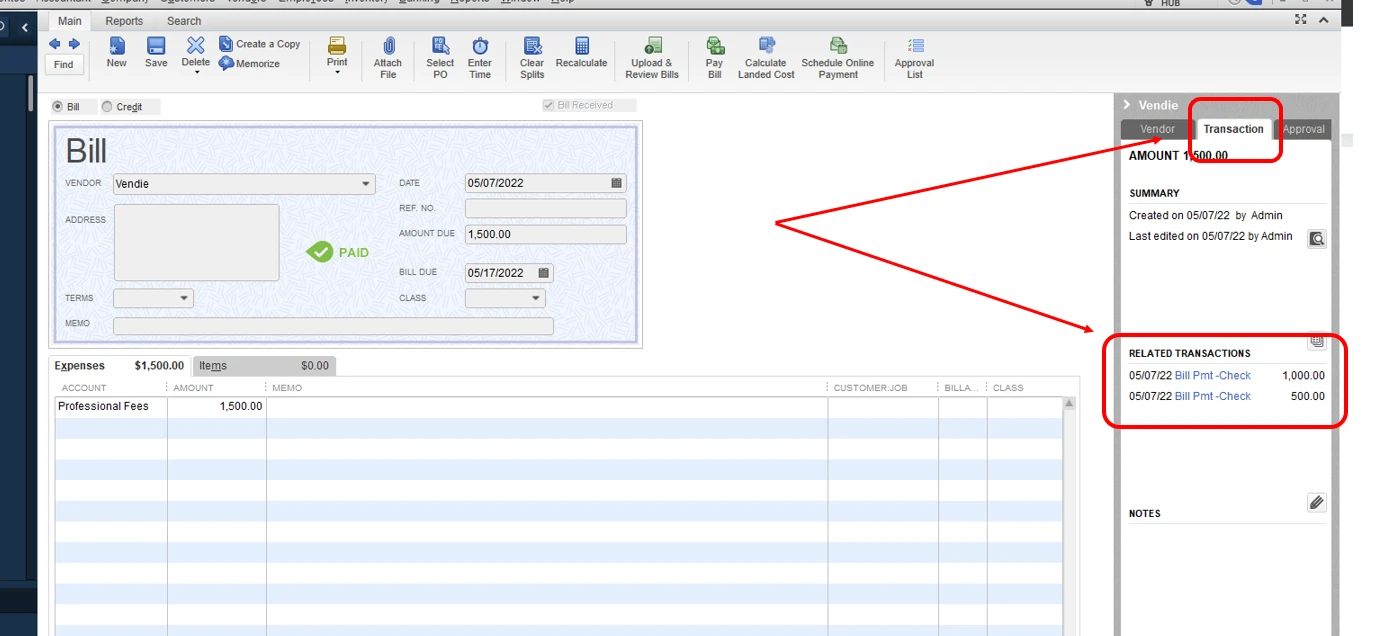
 

  1. Open the bill that you're trying to pay.
  2. Go to the right-hand side of the transaction and proceed to the Transaction tab. 
  3. Scroll-down to the Related Transactions section. Then, review if there are any other payments that are causing the bill to be fully paid.


If an extra payment check or transaction was incorrectly recorded, you'll want to delete it to re open the bill. Just click on the link of the transaction and press CTRL + D. Then, select OK to confirm that you want to delete it.


Once done, process the second payment like you normally would. If it was recorded correctly, leave it as it is to maintain an accurate record. 


Just in case you would need more references when tracking vendor-related transactions, allow me to share these with you: 


I'd be glad to jump right back to this thread in case you will be posting follow-up questions. 

2 replies

JenoP
JenoPQuickBooks TeamAnswer
QuickBooks Team
May 6, 2022 6:59 PM UTC

I have details to share to answer your question about bills and partial payments, Frustrated555.
 

It's possible that another transaction was already linked to the bill. This is the reason why it's now showing as fully paid. No worries, I'll share the steps on how to check and resolve the issue as well:


  1. Open the bill that you're trying to pay.
  2. Go to the right-hand side of the transaction and proceed to the Transaction tab. 
  3. Scroll-down to the Related Transactions section. Then, review if there are any other payments that are causing the bill to be fully paid.


If an extra payment check or transaction was incorrectly recorded, you'll want to delete it to re open the bill. Just click on the link of the transaction and press CTRL + D. Then, select OK to confirm that you want to delete it.


Once done, process the second payment like you normally would. If it was recorded correctly, leave it as it is to maintain an accurate record. 


Just in case you would need more references when tracking vendor-related transactions, allow me to share these with you: 


I'd be glad to jump right back to this thread in case you will be posting follow-up questions. 

May 6, 2022 7:48 PM UTC

Thank you for your response. I should have checked because apparently, my boss made a cc payment and didn't tell me or give me any back up! 

Thanks again!