Get 50% OFF QuickBooks for 3 months*

Buy now
Switch to QuickBooks and 70% off for 3 Months
February 24, 2024
Solved

ACH payment & reversal

  • February 24, 2024
  • 2 replies
  • 26 views

Hi, looking for some help.  We had the following issue regarding payments:

1. We issue multiple invoices at once and receive payment for all invoices at via one ACH transfer.  Let's call the first invoice run #1 at $100 total for 5 invoices, 5 different clients.  $20 each.  Let's call one of those invoice A.      

2. When the ACH deposit transfer came through to my checking account for invoice run #1, it came through for $100.  

3. Next, I downloaded the transactions from my bank and did a multiple match in QBO for the $100 to the 5 invoices, including invoice A.  All reconciled, great!

4. Then, we came around to the next invoice run, let's call this run #2.  And let's say that one was for $200 for 5 invoices at $40 each.     

5. Unfortunately, when we downloaded the transaction from the bank, the total amount of the ACH transfer was only $180 instead of the expected $200.  So I checked with our ACH transfer service log and found that all five invoices in run #2 had been paid, but that Invoice A from invoice run 1 had been refunded (long story).


So in summary:  I'm now sitting with a $180 deposit that I need to match to $200 in invoices.  And I'm sitting with $20 invoice A that had already been marked as paid and closed, which I now need to remove the payment, match this -$20 to the same ACH payment group so that I can properly match all the other invoices in run #2, and then re-issue invoice A.   


Help!  Thanks  
Best answer by AlverMarkT

Hi, @bluesky99. I appreciate the detailed explanation of your concern.


I can help correctly match the $180 downloaded ACH transaction to the $200 open invoices. 


Since invoice run #1 has been matched and reconciled, you can adjust the received payments for invoice run #2 and reissue invoice A. For this, receive the payments of invoice run #2 and create a bank deposit for the received payments, adding a negative line item for -$20. Here are the steps to achieve this:


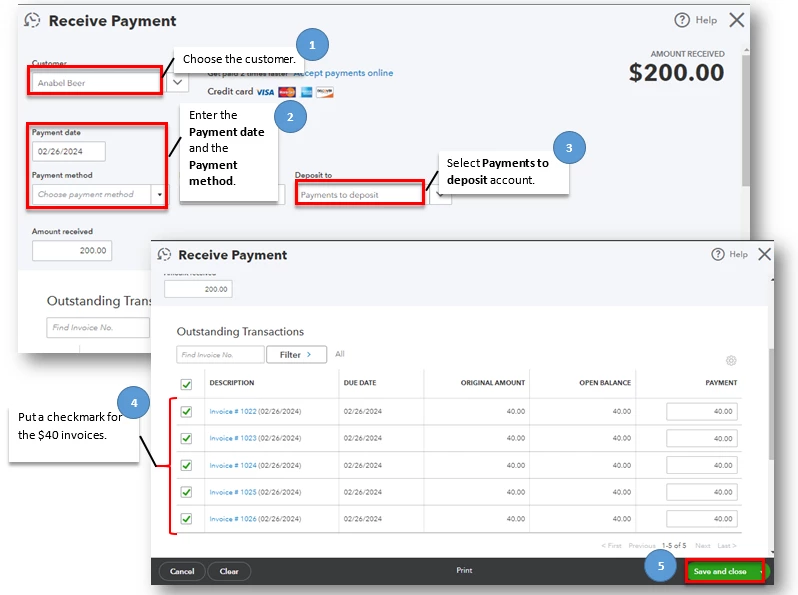
First, receive the payments for the invoices of invoice run #2. I've also added a screenshot below for visual reference.

  1. Go to the +New button, and select Receive payment.
  2. Choose the Customer. (In the images after the steps, I've received payments only from one client. Receive payments for each of your clients.)
  3. Enter the Payment date and choose the appropriate Payment method.
  4. Select Payments to deposit under the Deposit to drop-down menu.
  5.  Put a checkmark for the five $40 invoices. 
  6.  Hit Save and close.


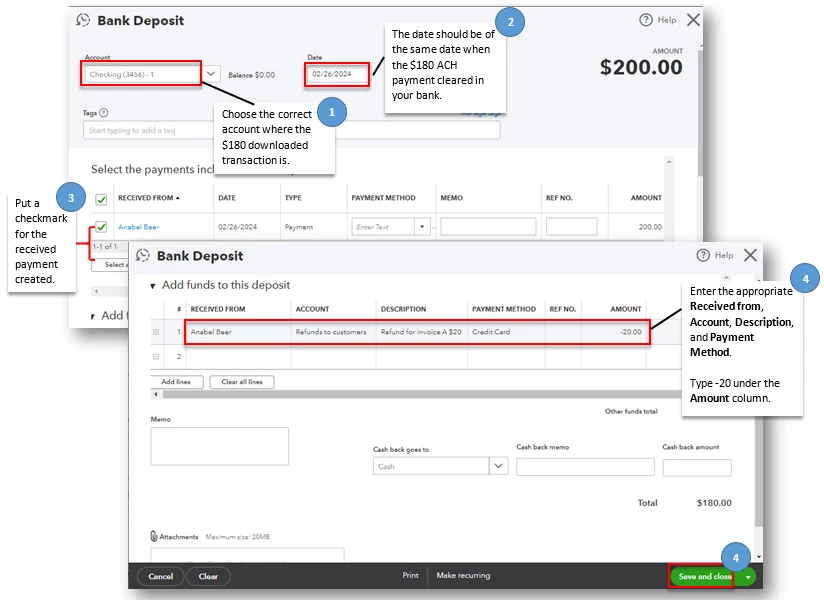
Next, you can then create a bank deposit for the received payments. I've attached a screenshot after the steps.

  1. Go to the +New icon and select Bank deposit.
  2. Select the correct Account.
  3. Choose the date to match the date of the downloaded transaction.
  4. Put a checkmark on the payments of invoice run #2.
  5. Scroll down to the Add funds to this deposit section.
  6. Select the correct details for this entry. Then, add a description indicating it's a refund for invoice run #1. Enter a -$20 amount. 
    a. I also encourage collaborating with an accountant in choosing the appropriate account for this entry to ensure the accuracy of your financial reports.
  7. Hit Save and close.


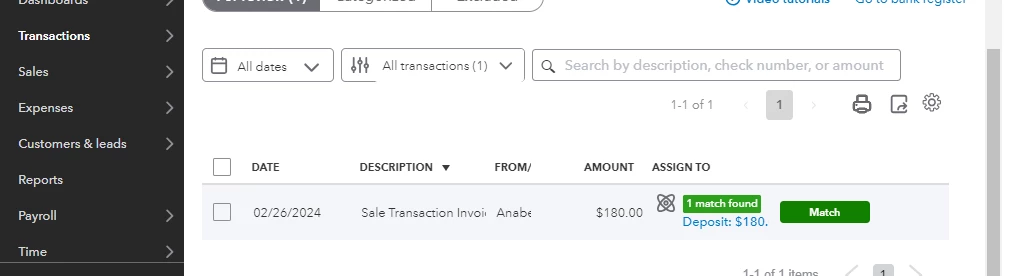
Once done, you can match and categorize the deposit transaction. Kindly see the image below for reference.


After you've matched your QBO record with the downloaded transaction, reissue invoice A.


Let me add these articles about running reports in QBO in case you need to run financial reports to check if the changes correctly appear in the appropriate accounts:


Keep us posted if you have updates to matching your invoice payments to the downloaded transaction. We're committed to offering ongoing support. Have a good one!

2 replies

AlverMarkT
Moderator
February 24, 2024

Hi, @bluesky99. I appreciate the detailed explanation of your concern.


I can help correctly match the $180 downloaded ACH transaction to the $200 open invoices. 


Since invoice run #1 has been matched and reconciled, you can adjust the received payments for invoice run #2 and reissue invoice A. For this, receive the payments of invoice run #2 and create a bank deposit for the received payments, adding a negative line item for -$20. Here are the steps to achieve this:


First, receive the payments for the invoices of invoice run #2. I've also added a screenshot below for visual reference.

  1. Go to the +New button, and select Receive payment.
  2. Choose the Customer. (In the images after the steps, I've received payments only from one client. Receive payments for each of your clients.)
  3. Enter the Payment date and choose the appropriate Payment method.
  4. Select Payments to deposit under the Deposit to drop-down menu.
  5.  Put a checkmark for the five $40 invoices. 
  6.  Hit Save and close.


Next, you can then create a bank deposit for the received payments. I've attached a screenshot after the steps.

  1. Go to the +New icon and select Bank deposit.
  2. Select the correct Account.
  3. Choose the date to match the date of the downloaded transaction.
  4. Put a checkmark on the payments of invoice run #2.
  5. Scroll down to the Add funds to this deposit section.
  6. Select the correct details for this entry. Then, add a description indicating it's a refund for invoice run #1. Enter a -$20 amount. 
    a. I also encourage collaborating with an accountant in choosing the appropriate account for this entry to ensure the accuracy of your financial reports.
  7. Hit Save and close.


Once done, you can match and categorize the deposit transaction. Kindly see the image below for reference.


After you've matched your QBO record with the downloaded transaction, reissue invoice A.


Let me add these articles about running reports in QBO in case you need to run financial reports to check if the changes correctly appear in the appropriate accounts:


Keep us posted if you have updates to matching your invoice payments to the downloaded transaction. We're committed to offering ongoing support. Have a good one!

bluesky99Author
February 25, 2024

Hi, I'm afraid that didn't work.  

I created the negative bank deposit as you noted, but it was not available in the matching screen to match with the ACH deposit. 

To be clear, I am using the following steps to do the deposit to invoice match:

Transactions -> bank transactions -> click on the ACH deposit transaction -> click on "Match" radio button.  This then brings up the match screen which shows all open invoices, but I cannot find the negative bank deposit to include in the match with all the other invoices in order to balance the overall transaction.  

QuickBooks Team
February 26, 2024

I appreciate you for clarifying your concern, @bluesky99. I'll give you some options on how to make the necessary corrections and apply the deposits, allowing you to focus on managing your business.


I understand that the initial solution provided by my colleague didn't work out, and I appreciate the action you have taken. Therefore, please proceed with deleting the negative deposit.


Did the refund for Invoice A was generated before matching the deposit on Invoice B?


If that is the case, the system will automatically apply the open credit to any open invoices, provided that the "automatically apply credit" option is enabled under the same customer.


To ensure that invoice B is matched to the $200.00 deposit, follow these steps:


  1. Go to Customers, select View/Edit for the $180.00 payment. 
  2. Uncheck -$20.00 credit memo if applied. 
  3. Then Save & Close.


Once done, undo or unmatch downloaded transactions, here's how:


  1. Go to Transactions, then select Bank transactions.
  2. Select tile for the bank or credit card account you downloaded the transaction from.
  3. Select the Categorized tab.
  4. Find the $180.00 transaction to unmatch.
  5. Select the blue transaction link in the Added or Matched column to see the matched transaction.
  6. Select Undo from the Action column.


This will disconnect the two transactions. The original downloaded transaction will go back to the For Review tab. Then, categorize and match your online bank transactions to the corresponding invoices.


I've included a few articles that you may read to learn more about managing your transactions in QuickBooks Online:


Please keep in touch with me if you have further QuickBooks-related concerns apart from bank deposit. I'm always delighted to help. 

QuickBooks Team
January 19, 2026

Hi there, @fd19cZc6deo.

Hi, 9fd19cZc6deo. To offset the ACH deposit and its reversal and keep your books accurate, you’ll create two entries in QuickBooks Online and then match each to the bank feed.

What you’ll create:

A money‑out transaction (Expense or Check) coded to Accounts Receivable (A/R) for the customer. This represents the bank reversal and a customer payment (Receive payment). This represents the original deposit.

Linking the Receive payment to the A/R Expense/Check closes those two against each other, keeps A/R accurate, and lets you match each bank feed item cleanly. If the payment was originally applied to an invoice but then reversed, this approach reopens the invoice so it shows as still due which you can resend to your customer.

Here's how you can record the Check or Expense for the reversal:

   1. Go to Create, then choose Check or Expense.
   2. Choose the name of the customer from the Payee drop-down menu.
   3. Select the appropriate bank account from the Payment account dropdown.
   4. Enter the date when the reversal happened.
   5. Under the Category details section, choose Accounts Receivable.
   6. Choose the Payment method if this is an expense entry.
   7. Enter the amount of the reversal and ensure other details are correct in the expense or check form.
   8. Click Save and close.

If this ACH deposit hasn't been recorded yet, record the invoice payment and link it to the check/expense created.


On the other hand, if the invoice payment already been recorded as a Receive payment transaction against the original invoice, we'll only need to edit that receive payment transaction, unlink it from the original invoice payment, and relink it to that Check or Expense entry.

You can refer to this image below:


Once these are all done, you can match transactions on your Bank transactions page.

A couple of notes, if the bank reversal included a fee, record a separate Expense to Bank Service Charges for the fee and match it to the fee entry in the bank feed (or add a second line for the fee on the reversal Expense if it’s the same bank transaction).


Let me know if you have any additional questions.

January 22, 2026

Hello

Still some confusion and probably just different terminology for same thing but need to confirm.

I have not received payment against this deposit amount as the customer then submitted the right amount of payment and that was received. I just need to offset these to clear bank feed and make sure bank reconcilation will not have any issues.

If this ACH deposit hasn't been recorded yet, record the invoice payment and link it to the check/expense created.


Does this technically mean that I take the deposit and match it to the expense that I created for the reversal?


QuickBooks Team
January 22, 2026

Hi there, 9fd19cZc6deo.

I understand how terminology differences can be confusing. I'm here to clarify the process to ensure everything is aligned.

Yes, you’ll have to record the deposit under Accounts Receivable. This step is essential for tracking the initial incorrect payment. Next, make sure that the expense you’ve created for the reversal is also posted to Accounts Receivable. At this stage, you’ll notice the balance has been offset.  
 
Once done, link the two transactions so your customer doesn’t end up with any open credits using the Receive payment function.  


  1. Navigate to + Create and select Receive Payment.
  2. Choose the relevant Customer from the list.
  3. Select the expense and deposit you created.
  4. Click Record and save.


With everything in place, you can now match the deposit and expense to their corresponding downloaded bank data.

Feel free to leave a comment below if you have follow-up questions.