
Get 50% OFF QuickBooks for 3 months*

Buy now
Switch to QuickBooks and 70% off for 3 Months
March 13, 2019
Solved

Enterprise GL Codes

  • March 13, 2019
  • 1 reply
  • 3 views

Thanks for your h e l p!


I am brand new to the Enterprise system, but not to QuickBooks.  


As part of my preparation for taking on the new system, I've been asked to re-define our GL Codes.  Because our organization is complex, I wanted to know what the GL codes can look like.  For example, are they 5 characters or are more complex sequences available?  i.e. 1234-12-123 


I am looking for a "simplified" solution to our complexity.


Am I over-thinking it?  I appreciate your input

Best answer by JonpriL

Good day, @RhondaL!


You can only enter up to 7 characters for your general ledger codes. I'm here to help you change them.


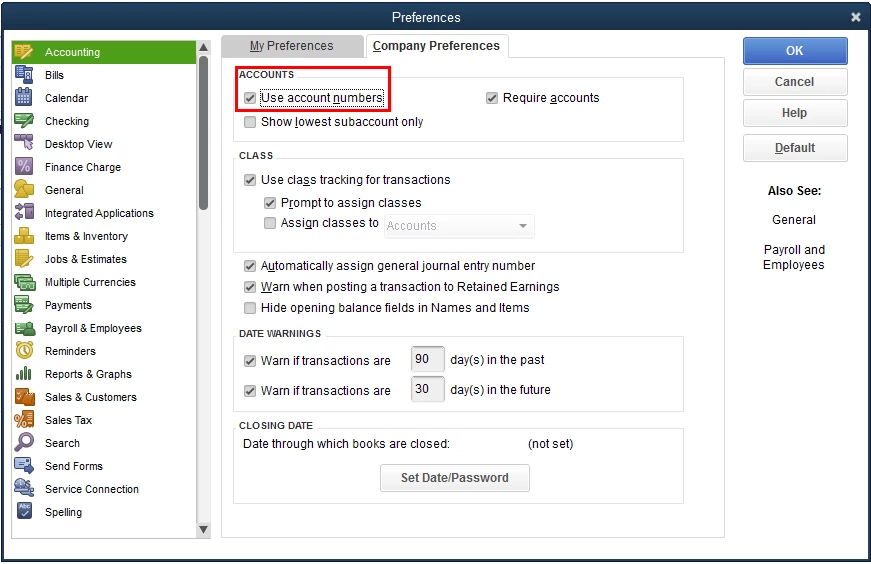
To start, here's how you can enable your account numbers if you haven't yet.

  1. Go to Edit.
  2. Select Preferences.
  3. Choose Accounting.
  4. Click Company Preferences.
  5. Check the option to Use account numbers.
  6. Hit OK.

This way, you can now be able to change your account numbers. Here's how:

  1. Go to Lists.
  2. Select Chart of Accounts.
  3. Find and click an account you wanted to modify the account numbers.
  4. Click Account.
  5. Select Edit Account.
  6. Enter your modified account numbers on the Number field.
  7. Click Save & Close.

Once done, you can now successfully modify your account numbers.


For your reference, I've included a couple of screenshots about the steps above.
 

If you haven't yet, here's how you can pull up your General Ledger report with the list of new modified account numbers.

  1. Go to Reports.
  2. Select Accountant &Taxes.
  3. Click General Ledger.

Feel free to leave a comment below if you have any other questions about QuickBooks Desktop. It'll be always my pleasure to lend you a helping hand.

1 reply

JonpriLAnswer
Level 9
March 13, 2019

Good day, @RhondaL!


You can only enter up to 7 characters for your general ledger codes. I'm here to help you change them.


To start, here's how you can enable your account numbers if you haven't yet.

  1. Go to Edit.
  2. Select Preferences.
  3. Choose Accounting.
  4. Click Company Preferences.
  5. Check the option to Use account numbers.
  6. Hit OK.

This way, you can now be able to change your account numbers. Here's how:

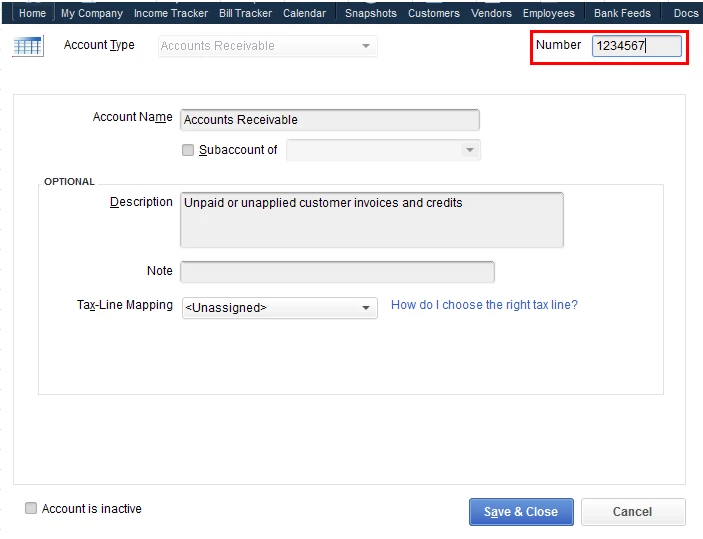
  1. Go to Lists.
  2. Select Chart of Accounts.
  3. Find and click an account you wanted to modify the account numbers.
  4. Click Account.
  5. Select Edit Account.
  6. Enter your modified account numbers on the Number field.
  7. Click Save & Close.

Once done, you can now successfully modify your account numbers.


For your reference, I've included a couple of screenshots about the steps above.
 

If you haven't yet, here's how you can pull up your General Ledger report with the list of new modified account numbers.

  1. Go to Reports.
  2. Select Accountant &Taxes.
  3. Click General Ledger.

Feel free to leave a comment below if you have any other questions about QuickBooks Desktop. It'll be always my pleasure to lend you a helping hand.

RhondaLAuthor
April 3, 2019

Thanks @JonpriL for the insight and screen shots.  That helped a lot.


Are you saying, however, that I can arrange my chart of accounts the way I wish (visually), and then ask QB to "assign" or use account numbers?  Of which I can then re-assign if I wish?


Thanks for clarifying.


Rhonda