Welcome to the Community forum, @afsmith. I'll share some information about how you can track your customer sales in QuickBooks Online (QBO).
One of the possible reasons why you can't find the Sales by Customer Detail report from the Reports menu is that you're currently using the QBO Simple Start version. This is because the detail reports are exclusive to QBO Essentials, Plus, or Advanced subscriptions.
If so, you can follow these steps to use as a workaround instead:
- Go to the Reports menu.
- Enter and click on Sales by Customer Summary in the search field.
- Select the date range from the Report period.
- Click any of the Total amounts from any of the customers.

- Tap on the Customize button, then click Filter.
- From the Customer drop-down, place a checkmark next to Select all or tap All.
- You can also click the Change columns link, then place a checkmark next to the information you want to see.
- Choose Run report.

Otherwise, can you please share a screenshot of your reports page if you're subscribed to the higher versions of QBO?
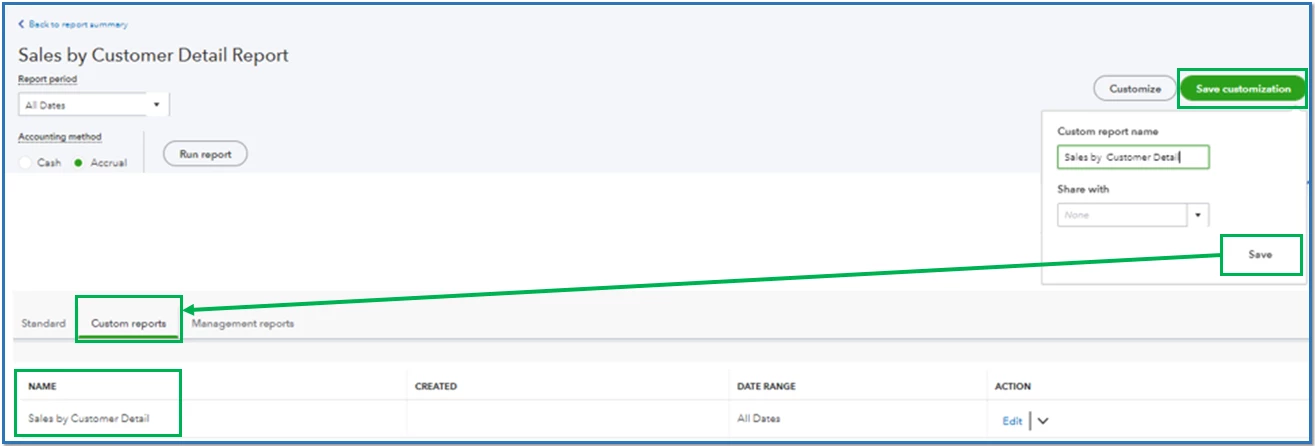
After customizing the report, you can select the Save customization button to memorize it with its current customization settings. Feel free to check out this article for further details of the process: Memorize reports in QuickBooks Online.
If you have any follow-up questions about managing reports, please don't hesitate to post again or comment below. I'm always here to help. Take care, and enjoy your day!
