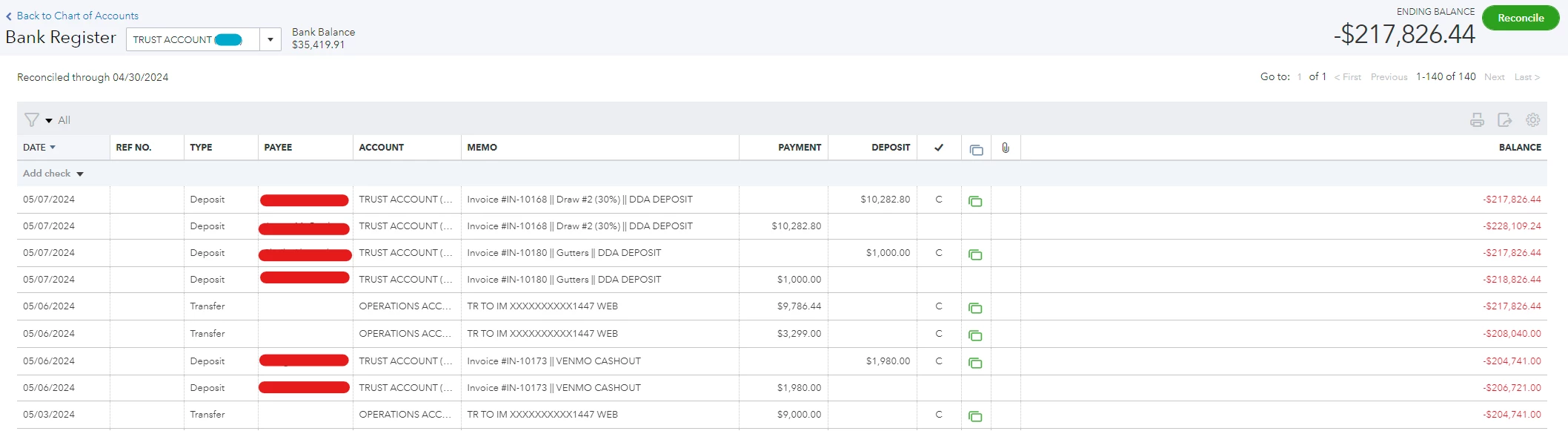
Why does my bank deposit show twice in QuickBooks Online, once as a deposit and once as a payment, and how do I fix it?
What looks like a duplicate is usually one deposit plus an offsetting entry that QuickBooks created because the downloaded deposit was added on its own or pointed at the bank account, instead of being matched to the record you already had. The fix is to undo the added transaction, then either match it to your existing deposit or add it once to the correct income account, so the amount lands in the Deposit column only.
Step 1: Undo the transaction that created the extra line
This sends it back so you can redo it correctly. Nothing is deleted from your books.
- Go to All apps, then Accounting, then Bank transactions.
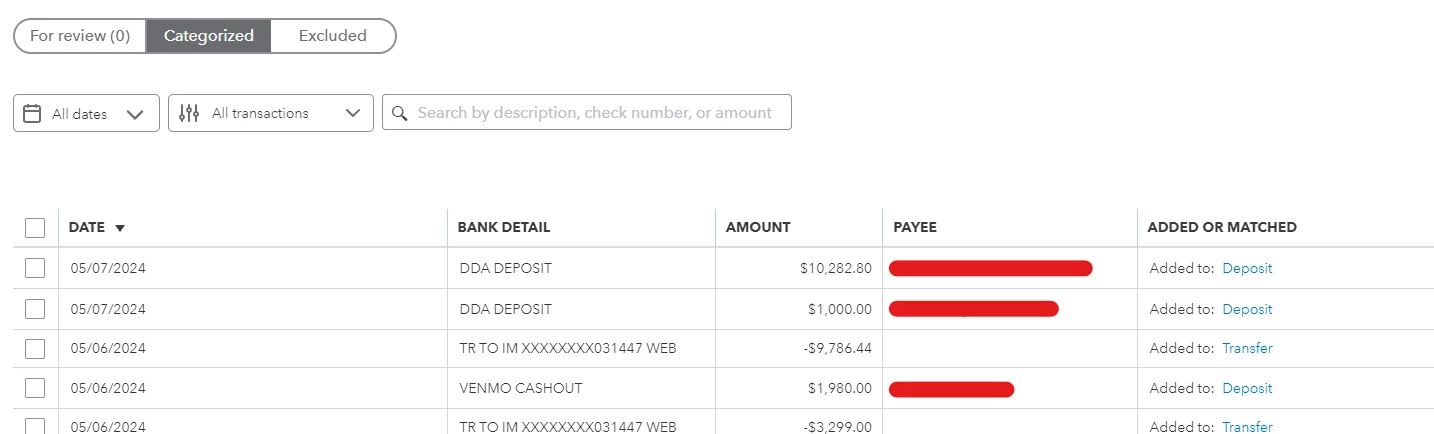
- Select your bank account tile, then open the Categorized tab.
- Find the deposit you added, then select Undo in the Action column.
The transaction moves back to the For review tab.
Step 2, path A: If you already recorded the deposit in QuickBooks, match it
Because you record the payment in your workflow first, the downloaded deposit should link to that existing entry rather than create a new one.
- In the For review tab, select the downloaded deposit to expand it.
- Look for matches found, or select Find match.
- Choose the existing deposit or payment that has the same amount and a nearby date, then select Save.
Matching links the two records so the amount only counts once. Note that QuickBooks looks for matches within about 90 days before and 20 days after the downloaded date, so a matching entry needs to already exist in that window.
Full steps: Match your bank and credit card transactions in QuickBooks Online.
Step 2, path B: If the deposit only exists in the bank feed, add it to the right account
If there's no pre-existing record to match, add it once and choose an income account, not the bank account it's downloading into.
- In the For review tab, select the downloaded deposit.
- In the Category (account) field, choose the correct income account for the money received.
- Assign the customer or project if you track those, then select Add.
Choosing an income account (rather than the bank account) is what keeps the amount in the Deposit column without an offset.
Full steps: Categorize online bank transactions in QuickBooks Online.
For when to match versus add: Match transactions in QuickBooks Online.
Why your two balances don't agree
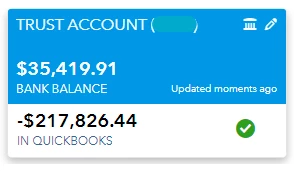
Your bank balance reflects the transactions downloaded into the account, while your QuickBooks balance includes everything in the register, including entries you haven't reviewed. When an offsetting line sneaks into the register, it drags the QuickBooks balance away from the real bank balance. Once you've matched or correctly categorized each deposit, the two should line back up.
Cleaning up entries already in the register
If an incorrect offsetting entry is sitting directly in the register (not in a review tab), open it to confirm it's truly the stray line, then remove it so your income isn't understated. If you're unsure whether an entry is safe to remove, it's worth a second look before deleting, since deletions can affect reconciliations.
You can also exclude a downloaded transaction you don't want to post: Exclude a bank transaction you downloaded into QuickBooks Online.
Preventing it going forward
The habit that avoids this: for money you've already recorded, match instead of add; for money that only comes from the bank feed, add it to an income account.
When everything's categorized cleanly, reconcile so your books keep matching your statements: Reconcile an account in QuickBooks Online.