

Setting Up Your Profile
Welcome to the QuickBooks Community! Taking a few minutes to set up your profile makes it easier for other members to connect with you, and helps you get the most out of your experience here.
Here's everything you need to know.
Step 1: Add a Profile Photo
A profile photo helps personalise your presence in the Community and makes it easier for other members to recogniae you in discussions. Your photo will appear next to all of your posts.
To add or update your photo:
- Sign in to the Community.
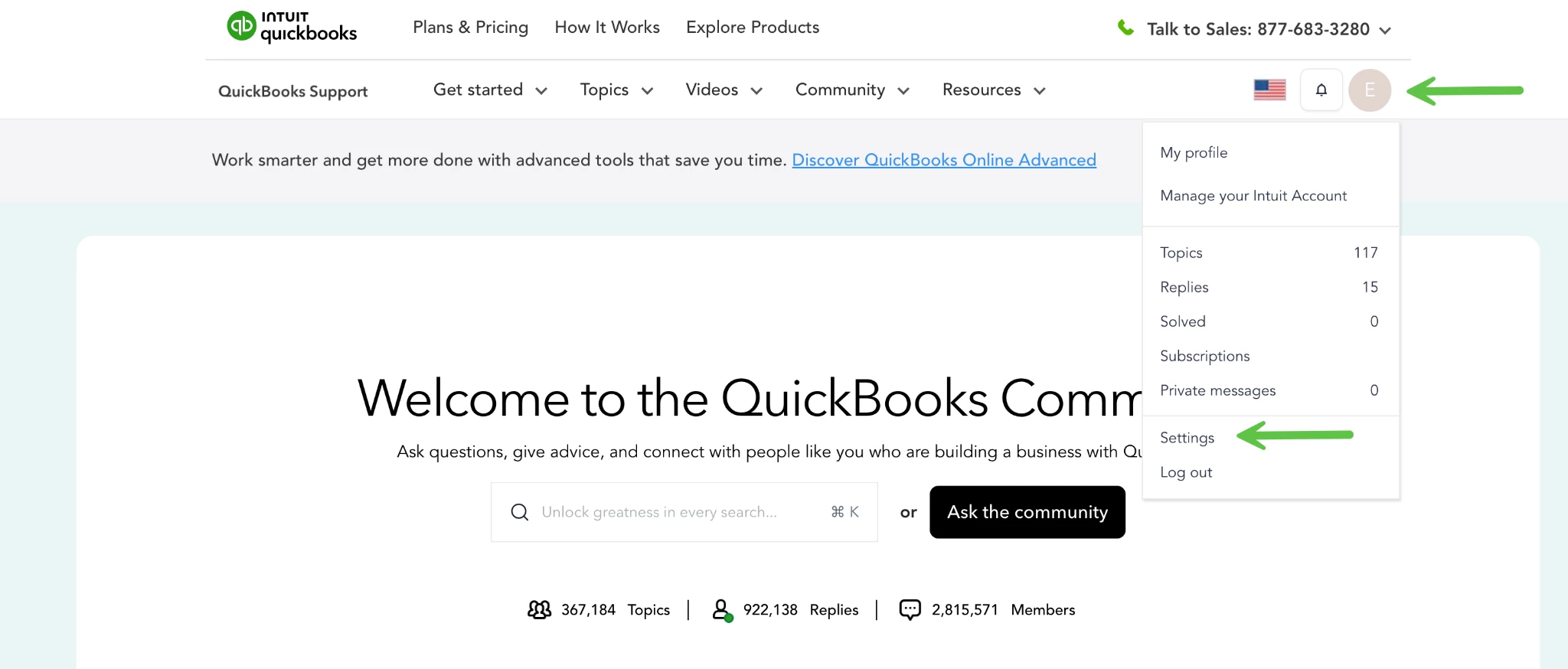
- Select your initial/icon in the upper-right corner, then select Settings.
- On the Settings page, select Edit next to your profile picture.
- In the file browser, find the image you'd like to use and select Open.
- Preview your image and click Apply.
- Scroll down and select Save changes.
Note: Image should be at least 90 x 90px. Maximum file size: 5 MB
Step 2: Update Your Profile Info
Keeping your profile up to date makes it easier for other Community members to connect with you. Here are the key fields to fill in:
- Your company
- Your job title
- Share a little about yourself to help other members get to know you. Where are you from? What kind of business do you run and how many years have you used QuickBooks? A few details can go a long way in building connections within the Community.
When you're done, scroll to the bottom and select Save changes. You can view your profile anytime by clicking your avatar and choosing My profile.
Step 3: Manage Your Settings & Notifications
Your community settings let you customise your experience and control how you stay connected.
To access your settings:
- Sign in to the Community.
- Click your profile icon in the upper-right and select Settings.
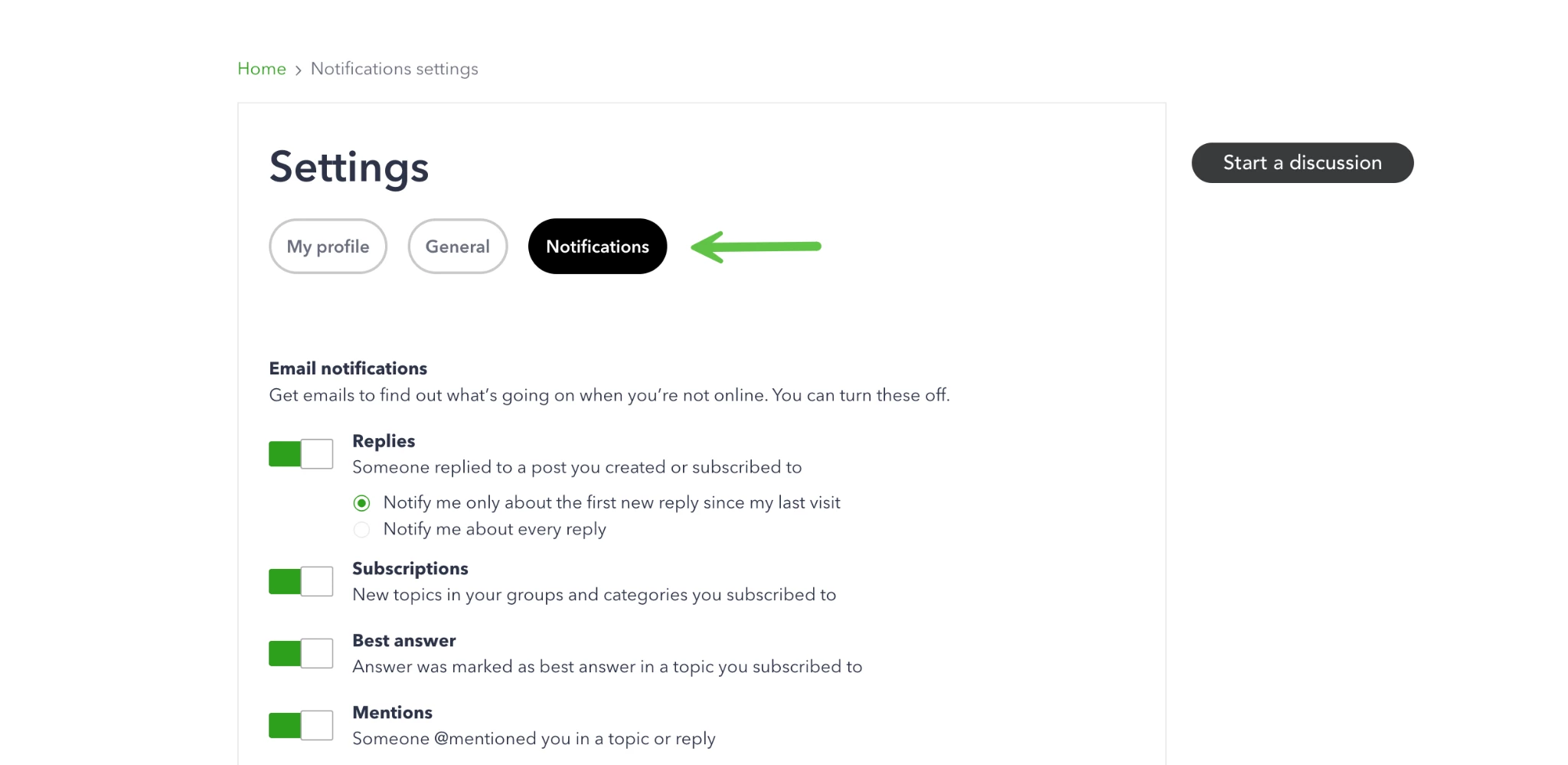
- Choose either the General or Notifications tab.
- Update your preferences and click Save Changes.
General tab: Manage profile and community preferences, including badges, private messaging options, and more.
Notifications tab: Choose which email notifications you'd like to receive — such as replies, mentions, private messages, best answers, and community announcements.
Your profile is your home base in the Community. The more you add, the more connected you'll feel. See you in the discussion boards!