
Get 50% OFF QuickBooks for 3 months*

Buy now
Switch to QuickBooks and 70% off for 3 Months
October 3, 2021
Question

Missing Invoice Numbers

  • October 3, 2021
  • 2 replies
  • 0 views

This past week, QB Online pushed a new invoicing/estimate UI and layout live. The only problem is, this new layout doesn't seem to support invoice numbers.


I tried toggling the feature to display them on the invoice on and off, unsuccessfully. Even after reverting to the previous layout, the invoices I've tried to issue today no longer have invoice numbers at all (see screenshot). Is anyone else experiencing this? Is there a fix? I have never had Custom transaction numbers checked and have otherwise not changed any settings, apart from returning to the old layout from the new invoicing page.
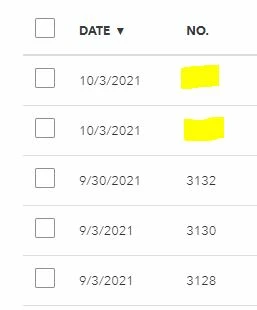
2 replies

Level 9
October 3, 2021

Hi there, benkarl87.


Thank you for visiting the QuickBooks Community. I'll be sharing details on how the new estimates and invoices in QuickBooks Online works. Then, to ensure that you're able to see all the invoice numbers in your transactions.


We’re giving estimates and invoices a makeover! We’re rolling out new versions to some customers and getting feedback. For now, with the new experience, some of the functionalities from the old invoices and estimates will not be available. However, we will continue to make improvements to the new experience so that it ultimately replaces the old invoices and estimates. Here are some we'll add in the future:

  • Sales tax
  • Progress invoicing
  • Custom fields
  • Recurring invoices
  • Ability to save multiple templates
  • Classes
  • Billable expenses
  • Tags


On the other hand, even the new feature is now rolling out, there's always have the option to view the invoice numbers on the Sales page. This is because even the Custom transaction numbers is turned off, the system will constantly create an entry number. That said, it could be the cache full of history and temp files causes unexpected behaviors. I recommend logging in to your QuickBooks account using a private browser. This is to rule out the possibility of a webpage issue, and private browsing doesn't store local files or cache.


Use these keyboard shortcuts based on the browser you're using.


  • For Firefox or Microsoft Edge, press Ctrl + Shift + P.
  • For Chrome, press Ctrl + Shift + N.
  • For Safari, hold down Command + Shift + N.


If it works in incognito, I recommend clearing the cache of your regular browser. This removes the history or log of sites so you can start with a clean slate. You can check this article to see the steps: Clear cache and cookies to fix issues when using QuickBooks Online.


If the steps above didn't work, use another supported browser as alternatives.


Lastly, please refer to this article to see how the Sales page gives you a status of sales transactions like open invoices, and paid invoices: View sales transactions.


Should you have any follow-up questions about the customer's entry, don't hesitate to post again or leave a comment below. Have a good one.

benkarl87Author
October 4, 2021

Thanks for your reply.


You mention the following:

This is because even the Custom transaction numbers is turned off, the system will constantly create an entry number.


Even in a private browser (Chrome Incognito Mode) and when viewing invoices from the Sales page, there do not appear to be any invoice numbers associated with the invoices created today and therefore the system does not appear to have created an entry number.


Further, when I check A/R from the Chart of Accounts, the fields where invoice numbers usually display are blank, further confirming my suspicion.


I reiterate that I changed no settings, yet after the new invoice UI rolled out, subsequent invoices no longer contained numbers. This seems like a bug on your end. I'd appreciate more information on how to troubleshoot this. 

QuickBooks Team
October 4, 2021

I'm grateful that you took the time to provide me with an update on the steps that you've tried, benkarl87.


 I'm here to make sure you'll get the information you need.


I've tried to replicate it here on my end,  and I was able to see the Invoice number on the Sales page.


Since the issue persists after performing the steps provided by my colleague above,  I recommend getting in touch with our Customer Care Team. They have the tools to help further investigate the main cause of this issue. 


Here's how:


  1. Click the Help menu in the upper-right-hand corner.
  2. Type in "Talk to a human", then press Enter.
  3. Look for I still need a human and click on it.
  4. Click Get help from a human or Contact Support Team.
  5. Select between Send a messageSchedule an appointment, or Get a callback.


To make sure we address your concern on time, please can check out our support hours.


After taking care of the issue, do you need help categorizing your invoice payments and other bank transactions? Feel free to use this article as a guide: Categorize and match online bank transactions in QuickBooks Online.


Also, here are some resources that I'm sure you'll find helpful in running reports:


Please let me know if you have any other concerns related to invoices or any other QuickBooks concerns. I'm here to help.

May 22, 2024

same issue with my QBO, when i did batch edit invoices, all the invoice numbers disappeared. 


May 22, 2024

Thank you for your response in the QuickBooks Community, SuperStar777. 


I will share details of what occurred when the invoice number disappeared and ensure that you can view all the invoice numbers in your transactions.


The first step is to perform basic troubleshooting by logging into your QuickBooks account using a private browser. This will help rule out any webpage issues, as private browsing doesn't store local files or cache.


Use these keyboard shortcuts based on the browser you're using.


  • For Firefox or Microsoft Edge, press Ctrl + Shift + P.
  • For Chrome, press Ctrl + Shift + N.
  • For Safari, hold down Command + Shift + N.


If it works in private browsing mode, I recommend clearing the cache of your regular browser. This will remove the history and log of sites so you can start with a clean slate. You can check this article to see the steps: Clear cache and cookies to fix issues when using QuickBooks Online.


If the steps above don't work, use another supported browser as an alternative.


Please keep us informed if you have any more questions or need further clarification in QuickBooks Online. We are always available to assist you.

May 22, 2024

Your reply is like automated reply. as i am getting such response as and when I send any msg here on QB website