
SUMMER SAVINGS 90% OFF QuickBooks for 3 months* Ends 8/27

Buy now
Switch to QuickBooks and 70% off for 3 Months
October 25, 2018
Solved

Accounts Receivable by Class

  • October 25, 2018
  • 25 replies
  • 180 views

Is there a way to run the A/R Aging by Class?  I am using QB online for Contractors.

Best answer by vpcontroller

Currently, such an option to run the A/R Aging by Class report is not available in QBO yet.
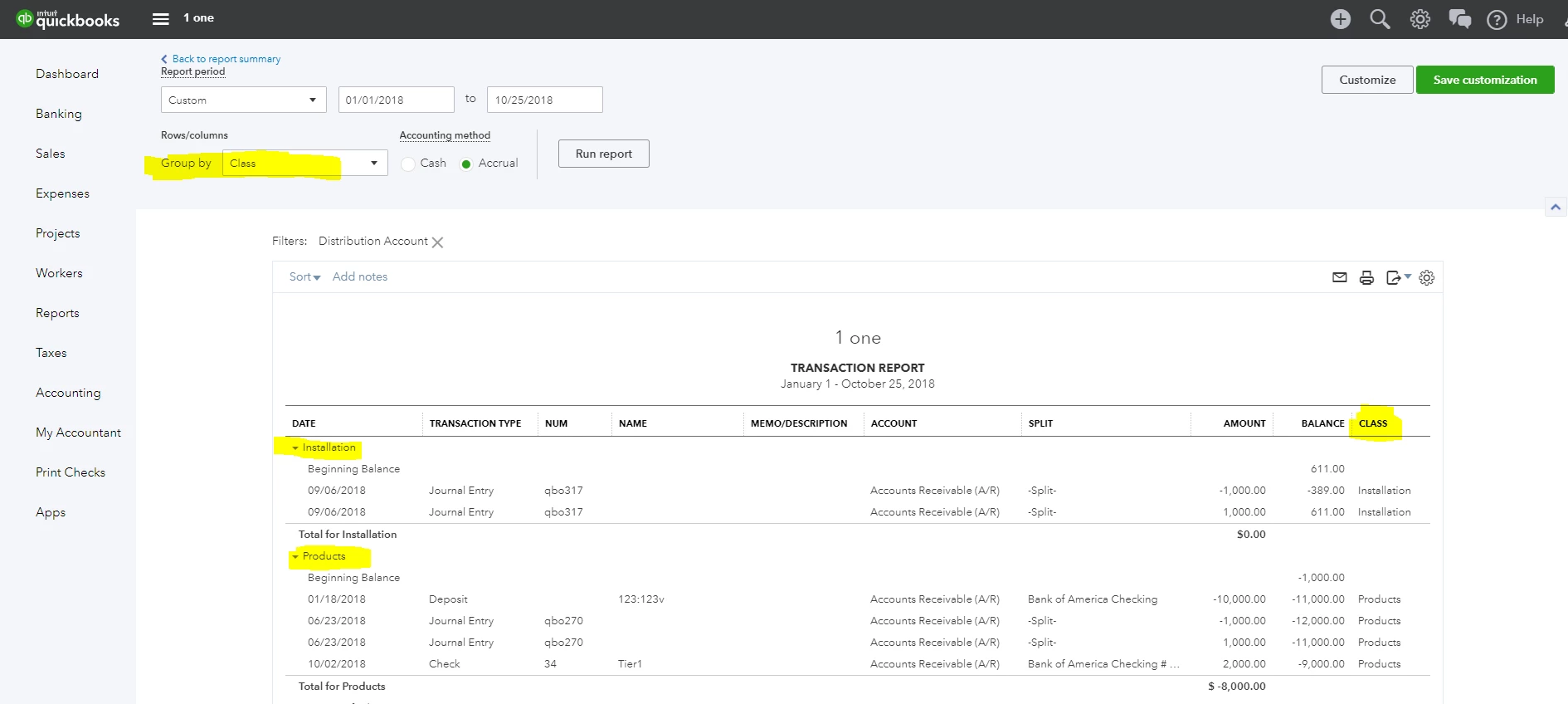
The workaround is to run the Account Receivable transaction report from the Balance Sheet (Run the Balance Sheet report and click the Account Receivable balance amount link). You can Group this report by Class. You can also customize and add a Class column to the report. But it will in AR detail format, not AR Aging format. See screenshot below for reference.

.
25 replies

vpcontroller
Level 7
October 25, 2018

Currently, such an option to run the A/R Aging by Class report is not available in QBO yet.
The workaround is to run the Account Receivable transaction report from the Balance Sheet (Run the Balance Sheet report and click the Account Receivable balance amount link). You can Group this report by Class. You can also customize and add a Class column to the report. But it will in AR detail format, not AR Aging format. See screenshot below for reference.

.

August 20, 2024

I can generate an A/R report and add Class as a column, but the Class included in Invoices won't appear in the report.  My Invoices "hide" the class, could this be the issue and if so, how can 'unhide' them to see if that is the issue?

QuickBooks Team
August 20, 2024

Thanks for your active participation and for providing more details about your scenario, Shirley. The Class included in the invoices won't show in the A/R report due to the nature of the report. Let me share a workaround and help you send feedback to our product developers.


The Class included in invoices is hidden for internal tracking purposes and will not be visible on printed or emailed invoices. It does not affect the reports.


In the meantime, you can utilize the Accounts Receivable Transaction Report in the Balance Sheet and customize this report to group by Class as a workaround.


Here’s how you can do it:


  1. Navigate to the Reports section.
  2. Open the Balance Sheet report.
  3. Click on the Accounts Receivable balance amount to drill down.
  4. Go to Columns and hit the Class checkbox.


Please note that this will be in AR detail format instead of AR Aging format. I've included a screenshot for your reference.


I completely understand the value of Class displayed directly in the A/R report. Your feedback is invaluable, and I encourage you to share your suggestions with our product developers. They genuinely appreciate customer insights and exploring ways to enhance the product.


To send your input, here's how:


  1. Open your QBO account.
  2. Go to the Gear icon and select Feedback.
  3. Type in your suggestions and then click on Next.


To keep updated on the product's latest release and updates, you can check out this article: QuickBooks Blog. 


Furthermore, I suggest bookmarking these articles for managing your invoices and categorizing various segments of your company:


Keep me posted if you have other questions or concerns about your reports in QBO. Comment below or create a new post. I’m happy to help you with anything you need in QuickBooks.