
SUMMER SAVINGS 90% OFF QuickBooks for 3 months* Ends 8/27

Buy now

Switch to QuickBooks and 70% off for 3 Months
Sep 16, 2020 5:35 PM UTC
Solved

Change the "Print As" in a Cheque

I'm using QB Enterprise. How do I change the Print As in the Cheque. I've already changed the Vendor Name, and it's still showing up as the "old name"

Thank you.

DivinaMercy_N
Moderator
Sep 16, 2020 7:18 PM UTC

I'm here to ensure you can change the Print As in Cheque, @Abskiboo.


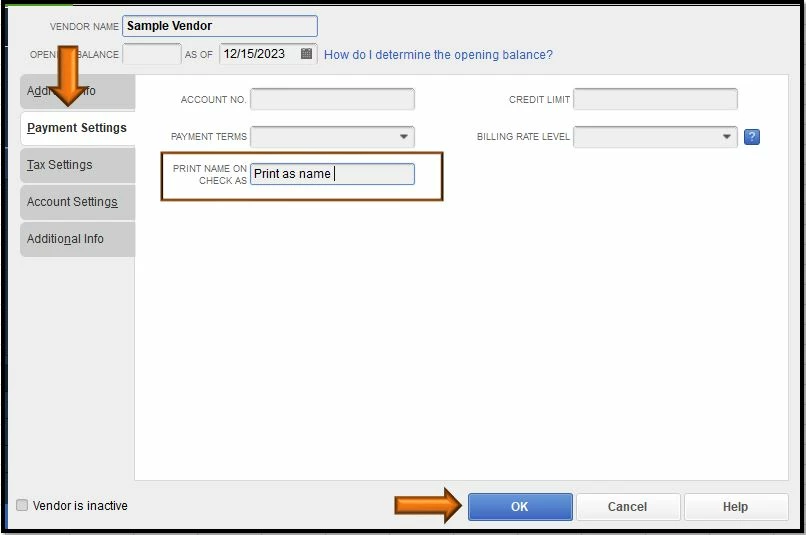
To do so, you'll need to change the name on the Print name on check as field. Here's how:
 

  1. Go to the Vendors menu.
  2. Select Vendor center.
  3. Double click the vendor's name you want to create a check with.
  4. Choose Payment Settings.
  5. In the Print Name on check as field, enter the name you want to appear in Print As.
  6. Once done hit OK.


For more details please see this article: Create, modify, and print cheques. 


To learn how the system builds transactions and reports, you can visit the Targets vs. Sources overview page. 


Let me know if there's anything else you need in creating checks in QuickBooks Desktop. I'm always right here to help. Take care always. 

2 replies

DivinaMercy_N
Moderator
Sep 16, 2020 7:18 PM UTC

I'm here to ensure you can change the Print As in Cheque, @Abskiboo.


To do so, you'll need to change the name on the Print name on check as field. Here's how:


  1. Go to the Vendors menu.
  2. Select Vendor center.
  3. Double click the vendor's name you want to create a check with.
  4. Choose Payment Settings.
  5. In the Print Name on check as field, enter the name you want to appear in Print As.
  6. Once done hit OK.


For more details please see this article: Create, modify, and print cheques. 


To learn how the system builds transactions and reports, you can visit the Targets vs. Sources overview page. 


Let me know if there's anything else you need in creating checks in QuickBooks Desktop. I'm always right here to help. Take care always. 

AbskibooAuthor
Sep 30, 2020 10:24 PM UTC

Thank you so much. Sorry for the delayed response, couldn't log in to this site. =)