BLACK FRIDAY SALE 70% OFF QuickBooks for 3 months* Ends 11/29

Buy now
Switch to QuickBooks and 70% off for 3 Months
Jun 16, 2025 7:29 PM UTC
Question

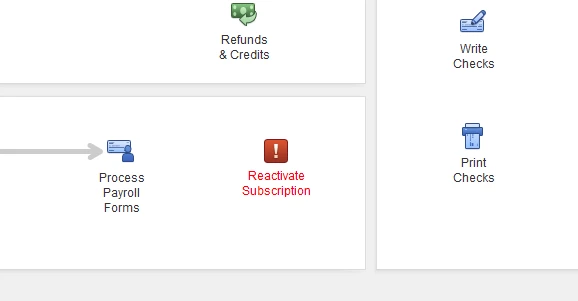
My Reactivate Subscription won't update.

When I go to click Reactivate Subscription and sign in there's nothing to reactivate? I'm not sure what else to do. I've checked the cards, and none that we are using currently are expired. No matter how many times I check or click the reactivate it doesn't go away. 


9 replies

Jun 16, 2025 8:23 PM UTC

I appreciate your effort in providing the screenshot to help isolate the issue, noemii.

To remove the Reactivate Subscription icon on your screen, it depends on your QuickBooks Desktop Payroll subscription.


If you're using QuickBooks Desktop Assisted, I suggest contacting our Payroll support team. They have the tools that can check your account internally and guide you in solving your concerns.


Here's how:


  1. Click the Help tab at the top menu bar and select QuickBooks Desktop Help,
  2. Choose Contact Us and enter the necessary information.
  3. Press Get a callback.


However, if you're using QuickBooks Desktop (QBDT) Enhanced or Basic, please follow these steps:


  1. In your QuickBooks Desktop company file, go to Employees and select My Payroll Service.
  2. Click Account/Billing Info.
  3. Sign in using your Intuit Account login, and then your QuickBooks Account page will open.
  4. Under Status, choose Resubscribe.
  5. Follow the on-screen steps to reactivate your payroll service.


If the status of your payroll subscription is active, we need to validate your service key by following the steps below:


  1. Close all your company files and restart your computer.
  2. Open QuickBooks, go to Employees, select My Payroll Service, then Manage Service Key.
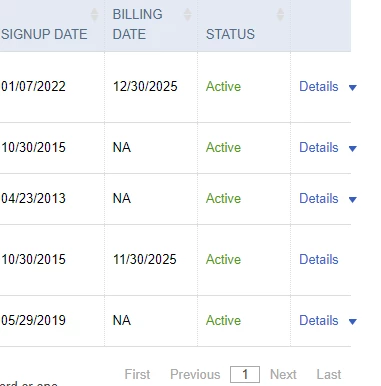
  3. Your Service Name and Status should be correct and will show as Active.
  4. Select Edit and verify the service key number. If incorrect, enter the correct service key.
  5. Select Next, uncheck the Open Payroll Setup box, then select Finish.


Alternatively, I've included these resources that will guide you through running employee wages and their pay schedules:


The Community is always here to help if you have other questions or concerns about QuickBooks Desktop Payroll subscriptions.

New Member
Nov 17, 2026 7:37 AM UTC

Nope. Doesn’t work.  I do not have an option to “reactivate” only one to upgrade because everywhere, accept the payroll splash screen, my payroll account says active.  Only on the splash screen does it say “reactivate” but when I select that link, it takes me to my sign in and once in, it shows the payroll key active. It’s is maddening.  I can not get my payroll run because it will not calculate the payroll tax.  I can’t delete the key and reenter because I have to CALL to remove direct deposit first.  So a two hour phone call is in my future if I want payroll  access again.  I am supposed to have a dedicated agent, but when I try to email, it kicks back as not a good email address.  Honestly, I am so over everything QB.  They took a product that USED TO BE helpful and turned it into a nightmare. 

SIAB
Level 2
Nov 17, 2026 11:16 AM UTC

​@Kelly61 Enhanced Payroll? When is your renewal date? If you can log in to CAMPS and find your license there, you should be able to reactivate it through ProAdvisor and receive a discount.

Aug 13, 2025 12:03 PM UTC

I have the same problem 

SIAB
Level 2
Aug 13, 2025 12:41 PM UTC

@Rob3348 

Do you need to reactivate QB Desktop or QB Desktop Payroll (Enhanced Payroll)?

Moderator
Aug 13, 2025 1:43 PM UTC

I appreciate you letting us know about your situation, Rob.
 

To confirm, are you using the QBDT Payroll Assisted? If so, I recommend contacting our Payroll Assisted Team. They're the authorized personnel who can reactivate your account under this plan.
 

On the other hand, if you're using QBDT Payroll Enhanced or Basic subscriptions, have you already tried the steps provided by my colleague above? If yes, I recommend using the alternative way of the reactivation process: 


  1. Log in to your Intuit account through this link: Intuit Accounts - Sign In.
  2. Under Status, select Resubscribe.
  3. Follow the on-screen instructions to reactivate your payroll plan.


It's essential to note that you must have a supported QBDT version (2023 and 2024) to renew your payroll service successfully.


The reactivation takes up to 24 hours. Once the overall processing is complete, your subscription will show as Active. For more information about this topic, check out this article: Reactivate your payroll subscription.


If the issue persists, I suggest contacting our Payroll Support Team so they can investigate your inability to reactivate your payroll service accordingly.


Once you have follow-up questions, kindly revisit this thread.

Oct 4, 2025 12:24 PM UTC

After updating billing information, my subscription still will not reactivate.

SIAB
Level 2
Oct 4, 2025 12:44 PM UTC

@mbagci1 

QB Desktop 2024?

Is your license status Canceled?

When was your license due date?

QuickBooks Team
Oct 4, 2025 2:45 PM UTC

Thank you for joining this thread, mbagci1. Let me help you reactivate your subscription to ensure your business continues seamlessly.


To begin, let's confirm the billing information linked to your QuickBooks account is accurate and matches the details on your payment method.


Also, have you tried the steps shared by my colleague @JayneusR? If you haven't, I encourage you to do so to help isolate the problem.


Next, verify the current status of your subscription by logging in to your Intuit Account. If your subscription still appears inactive or requires resubscription, select Resubscribe and follow the prompts carefully.


Please ensure that you are using a supported version of QuickBooks Desktop to reactivate your subscription successfully.


After updating your billing information or resubscribing, please note that it may take up to 24 hours for the system to process your reactivation.


If you have followed these steps and the issue persists, I recommend contacting our live support team directly. They have the tools to securely review your account and provide personalized support to resolve this as quickly as possible.


If you have any additional questions, please don't hesitate to reply below.